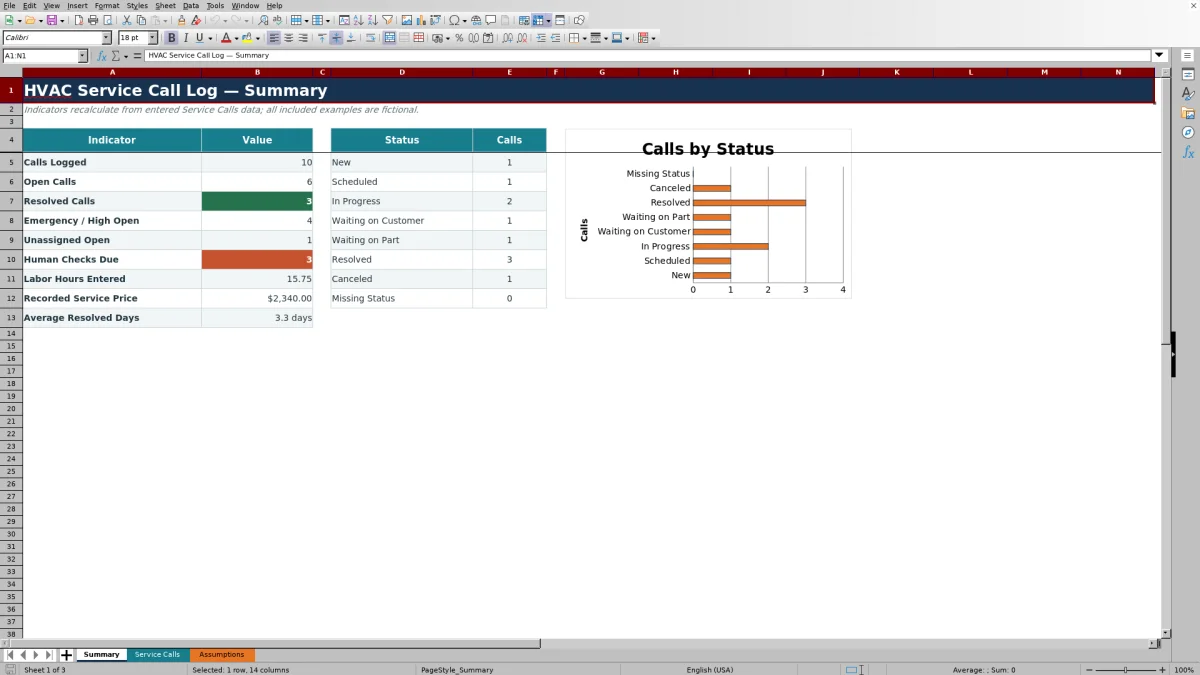
This HVAC service call log organizes intake, assignment, work details, and resolution in one working row per call. The Excel workbook includes space for 100 service-call entries.
Use the calculated age, human-check prompt, and summary indicators to find calls needing attention. The XLSX supports office review; it does not dispatch technicians, send alerts, or verify field work.
How this template can help
- Keeps each call’s intake details, assignment, work notes, and outcome together.
- Separates priority, technician, status, and responsibility for clearer follow-up.
- Flags aging open calls according to editable priority thresholds.
- Summarizes call volume, open workload, labor hours, recorded service price, and resolved cycle time.
What the workbook contains
How to get started
1. Prepare a clean working copy
Save a separate copy of the XLSX before editing it. The example customers, sites, technicians, equipment, and calls are fictional. Replace or clear the editable entries in columns A through O on the Service Calls sheet. Keep the formula columns intact. Age / Cycle Days and Human Check are already calculated in columns P and Q through row 104.
2. Review the operating choices
Open Assumptions and replace the fictional technician names with your own approved choices. Review the priority ages, status list, responsibility list, date range, maximum labor hours, and maximum cost or price. Retain the key labels Resolved, Canceled, Emergency, and High if you want the existing Summary formulas to keep their intended meaning.
3. Enter each incoming call
On Service Calls, complete the Call ID, Received Date, Customer, Job / Site, Equipment, Symptom / Description, Priority, Technician, Status, and Responsibility fields as information becomes available. Use one Call ID per service call. The workbook does not enforce unique IDs, so check for duplicates before adding a new row.
4. Update work and close the record
Add Labor Hours, Parts / Other Cost, Recorded Service Price, and the Resolution / Work Note when known. For a resolved or canceled call, enter the Closed Date and update Status. Review the calculated age and Summary sheet before deciding which open call needs assignment, customer contact, part follow-up, or management review.
Capture the Service Call Before Dispatch
Record the incoming facts first. Give the call a unique Call ID and enter the Received Date, Customer, Job / Site, Equipment, and Symptom / Description. These fields help the dispatcher distinguish similar calls and give the assigned technician useful context.
Describe the reported symptom without presenting it as a confirmed diagnosis. For example, enter No cooling; outdoor unit is not running rather than Failed compressor unless a qualified person has confirmed that condition. Keep access instructions, personal information, and equipment identifiers only when your operating policy requires them, and control who can access the file.
A row without a Call ID is not included in Calls Logged, even if other cells contain information. The workbook also does not test Call ID uniqueness, so duplicate IDs require manual correction.
Set Priority, Assignment, and Responsibility
Priority drives the review threshold. The supplied Assumptions values call for review at 1 day for Emergency, 2 days for High, 5 days for Standard, and 10 days for Low. These ages are editable operating prompts, not response guarantees or safety classifications.
Select a Technician when responsibility has been assigned. Use Responsibility to distinguish Contractor, Customer, Manufacturer Review, or Undetermined. An open row with no technician contributes to Unassigned Open on Summary, giving the dispatcher a direct list condition to address.
Status choices include New, Scheduled, In Progress, Waiting on Customer, Waiting on Part, Resolved, and Canceled. Update the status when the next action changes so the summary reflects the current workload rather than the original intake condition.
Worked HVAC Service Call Example
Assume the fictional examples have been cleared and a coordinator logs one call for Fictional Cedar Market. The call was received on 03/10/2026 with High priority and assigned to Jordan Sample. After 2.50 labor hours and $180.00 of parts or other cost, the call is marked Resolved with a Closed Date of 03/13/2026 and a Recorded Service Price of $540.00.
Workbook result: Age / Cycle Days returns 3 because the closed date is three calendar days after the received date. Human Check is blank because the call is no longer open. Summary shows 1 call logged, 0 open calls, 1 resolved call, 2.50 labor hours, $540.00 in recorded service price, and an average resolved time of 3.0 days.
The three-day result measures the interval between the entered dates; it does not prove three full days of repair labor. Compare it with your internal service expectations and read the Resolution / Work Note before deciding whether scheduling, diagnosis, part availability, or another process needs follow-up. The workbook records the $180.00 cost but does not calculate labor cost, total direct cost, or margin.
Read the Summary Without Misinterpreting Results
Calls Logged counts rows with a Call ID. Open Calls includes logged rows whose status is neither Resolved nor Canceled. Separate indicators identify resolved calls, open Emergency or High calls, open calls without a technician, Human Checks Due, labor hours entered, recorded service price, and average resolved days.
A zero is not always no activity. Labor Hours Entered and Recorded Service Price are sums, so blank source cells contribute nothing and can leave a zero even when work occurred but was not entered. Average Resolved Days is blank when there are no resolved rows with a numeric cycle result, including a resolved row missing its Closed Date.
The status area and chart count the configured statuses and rows with a missing status. Use them for workload review, but confirm the underlying Service Calls rows before acting because a mistyped, blank, or outdated status changes the summary.
Use Age and Human-Check Prompts
For an open call, Age / Cycle Days is the nonnegative calendar-day difference between the Received Date and the current date when Excel recalculates. For a Resolved or Canceled call, it uses the Closed Date instead. Missing required dates leave the result blank.
Review is a prompt, not an alert. An open call shows Review when its calculated age reaches the threshold for its priority. For example, an open High call reaches Review at 2 days under the supplied assumptions. The workbook does not send a message, escalate the call, contact the customer, or assign a technician.
Human Checks Due on Summary counts only cells showing Review. A Human Check value of Check priority is not included in that total, so inspect column Q directly when validating the log.
Common Entry Errors and Corrections
- If Human Check displays Check priority, select an exact Priority value from the dropdown. A custom or misspelled value cannot be matched to the review-age list.
- If Age / Cycle Days is blank, confirm that the row has a Call ID and Received Date. A resolved or canceled row also needs a Closed Date.
- If the age is unexpectedly zero, inspect the dates. The formula prevents a negative result, so a future Received Date or a Closed Date before the Received Date can appear as zero rather than exposing the sequence error.
- If Summary reports Missing Status, locate a row that has a Call ID but no Status and select the current status.
- If Unassigned Open is higher than expected, filter open calls and check for blank Technician cells.
- If Excel rejects an entry, compare it with the supplied validation limits: dates from 01/01/2024 through 09/12/2027, no more than 100 labor hours per call, and no more than $100,000.00 in a cost or price cell. Adjust the editable limits on Assumptions only when your operating practice requires a different range.
Pasted values and overwritten formulas can still require manual inspection. If a calculated column was replaced, compare it with a clean copy of the workbook before relying on the summary.
Workbook and blank spreadsheet comparison
Use the prepared workbook when its verified fields and calculations fit the HVAC task. Start with a blank spreadsheet when you need a different model and can build and test every field and formula yourself.
| Method | Setup | Calculations and review | Practical fit |
|---|---|---|---|
| This Excel workbook | Use the prepared structure in the validated file | Review the documented calculations and results | Local editable workflow supported by the workbook |
| Blank spreadsheet | Create the structure yourself | Build and test every formula and check | A custom model built from scratch |
Workbook Limits and Record Control
The supplied formulas, validation, filters, and summary ranges cover Service Calls rows 5 through 104. Adding rows below that range does not automatically prove that calculations, validation, summary indicators, or the chart have been extended. Use a backup and test every affected range before increasing capacity.
This workbook does not calculate labor cost from labor hours, combine cost and price into profit, process payment, maintain inventory, route technicians, monitor equipment, document field test results, or establish code or safety compliance. Recorded Service Price is an entered amount, not an invoice or proof of collection.
Treat the file as an operational record containing potentially sensitive customer, employee, site, equipment, pricing, and cost information. Limit access, store copies according to your company policy, and use clearly dated versions because no built-in audit trail or version history is verified.
Frequently asked questions
Can this Excel log hold more than 100 service calls?
The provided entry area covers 100 rows, from row 5 through row 104. Expanding it requires extending the Age / Cycle Days and Human Check formulas, input validation, Summary ranges, filtering range, and any affected chart source. Test an expanded copy before using it for active calls.
Does the workbook notify or dispatch a technician?
No. Technician is a recorded assignment field, and Human Check is an in-workbook prompt. The XLSX does not send messages, create appointments, route technicians, or automatically escalate calls.
How does Age / Cycle Days work?
For an open call with a Call ID and Received Date, the field uses the current date when Excel recalculates. For a Resolved or Canceled call, it uses the Closed Date. The result is a nonnegative calendar-day difference; missing required dates produce a blank.
Can I change the priorities and statuses?
The priority review ages and list values are editable on Assumptions. However, existing Summary formulas specifically use Emergency, High, Resolved, and Canceled. Renaming or removing those labels can change open-call and priority results, so make structural changes in a test copy and verify every indicator afterward.
Does the service call log calculate job profit?
No. The workbook records Labor Hours, Parts / Other Cost, and Recorded Service Price, but it does not apply a labor rate or calculate total direct cost, gross profit, markup, or margin. Use the entered figures only as service-call records and transfer approved amounts to the appropriate estimating or accounting process separately.
Editorial responsibility

Mara KeeneService operations editor

Owen CalderEstimating and controls editor