This editable Excel workbook connects each registered HVAC asset to a dated service record. Record work descriptions, parts or readings, labor, costs, status, follow-up dates, and notes.
Use the Summary to review activity across the included records, then return to the Equipment or Service Log worksheet when an asset, cost, status, or follow-up needs attention.
How this template can help
- Keeps equipment records and dated service entries connected by Equipment ID.
- Calculates parts cost, labor cost, and total recorded service cost from entered values.
- Flags missing information and overdue non-completed follow-up rows for human review.
- Summarizes service status, labor hours, costs, recorded prices, and latest service activity.
What the workbook contains
How to get started
1. Review the working assumptions
Open Assumptions first and replace the fictional setup. Review technician names, default labor rates, date and numeric limits, the follow-up horizon setting, and the lists used for status, responsibility, unit, and equipment status. These are editable operating assumptions, not approved rates or technical limits.
2. Register each asset
On Equipment, assign a unique Equipment ID and enter the customer, equipment description, in-service date, responsibility, and equipment status. The supplied range provides 100 equipment rows. Service Entries and Recorded Service Cost are calculated from dated Service Log rows that use the matching ID.
3. Enter each service event
Use one row per service entry on Service Log. Enter the Service Date, Job ID, Equipment ID, technician, service description, notes, quantity or reading, unit, applicable cost information, responsibility, status, and follow-up date. Customer and Equipment Description fill from the equipment register after Excel recalculates.
4. Review results before acting
Check calculated costs and the Review Alert column before relying on the Summary. Resolve missing dates, unmatched equipment IDs, missing statuses, and unavailable technician rates. Use filters to inspect an asset or arrange entries by Service Date; the workbook does not automatically sort the history.
Connect service work to the correct equipment
The Equipment ID is the link between Equipment and Service Log. When a valid ID is selected on a service row, the workbook looks up the associated Customer and Equipment Description. This helps distinguish two units at the same customer location without repeatedly typing the asset description.
Equipment also counts dated service rows for each ID and sums their calculated Total Cost values. A zero in Service Entries means no dated matching row was found. A blank Recorded Service Cost can mean the asset has no dated entries or that its matching entries do not contain calculated costs; it should not automatically be interpreted as a confirmed $0 service history.
Understand the service cost calculations
Parts Cost multiplies Quantity or Reading by Unit Cost when both values are present. Labor Cost multiplies Labor Hours by the default Labor Rate associated with the selected technician. Total Cost adds the available parts and labor amounts.
A total can therefore be partial. If a row contains labor but no parts values, Total Cost can show labor only. If Labor Hours are entered but the technician has no matching rate, the labor amount remains blank and the Review Alert requests a rate check.
Quantity or Reading serves two purposes. For a measurement such as 18 °F, select the appropriate unit and leave Unit Cost blank unless the value truly represents a billable quantity. Otherwise, the workbook will multiply the reading by the entered unit cost and treat the result as Parts Cost.
Worked service-entry scenario
Assume a fictional contractor has added technician Riley Brooks to Assumptions with a default labor rate of $118.00 per hour. On 07/18/2026, Riley services equipment EQ-DEMO-014. The row records four filters at $18.50 each, 1.50 labor hours, a Recorded Price of $290.00, and a Completed status.
- Parts Cost is 4 × $18.50, or $74.00.
- Labor Cost is 1.50 × $118.00, or $177.00.
- The workbook returns a $251.00 total cost.
The matching equipment record gains one dated service entry and $251.00 of recorded service cost. The $39.00 difference between Recorded Price and Total Cost may be useful for review, but the workbook does not calculate margin or account for overhead, taxes, fees, discounts, or other job costs. Confirm that all intended costs were entered before making a pricing decision.
Use status and follow-up results correctly
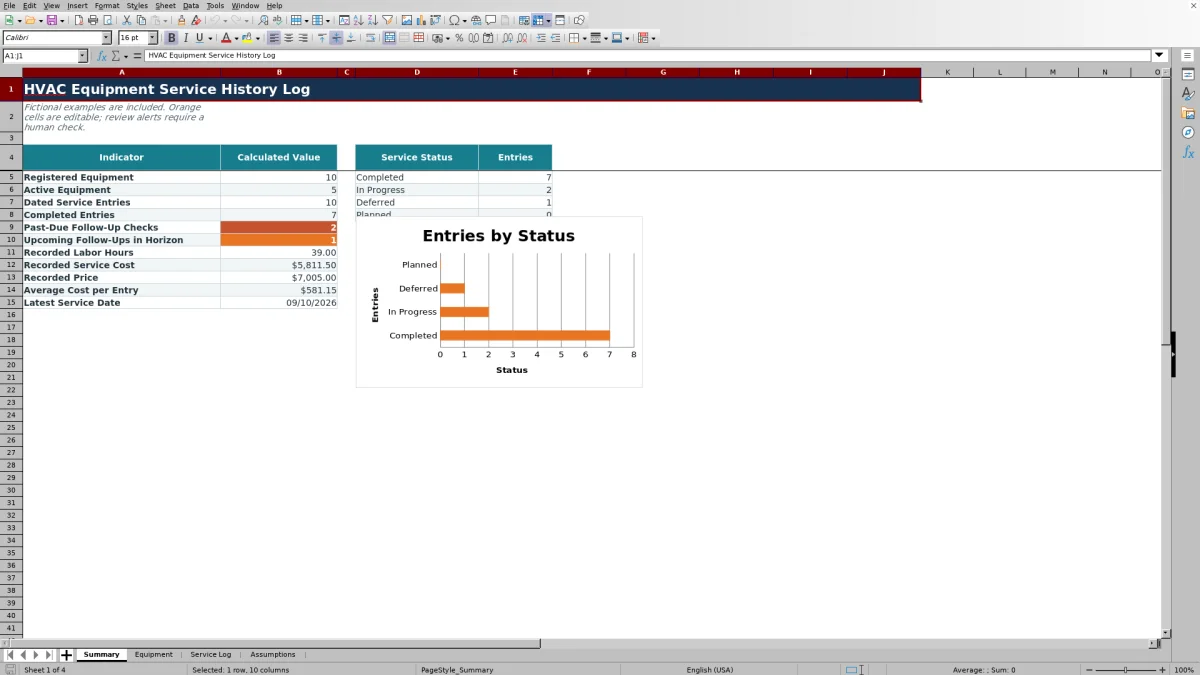
The Service Log supports Completed, In Progress, Deferred, and Planned statuses from the Assumptions list. Summary counts dated entries in those four categories and displays them in the status chart.
An overdue follow-up on a row that is not Completed can produce “Follow-up check” in Review Alert. This is a review cue, not a notification. The workbook does not send a message or assign work. The Summary also counts non-completed follow-up dates from today through the editable horizon used by its formula, provided the row has a Service Date.
Because the formulas use Excel's current date, results can change when the workbook is opened and recalculated. Review the underlying service row before scheduling work; a stale status or incorrect follow-up date can change the count.
Read the Summary without overlooking incomplete records
Summary reports registered and active equipment, dated and completed service entries, past-due and upcoming follow-ups, recorded labor hours, service cost, recorded price, average cost per entry, and the latest Service Date.
Some results intentionally remain blank when the required numeric source data is absent. Average Cost per Entry divides total recorded service cost by the number of dated service entries. If dated rows have blank or partial costs, the average can understate the actual cost of those visits even though the formula produces a number.
Latest Service Date is the most recent valid date in the supplied Service Log range. An undated row is excluded from that result and from several Summary counts, so resolve “Check service date” alerts before using the dashboard for workload review.
Common entry errors and practical corrections
- “Check service date”: enter a valid date within the earliest and latest limits in Assumptions.
- “Check equipment ID”: select an ID that exists on Equipment. If Customer and Equipment Description remain blank, inspect the ID for a mismatch.
- “Check status”: choose one of the listed service statuses so the row can be counted consistently.
- “Check technician rate”: add or correct the technician and default rate in Assumptions, then recalculate.
- An unexpected Parts Cost on a reading-only row: remove Unit Cost unless the reading is also an actual billable quantity.
- An overdue row is missing from the past-due count: correct earlier issues first. The Review Alert shows higher-priority date, equipment, status, or rate problems before it shows “Follow-up check.”
Data validation helps guide entry, but pasted data can bypass some Excel validation behavior. Check filters, alerts, and calculated columns after importing or pasting records.
Comparison: Excel log, blank sheet, or service system
| Criterion | This Excel workbook | Blank spreadsheet | Field-service management system |
|---|---|---|---|
| Starting structure | Includes linked Equipment and Service Log worksheets, assumptions, and a Summary. | Fields, formulas, lists, and review rules must be designed by the user. | Structure depends on the selected system and its configuration. |
| Cost handling | Calculates entered parts cost, labor cost, total cost, and asset-level recorded service cost. | Requires user-built calculations. | Confirm which costs and pricing methods the selected system supports. |
| Follow-up handling | Shows date-based review alerts and Summary counts after recalculation; it sends no notifications. | Requires user-built dates, formulas, and review steps. | Evaluate available workflow and notification functions before choosing a system. |
| Supplied capacity | Contains formula and validation ranges for 100 equipment rows and 100 service rows. | Capacity is set by the user, along with the required maintenance. | Capacity and record controls vary by provider and plan. |
| Practical fit | Fits a controlled, editable local log when staff can maintain one workbook. | Fits a business that needs a fully custom layout and can build and test it. | Consider this route when requirements such as multiuser workflow, mobile entry, or broader operations justify evaluating dedicated software. |
Choose this workbook when its supplied fields, calculations, and 100-row ranges match the task. Start from a blank sheet for a substantially different workflow. Evaluate a field-service system when the business needs capabilities beyond a manually maintained XLSX, verifying those capabilities directly with the provider.
Workbook limits and record handling
This file is an operational record, not an engineering, safety, code, accounting, tax, environmental, legal, or licensing determination. It does not size equipment, verify readings, certify maintenance, prove compliance, process payments, reduce inventory, or submit records to another system.
The supplied formulas, validations, filters, conditional formatting, and Summary references cover rows 5 through 104. Adding records beyond those 100 equipment and 100 service rows requires careful extension of the affected ranges. Test lookups, cost totals, alerts, Summary indicators, and filters after modifying the layout.
Recorded Price is stored separately from Total Cost, and no profit or margin result is provided. Protect customer names, technician information, pricing, property-access details, equipment identifiers, and any sensitive notes. Store the XLSX in an access-controlled location and avoid entering information that the service-history task does not require.
Frequently asked questions
Can the workbook track several HVAC units for one customer?
Yes. Create a separate unique Equipment ID for each unit and repeat the customer name as needed. Service rows use the Equipment ID to retrieve the matching customer and equipment description, so each asset maintains its own entry count and recorded service cost.
How should I record multiple parts used on one job?
Each supplied service row has one Quantity or Reading, Unit, and Unit Cost combination. For line-level part costs, use separate rows with the same Job ID, Service Date, and Equipment ID. Enter labor on only the appropriate row to avoid counting it more than once. Remember that Summary treats each dated row as a service entry, not as a unique job.
Does Recorded Price calculate profit or margin?
No. Recorded Price is a separate entered amount. The workbook does not subtract Total Cost from price or account for overhead, taxes, discounts, fees, or other job costs. Use qualified accounting review and your own costing policy before interpreting the figures.
Will the follow-up date send a reminder?
No. The workbook uses the follow-up date, service status, current date, and editable horizon to display review results after recalculation. Someone must open the file, inspect the relevant rows, and take the next scheduling or customer-contact action outside the workbook.
Can I extend the equipment or service history beyond 100 rows?
You can adapt the XLSX, but the supplied formula and validation ranges end at row 104, leaving 100 working rows on Equipment and Service Log. Extending the file requires updating and testing formulas, validation, formatting, filters, and Summary references so added records are not silently omitted.
Editorial responsibility

Mara KeeneService operations editor

Owen CalderEstimating and controls editor