This editable Excel workbook organizes up to 100 prepared service-call rows for daily HVAC dispatch planning.
Enter each call, select a technician, and use the calculated prompts and summary for human scheduling review before confirming the assignment.
How this template can help
- See active, unassigned, same-day, and near-term calls without recounting the dispatch board.
- Compare each call’s required skill and service zone with the selected technician’s roster details.
- Identify incomplete assignments and duplicate technician, date, and time-window combinations.
- Review active planned labor hours and call counts by status before updating the schedule.
What the workbook contains
How to get started
1. Replace the planning examples
Open Assumptions and replace the fictional technician names, primary skills, primary zones, and availability entries in the roster. Review the maximum labor hours per call, near-term planning window, and allowed service-date range. Keep technician names unique because the lookup returns the first exact match.
2. Enter the service calls
On Dispatch Board, use one row per call in columns A through N. Enter a Call ID, service date, time window, customer, location, service zone, job type, equipment, required skill, work description, estimated labor hours, responsibility, and status. Select an assigned technician when the dispatcher is ready to evaluate a match.
3. Review the assignment prompts
Preserve the formulas in columns O through S. These calculated review columns retrieve the technician’s roster details and display Assignment Check and Time Check results. Investigate every check message rather than changing an input only to remove the prompt.
4. Use the summary during dispatch
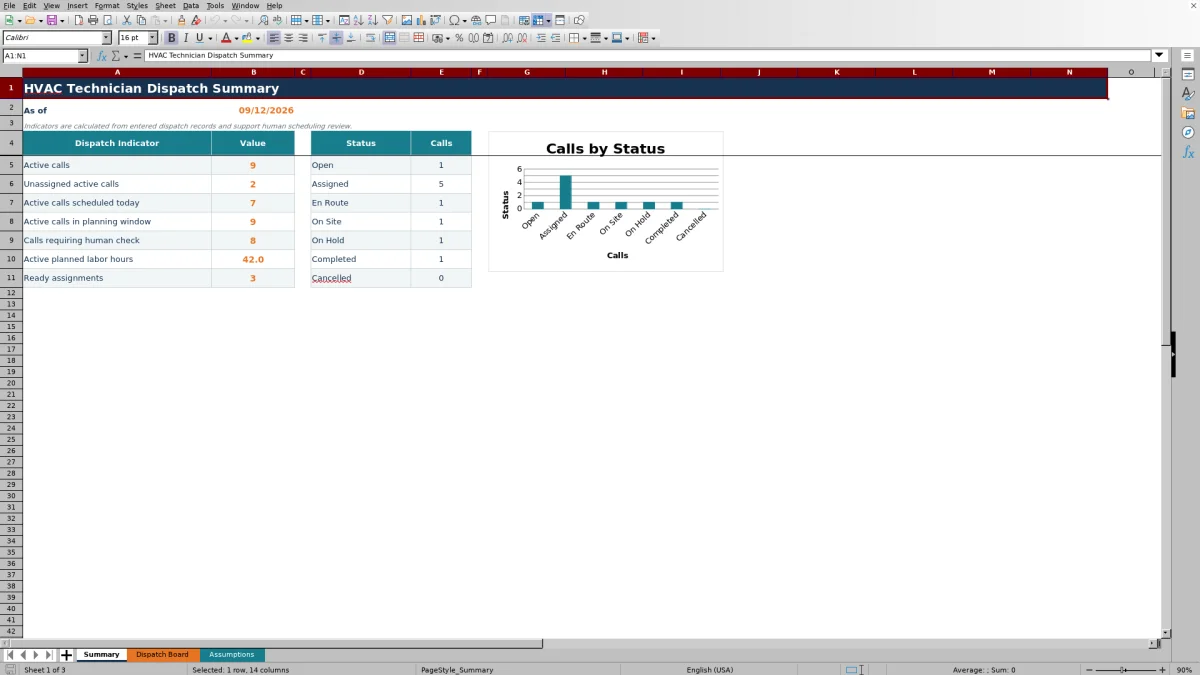
Review Summary for active calls, unassigned work, calls scheduled today, calls inside the planning window, planned labor hours, ready assignments, and status counts. Return to Dispatch Board, filter the records as needed, and update Status as work progresses.
Build a Usable Daily Dispatch Queue
Start with a unique Call ID for every service request. The Summary calculations require that ID before treating a row as an active call. Use Service Date and Time Window to place the visit, then record Service Zone, Job Type, Equipment, and Required Skill so the dispatcher has enough context to choose a technician.
Est. Labor Hours represents the planned time for the call. It contributes to the active planned labor total when the call has an ID and is not Completed or Cancelled. Responsibility is an operational label from the workbook’s editable list; it does not determine contractual or payment responsibility.
Customer, Service Location, and Work Description can contain sensitive information. Limit access to the XLSX, avoid unnecessary access instructions or personal details, and follow the company’s record-retention practices.
Review Technician Skill, Zone, and Availability
Selecting an Assigned Technician does not automatically approve or optimize the assignment. The workbook looks up that name on Assumptions and returns Technician Skill, Technician Zone, and Technician Availability on the Dispatch Board.
Use those returned values as a planning match against the call’s Required Skill and Service Zone. Assignment Check also identifies missing planning inputs and conditions that need attention. A ready result means the entered data passed the workbook’s checks; it does not verify credentials, field capability, travel feasibility, safety requirements, or code obligations.
Availability is a manually maintained roster value, not a live calendar. Update it when staffing changes, and confirm the technician’s actual schedule before dispatching the call.
Worked HVAC Dispatch Scenario
Assume an otherwise empty copy of the board, with the Summary date showing 10/14/2026. The Assumptions sheet lists fictional technician Riley with a primary skill of Condensate & Drain, a South zone, and Available status. The maximum planned labor limit remains 12 hours.
Enter fictional call FIC-CALL-204 for 10/14/2026, choose the 1:00 PM - 3:00 PM window, South zone, Water Leak job type, Air Handler equipment, Condensate & Drain skill, 1.5 estimated labor hours, fictional technician Riley, and Assigned status. Assume Riley has no other active call with that same date and time-window label.
Workbook result: The roster columns return Riley’s listed skill, zone, and availability. Assignment Check returns Ready for human review, while Time Check returns No matching window overlap. Summary shows one active call, zero unassigned active calls, one active call scheduled today, 1.5 active planned labor hours, and one ready assignment.
The result indicates that the entered assignment is internally consistent with the workbook’s roster and planning rules. The next decision is to confirm actual availability, travel time, customer access, and job requirements before sending or communicating the assignment outside the workbook.
Common Dispatch Errors and Corrections
- Blank Call ID: The calculated cells remain blank, and active-call indicators exclude the row. Add a unique ID before relying on Summary.
- Check technician list: The assigned name does not match the roster exactly. Correct the name or add the technician to the Assumptions roster.
- Check status, date or time window, service zone, required skill, or labor estimate: Complete the named input and use an allowed list value or date.
- Assign technician: The call is active but Assigned Technician is blank. Review the roster and select a technician if the call is ready to schedule.
- Check time overlap: The same technician appears on more than one active row with the same service date and identical time-window text. Review both calls before changing either assignment.
A zero for Active planned labor hours does not necessarily mean there are no calls. It can also appear when no active row has a numeric labor estimate. Compare that figure with Active calls and inspect any labor-estimate prompts.
Read the Summary Without Misinterpreting It
The As of date uses Excel’s TODAY function. Active calls require a Call ID and exclude Completed and Cancelled statuses. Unassigned active calls apply the same conditions and also require Assigned Technician to be blank.
Active calls scheduled today match the current date. Active calls in planning window include dates from today through the number of days entered on Assumptions; the provided value is two days. Active planned labor hours add Est. Labor Hours for calls that have an ID and are not Completed or Cancelled.
Calls requiring human check counts active rows with an assignment prompt, an Assign technician result, or a time-check warning. Ready assignments counts active rows whose Assignment Check is Ready for human review.
Status counts are based directly on the Status column. If someone enters a status but leaves Call ID blank, that row can appear in a status count while remaining absent from the active-call indicators. Complete or clear partial rows when the totals appear inconsistent.
Excel Dispatch Board Comparison
| Criterion | This Excel workbook | Blank spreadsheet | Field-service management system |
|---|---|---|---|
| Initial structure | Prepared fields, lists, roster lookups, checks, and summary calculations for 100 call rows. | The user must design fields, formulas, lists, and checks. | Structure depends on the selected system and its configuration. |
| Assignment review | Compares entered call details with manually maintained roster details and flags exact matching-window duplicates. | Available only if the user builds and maintains comparable logic. | Scheduling and conflict capabilities vary by system. |
| Live field workflow | The XLSX itself does not send assignments, receive technician updates, or monitor live locations. | No live workflow unless separate tools and processes are added. | Mobile updates or messaging may be available if the selected system includes and configures them. |
| Best-fit condition | A small team needs an inspectable, editable dispatch file and can maintain it manually. | The team needs a completely custom layout and can build its own controls. | The team needs a broader shared workflow and is prepared to evaluate implementation, access, and cost separately. |
Choose this workbook when a controlled Excel file fits the dispatch process. Consider a dedicated system when simultaneous field updates, messaging, routing, or integrations are required; those functions are not provided by this XLSX.
Operational Limits and Record Control
This workbook is an operational planning aid, not an automatic dispatcher. Time Check detects only duplicate active rows with the same technician, service date, and exact time-window label. It does not recognize partially overlapping windows, compare estimated labor with the window length, calculate drive time, or sequence routes.
The prepared formulas, validation, formatting, and Summary ranges end at row 105, providing 100 call rows. Adding calls below that range requires deliberate extension of the formulas, controls, and Summary references. Test an adapted copy before using it for live dispatch work.
The workbook does not provide automatic alerts, calendar synchronization, equipment sizing, technical diagnosis, safety approval, code review, credential verification, payment processing, or regulatory submission. Save identified copies when preserving an approved schedule matters because the workbook itself does not maintain assignment history.
Frequently asked questions
Does the Excel dispatch board assign technicians automatically?
No. The dispatcher selects the Assigned Technician. The workbook retrieves that technician’s roster information and produces review prompts, but a person must evaluate and confirm the assignment.
How does the workbook identify a time conflict?
It checks for more than one active row with the same assigned technician, service date, and exact Time Window value. Completed and Cancelled calls are excluded. It does not detect partial overlaps such as 8:00 AM - 10:00 AM versus 9:00 AM - 11:00 AM.
Which call statuses are included?
The provided status list includes Open, Assigned, En Route, On Site, On Hold, Completed, and Cancelled. Completed and Cancelled calls are excluded from active-call indicators and dispatch checks, although Summary still counts them by status.
Can I change the technician roster and dispatch choices?
Yes. The Assumptions sheet contains editable roster details and the choice lists used by Dispatch Board. Keep technician names unique and make changes inside the prepared list ranges. Entries placed outside those ranges will not automatically become part of the existing dropdowns or lookups.
Does a ready assignment verify technician qualifications?
No. Ready for human review means the entered record passed the workbook’s formula checks. Primary Skill, Primary Zone, and Availability are planning entries maintained by the user; they do not verify licenses, credentials, experience, safety readiness, or legal eligibility for the work.
Editorial responsibility

Mara KeeneService operations editor

Owen CalderEstimating and controls editor