This HVAC callback tracker is an editable Excel workbook for logging return visits against the original work order and carrying each callback through resolution.
Use the XLSX to capture the service history, classify the cause and responsible team, estimate callback cost, and decide which open record needs follow-up.
How this template can help
- Connects each callback to its original work order, service dates, customer, equipment, and original technician.
- Separates cause and responsible team so recurring service issues can be reviewed consistently.
- Turns labor hours and entered costs into a callback cost estimate using an editable labor rate.
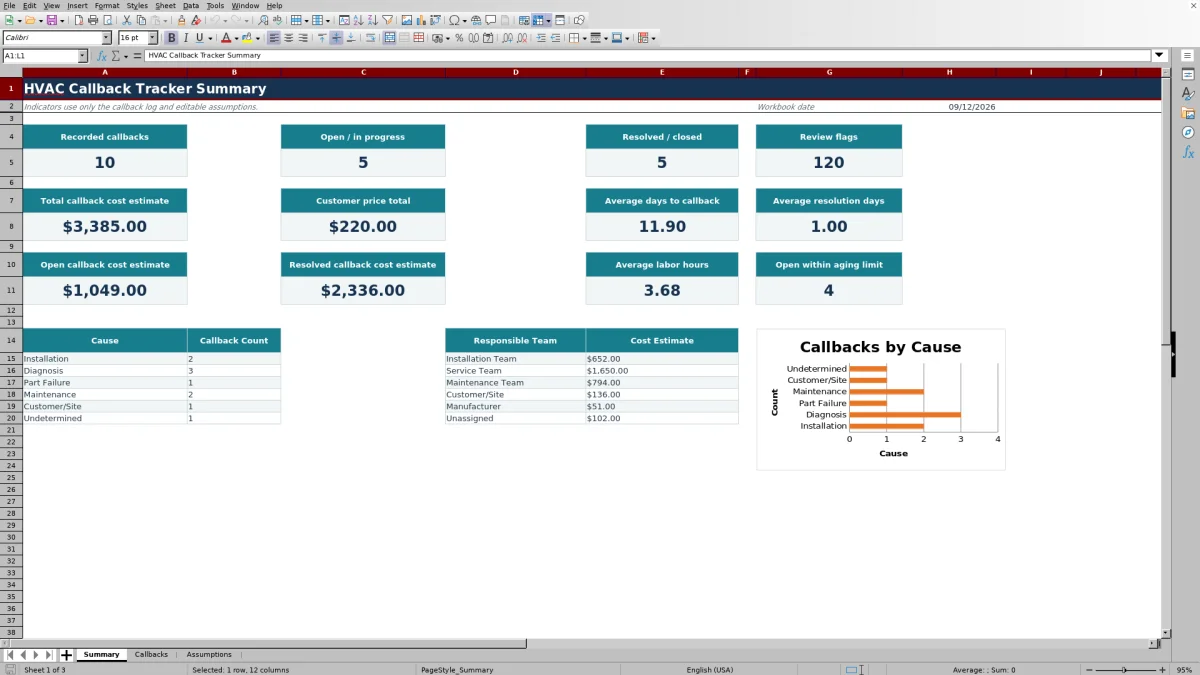
- Summarizes open, resolved, cost, timing, and review-flag indicators for service review.
What the workbook contains
How to get started
1. Review the operating assumptions
Open the Assumptions sheet before entering live records. Set internal thresholds for callback aging, loaded labor cost per hour, labor review, callback cost review, maximum labor entry, maximum parts quantity, and the permitted service-date range. The supplied values are planning assumptions and should be adapted to your company’s review practices.
2. Prepare the callback log
Save an untouched copy of the workbook. Replace the fictional sample information in the orange input cells on Callbacks, using rows 5 through 124. Keep calculated columns intact: Days to Callback, Labor Cost, Total Callback Cost, Resolution Days, and Review Flag contain formulas.
3. Classify the visit and enter costs
Record the callback ID, original work order, customer, equipment, technician, dates, description, labor hours, and direct cost amounts. Use the listed categories consistently for Cause, Responsible Team, Parts Unit, and Status so the Summary formulas group records correctly.
4. Record the outcome and review the summary
Enter a Resolution / Next Step for the service team. Close the record deliberately by selecting the appropriate Status and adding a Resolved Date when the status is Resolved or Closed. Check the Review Flag before using the Summary indicators for the next service decision.
Build a usable record for each HVAC callback
Start a record when the office confirms that a return visit relates to earlier work. Use one row per callback, assign a unique Callback ID, and enter the Original Work Order so the service manager can trace the event back to the first call.
Customer, Equipment, Original Technician, Original Service Date, Callback Date, and Callback Description provide the operating context. Cause and Responsible Team are separate fields: Cause describes why the callback occurred, while Responsible Team identifies the internal category used for follow-up. These selections support review but do not establish fault.
Understand the date and cost calculations
Days to Callback subtracts Original Service Date from Callback Date. Resolution Days subtracts Callback Date from Resolved Date. Either result stays blank when a required date is missing, which prevents an incomplete record from appearing as a zero-day interval.
Labor Cost multiplies Labor Hours by the Loaded labor cost estimate in Assumptions. Total Callback Cost adds that labor estimate to Parts Cost and Other Cost. Parts Cost is a direct dollar input; Parts Qty and Parts Unit document the quantity but do not calculate a unit extension. Customer Price is recorded separately and is not subtracted from cost to produce margin.
Worked callback scenario
Assume a fictional service call was completed on 10/02/2026 and the customer reported the same cooling concern on 10/07/2026. The workbook returns 5 Days to Callback. The follow-up uses 3.5 labor hours, one part with a manually entered Parts Cost of $145, and $20 of Other Cost.
At the supplied $68 loaded labor estimate, labor cost is $238. Adding $145 and $20 produces a $403 total callback cost. If the technician finishes on 10/08/2026, the Resolution Days result is 1. The record could use Diagnosis as the cause, Service Team as the responsible team, Resolved as the status, and $0 Customer Price for a no-charge visit.
The labor and cost amounts are below the supplied review thresholds of 8 hours and $750, so those two thresholds would not produce prompts. The service manager should still review the description and documented resolution before leaving the record as Resolved. On Summary, the Diagnosis count, Service Team cost, resolved count, cost totals, and applicable averages update from this row.
Use status and review flags for follow-up
The active-status indicator combines Open, Scheduled, and Monitoring records. The completed-status indicator combines Resolved and Closed records. Choose the status that reflects the current operational state rather than using Resolution / Next Step as a substitute for status.
A Review Flag is a prompt for human review, not an automatic finding. Its visible checks include missing original or callback dates, missing status, reversed dates, labor above the assumption threshold, callback cost above the cost threshold, and a Resolved or Closed record without a Resolved Date. Because one text result is displayed at a time, correct the first issue and check the row again.
Open within aging limit counts active records whose Callback Date is on or after the workbook date minus the Aging review limit. It is not the total number of open records, and it does not count callbacks older than that cutoff. Filter active statuses and inspect Callback Date when reviewing older open work.
Read the Summary without losing context
Summary reports recorded callbacks, active and completed status counts, review flags, total callback cost estimates, customer price total, open and resolved callback costs, average labor hours, and date-based averages. Workbook date uses Excel’s current date, so aging-related results can change when the file recalculates on another day.
The lower summary area counts the fixed cause categories and totals callback cost by the fixed responsible-team categories. The chart displays callback counts by cause. Clear or replace the fictional sample entries before relying on these indicators.
Filtering Callbacks does not limit the Summary calculations because the formulas evaluate the full prepared range. Use filters to inspect records, but interpret Summary as a workbook-wide view of rows 5 through 124.
Correct common entry and calculation problems
- If Review Flag says to check required fields, confirm that Original Service Date, Callback Date, and Status are present.
- If a date is rejected, verify MM/DD/YYYY entry and compare it with the earliest and latest dates on Assumptions. Change those bounds only when the business record period requires it.
- If labor cost looks unexpected, check Labor Hours and the single loaded labor estimate in Assumptions. Changing that estimate recalculates existing rows.
- If Total Callback Cost is blank, the row may not have a Callback ID or any numeric labor, parts, or other cost input. A displayed $0 means entered numeric values currently sum to zero.
- If a pasted category does not appear in the expected summary group, replace it with an exact drop-down choice.
- If a blue calculated cell was overwritten, recover its formula from a clean workbook copy before using the totals.
Comparison: Excel tracker, paper log, or service system
| Criterion | HVAC Sheets workbook | Paper or blank spreadsheet | Field-service management system |
|---|---|---|---|
| Prepared structure | Defined callback fields and lists for rows 5 through 124 | Must be designed and maintained by the user | Depends on the selected system and setup |
| Cost and date calculations | Included formulas use the entered dates, hours, costs, and assumptions | Manual or dependent on formulas the user creates | Depends on available features and configuration |
| Management view | Workbook-wide indicators and one cause chart | Requires a separate manual summary | Depends on the selected reporting tools |
| Dispatch or notifications | Not included | Not included | Depends on the selected system and configuration |
| Prepared record capacity | 120 callback rows in one XLSX | Depends on the layout created | Depends on the selected system |
Choose this workbook when a small team wants an editable, file-based callback log with consistent calculations and can manage follow-up outside the XLSX. A paper or blank log may suit a very limited process that does not need prepared formulas. Evaluate a field-service system when shared workflows, dispatch functions, notifications, or a larger record volume are required, confirming those capabilities with the specific provider.
Know the workbook limits and protect service records
This XLSX is a planning and operational review tool. Prepared formulas, validations, filters, and Summary ranges stop at row 124, providing 120 callback rows. Entries added beyond that range are not automatically included unless a qualified Excel user extends the formulas, validations, chart source, and summary ranges.
The workbook does not assign technicians, schedule visits, send alerts, connect to live systems, create invoices, process payments, or maintain its own version history. Callback cost is an internal estimate based on one editable labor amount plus entered parts and other costs; it is not an accounting, payroll, tax, warranty, or customer-billing determination.
Cause and Responsible Team are review categories, not proof of fault or liability. The file also does not verify repairs, equipment safety, engineering decisions, or code compliance. Store the workbook in an access-controlled location and limit customer, employee, equipment, pricing, and property information to what the callback review actually requires.
Frequently asked questions
Can the workbook hold more than 120 callbacks?
The prepared entry range is Callbacks rows 5 through 124. Summary formulas, validations, filters, and calculated columns are built around that range. Adding records below row 124 will not automatically extend every workbook feature; update all affected ranges or begin a new identified workbook.
What is the difference between Total Callback Cost and Customer Price?
Total Callback Cost combines estimated labor cost, entered parts cost, and entered other cost. Customer Price is a separate manual amount. The workbook totals both fields but does not calculate gross profit, markup, tax, payment status, or invoice balance.
Why is a calculated result blank instead of zero?
Date results stay blank when their required dates are missing. Labor Cost stays blank without the needed callback ID or labor hours, and Total Callback Cost stays blank when there are no numeric labor, parts, or other cost values. A zero can represent a deliberately entered no-cost amount, so review the source cells before interpreting it.
Can I change the loaded labor cost estimate?
Yes. Edit Assumptions cell B5 to match the internal amount used for callback review. Because every Labor Cost formula references that one setting, changing it recalculates labor costs for existing callback rows as well as new ones. Save an identified copy first if historical estimates must remain unchanged.
Does the tracker notify technicians or dispatch return visits?
No. The workbook records Status and Resolution / Next Step, but it does not send messages, assign technicians, update a dispatch board, or monitor open calls. Use your existing communication and scheduling process to act on the records shown in the XLSX.
Editorial responsibility

Mara KeeneService operations editor

Owen CalderEstimating and controls editor