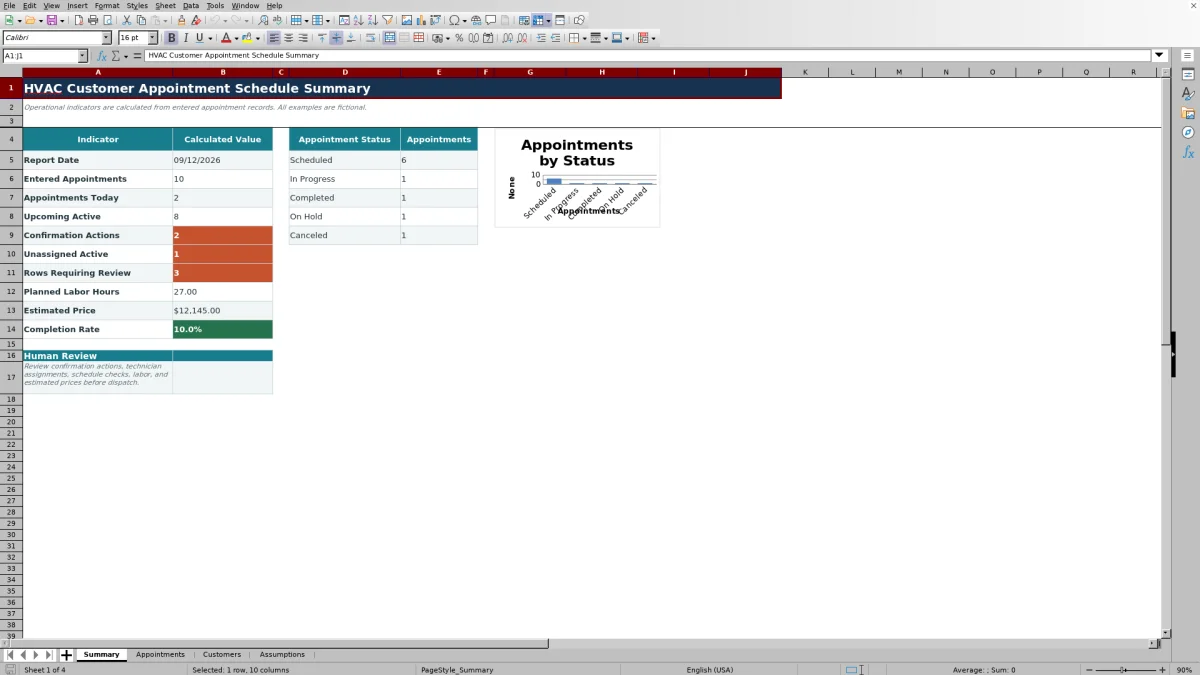
This editable HVAC customer appointment schedule organizes service windows, confirmation status, access notes, technician assignments, and next actions in an Excel workbook.
Use the XLSX as a manual scheduling record for up to 100 appointment rows. Its summary helps office staff identify confirmation work, assignment gaps, and records that need review.
How this template can help
- Keeps each appointment window, technician, confirmation, access note, responsibility, and status on one row.
- Links appointment records to a separate customer list instead of requiring repeated customer-name entry.
- Surfaces confirmation actions, unassigned active appointments, and schedule records requiring review.
- Uses editable operating limits and list choices to support more consistent schedule entry.
What the workbook contains
How to get started
1. Save a copy and review the assumptions
Keep an untouched original and create a working copy. On Assumptions, review the default 12-hour appointment limit, $10,000 maximum estimated price, 365-day schedule horizon, and the existing lists for job types, equipment, confirmations, responsibilities, statuses, contact methods, customer statuses, and technicians.
2. Prepare the customer list
On Customers, replace the fictional values in columns A through H with the scheduling details your staff needs. Use a unique Customer ID for each record and review Customer Check in column I for missing names, duplicate IDs, missing statuses, or other displayed results.
3. Enter each appointment
On Appointments, complete the input fields in columns A through E and G through P. Customer Name in column F is looked up from Customers, while Schedule Check in column Q evaluates the row. Preserve formula columns F and Q when clearing or replacing the fictional examples.
4. Review before dispatch
Use the worksheet filter to narrow appointments by date, technician, confirmation, or status. Then open Summary and review before dispatch, especially Confirmation Actions, Unassigned Active, and Rows Requiring Review.
Use the summary as a dispatch review
Summary uses Excel's current date as the Report Date. Appointments Today counts appointment IDs dated today except records marked Canceled. Confirmation Actions counts rows marked Not Confirmed or Reschedule Requested, also excluding canceled appointments.
Treat these results as a confirmation queue. Contact the customer, record the outcome in Confirmation, update Next-Step Responsibility, and verify the appointment window before releasing the job to the technician.
Unassigned Active counts appointments with no Assigned Technician unless their status is Canceled or Completed. Rows Requiring Review counts entered appointment IDs whose Schedule Check result is not OK. Because that indicator requires an appointment ID, also scan partially entered rows that may be missing the ID itself.
Link appointments to customer records
Enter a unique Customer ID on Customers before using that ID on Appointments. The workbook looks up Customer Name from the first two customer columns. A mistyped or unavailable ID produces Check customer ID instead of a matched name.
The customer record also holds the service address, contact person, phone, preferred contact method, notes, and status. Keep only the minimum necessary scheduling detail. Limit access to the file and avoid placing door codes, payment details, or unrelated personal information in general notes.
The name lookup does not filter customers by Customer Status. An inactive customer can still be matched, so staff should check the status and decide whether the appointment should proceed.
Worked scheduling scenario
Assume a clean working copy is opened on 04/13/2026 and contains two valid fictional customer records. Enter two Scheduled appointments for 04/14/2026. The first window is 8:00 AM to 10:00 AM with Fictional Technician A, a Confirmed result, 2.00 labor hours, and a $285.00 estimated price. The second is 10:30 AM to 12:00 PM with Fictional Technician B, Not Confirmed, 1.50 labor hours, and a $195.00 estimated price.
With unique appointment IDs, matching customer IDs, valid windows, and completed status fields, Schedule Check should return OK for both rows. Summary shows two entered appointments, two upcoming Scheduled appointments, one confirmation action, no unassigned active appointments, 3.5 planned labor hours and $480.00 in estimated price, assuming these are the only entered records.
A 0% completion rate is expected because neither appointment is Completed. It does not show that the work failed. The next decision is to follow up on the unconfirmed appointment, record the confirmation outcome, and review access notes before dispatch.
Resolve schedule and customer errors
When a check message appears, fix the source field rather than typing over the formula. Common Appointments results include Check appointment ID, Duplicate ID, Check date, Check window, Check customer, and Check status.
- For Duplicate ID, assign a unique Job / Appointment ID.
- For Check window, enter both times and make Window End later than Window Start.
- For Check customer or Check customer ID, correct the Customer ID or add the matching record to Customers.
- For Check status, select an Appointment Status from the configured list.
Customer Check can display Check ID, Check name, Duplicate ID, or Check status. A completely unused row remains blank by design. Dates outside the configured horizon and labor hours or estimated prices outside their configured ranges also fall outside the worksheet's data-validation limits; review Assumptions before changing those limits.
Interpret labor, price, and completion results
Planned Labor Hours is the sum of Appointments column O, and Estimated Price is the sum of column P. These are planning figures, not actual labor, invoiced revenue, collected payments, or job cost.
Both totals include every numeric entry in their respective columns, regardless of Appointment Status. A canceled appointment with 3.00 hours and a $400.00 price remains in the totals until those entries are cleared or otherwise revised. Review status before using the totals for staffing or workload discussions.
Completion Rate divides the number of Completed rows by all rows with an appointment ID. Canceled records remain in that denominator. If there are no appointment IDs, the formula returns 0% rather than an error; that zero means no entered appointments, not necessarily no completed work.
Comparison with paper and field-service software
| Criterion | This Excel workbook | Paper schedule | Field-service management system |
|---|---|---|---|
| Appointment structure | Defined fields for 100 appointment rows | Depends on the form or handwritten layout | Depends on the selected system and configuration |
| Customer matching | Looks up names by Customer ID and displays a check result | Requires manual cross-reference | Depends on available customer-record features |
| Operational review | Calculated summary indicators and status counts | Requires manual counting | Reports and views vary by system |
| Messages and live dispatch | Not included | Not included | Availability varies by product and setup |
| Practical fit | Small, manually maintained appointment list in Excel | Very small schedule where calculation is unnecessary | Operations that need supported multiuser or field workflows beyond this workbook |
Choose this workbook when staff can maintain one controlled Excel file and its 100-row structure fits the workload. Keep paper only when manual review is acceptable. Evaluate a dedicated system when simultaneous access, communications, routing, or broader workflow controls are required.
Operating limits, privacy, and handoff
The verified formulas, validations, filters, and lookups cover rows 5 through 104. Typing below row 104 does not automatically extend those verified ranges. Expanding the schedule requires careful updates to formulas, validation references, filters, summary ranges, and any affected chart references.
This is a manual operating record. It does not send confirmations, monitor technician locations, calculate travel time, verify skill or part availability, process payments, or update another system. Do not assume Schedule Check identifies every scheduling conflict or field condition.
Review technician assignments, customer instructions, site access, labor allowances, and estimated prices with the responsible staff member. The workbook does not provide engineering, code, safety, accounting, tax, legal, licensing, or environmental approval.
Frequently asked questions
How many appointments can the workbook track?
The verified Appointments range provides 100 rows, from row 5 through row 104. The Customers worksheet also provides 100 customer rows. Entries below those ranges are not included automatically in the verified formulas, validations, filters, and summary calculations.
Does the workbook send appointment confirmations?
No. Confirmation records whether an appointment is Confirmed, Not Confirmed, or has a Reschedule Requested result. Contact Method records Phone, Text, or Email, but the workbook does not send calls, texts, or emails.
Can I change the technician, status, and job-type choices?
Yes. The existing list values are stored on Assumptions and feed the corresponding appointment dropdowns. Edit values within the referenced list ranges carefully. Adding choices beyond those ranges requires updating the related data-validation references and, where applicable, summary dependencies.
Why can canceled appointments remain in labor and price totals?
The Summary formulas add every numeric Labor Hours and Estimated Price entry in the verified appointment range without filtering by status. Review canceled rows and decide whether their planning amounts should remain for historical context or be removed from the current totals.
Does Schedule Check prove that an appointment is ready for service?
No. It checks specified record conditions such as IDs, dates, windows, customer matching, and status entry. Staff still need to confirm access, technician suitability, parts, travel time, site conditions, safety requirements, and the approved scope before dispatch.
Editorial responsibility

Mara KeeneService operations editor

Owen CalderEstimating and controls editor