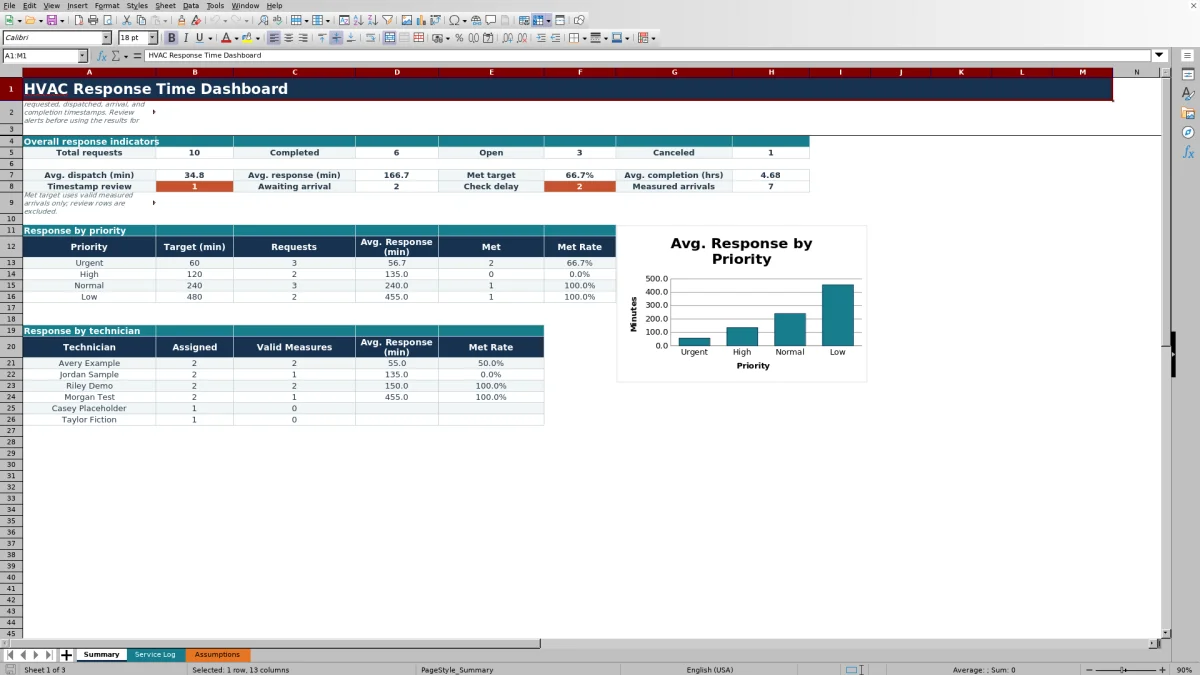
The HVAC response time dashboard is an Excel workbook for logging one service request per row and comparing requested, dispatched, arrival, and completion timestamps.
Use the Response Check and Summary indicators to separate valid measurements from missing or out-of-order timestamps before making dispatch follow-up decisions.
How this template can help
- See total, completed, open, and canceled request counts on one summary.
- Compare response results with separate targets for Urgent, High, Normal, and Low priorities.
- Distinguish dispatch delay, request-to-arrival response, and request-to-completion time.
- Identify missing arrivals, delayed responses, and timestamps that need correction.
What the workbook contains
How to get started
1. Save a working copy
Keep an unchanged copy of the XLSX before removing the fictional service calls. Clear example inputs without deleting the formulas in columns M through Q of the Service Log.
2. Replace the sample assumptions
On Assumptions, review the four priority targets, six technician names, five statuses, five responsibility choices, six equipment choices, and timestamp entry window. These are editable operating assumptions, not promised response times.
3. Enter one request per row
Use the orange input cells on Service Log. Enter a Job ID, customer, equipment, technician, priority, applicable timestamps, description, current responsibility, and status. Use MM/DD/YYYY with the correct time and AM or PM.
4. Resolve checks before using the totals
Read Response Check for each active row, correct unsupported or out-of-sequence timestamps, and then open Summary. Use its counts, averages, priority results, and technician results to decide which calls need operational review.
Understand the three service timing measures
Dispatch Delay measures the minutes from Requested At to Dispatched At. It is blank when either timestamp is missing or dispatch is earlier than the request.
Response Time measures the minutes from Requested At to Arrival At. If a dispatch time is present, arrival must not be earlier than dispatch. This is a request-to-arrival measure, not a drive-time calculation.
Completion Time measures hours from Requested At to Completed At. It does not measure only the technician's on-site work. The result stays blank when the required timestamps are missing or their sequence is invalid.
Set priority targets and controlled lists
The Assumptions worksheet supplies the target returned to Target Response (min). Its fictional starting targets are 60 minutes for Urgent, 120 for High, 240 for Normal, and 480 for Low. Replace them with targets appropriate to your own dispatch policy.
The priority lookup requires an exact match. If an existing Service Log row says High and that Assumptions label is changed, its target may become blank until the row is updated. Review existing entries after changing any priority, technician, status, responsibility, or equipment choice.
The timestamp validation uses the dates stored in Assumptions B13 and B14. Assumptions B16 returns Ready when the window is ordered correctly or Review date window when the start is later than the end.
Worked response-time scenario
Consider fictional job SR-26-017 for Lakeview Sample Market. The dispatcher selects High priority, which has a 120-minute sample target. Requested At is 03/18/2026 8:15 AM, Dispatched At is 8:35 AM, Arrival At is 10:35 AM, and Completed At is 12:15 PM.
Workbook result: Dispatch Delay is 20.0 minutes, Response Time is 140.0 minutes, and Completion Time is 4.00 hours. Response Check returns Check delay because the 140-minute request-to-arrival time exceeds the 120-minute target by 20 minutes.
First verify the priority and timestamps. If they are correct, review the call's assignment and dispatch context before changing the target or drawing a conclusion about the technician.
Read the Summary without mixing unlike records
Total requests counts nonblank Job IDs. Completed and Canceled use their matching statuses, while Open combines New, Dispatched, and On Site. A request count can therefore be higher than the number of usable response measurements.
Average response and Met target use rows classified as Met or Check delay. Rows marked Awaiting arrival, Review timestamps, or Excluded do not enter that response-rate calculation. Measured arrivals reports how many numeric Response Time results are available.
The priority block shows targets, request counts, average response, met counts, and met rates for the four listed priorities. The technician block shows Assigned, Valid Measures, Avg. Response, and Met Rate for the six names carried from the Assumptions list. Use Assigned versus Valid Measures to see whether a technician comparison has enough completed arrival data to interpret.
Average dispatch and average completion are based on nonnegative calculated values in their respective columns. Check the underlying statuses and rows before treating either average as a measure of completed service calls only.
Correct common entry and calculation problems
- If Response Check says Enter request time, enter the actual Requested At timestamp rather than estimating one from dispatch.
- If it says Awaiting arrival, the request does not yet have a valid Arrival At value. Add it only after the time is known.
- If it says Review timestamps, check the date, AM or PM, and event sequence. Dispatch cannot precede the request, arrival cannot precede the request or an entered dispatch, and completion cannot precede an earlier entered event.
- If it says Check delay, the timestamps are measurable but the response exceeds the selected priority target. Verify the inputs before investigating the operational delay.
- If Target Response (min) is blank, confirm that Priority exactly matches one of the four entries on Assumptions.
A zero is not the same as a blank. For example, identical request and dispatch timestamps produce a valid 0.0-minute dispatch delay. A blank usually indicates a missing prerequisite, an invalid sequence, or no qualifying records for a summary average.
Workbook Comparison with other tracking methods
| Criterion | This Excel workbook | Blank spreadsheet | Field-service management system |
|---|---|---|---|
| Initial setup | Replace sample lists, targets, dates, and service rows. | Design fields, formulas, checks, and summaries from the beginning. | Configuration and onboarding vary by system. |
| Timing calculations | Prepared dispatch, response, and completion formulas. | Depends on formulas created by the user. | Available timing fields vary by system and configuration. |
| Review views | Overall, priority, and six-technician summaries with one priority chart. | Must be designed and maintained. | Reports and filters vary by system. |
| Field workflow | Manual entry in the XLSX; no automatic messages or timestamp capture. | Manual unless another process is added. | Mobile entry, messaging, or automation may be available depending on the system. |
| Prepared capacity | 100 service rows and six technician summary lines. | Capacity depends on the design. | Capacity and licensing terms vary. |
Choose this workbook when a small team wants a defined, inspectable Excel log and can maintain timestamps manually. A blank sheet fits a highly custom process but requires more design work. Evaluate a field-service platform when mobile workflow, automatic notifications, broader record volume, or connected dispatch functions are required.
Know the workbook limits and protect service data
The verified formulas, validation, filters, and Summary ranges cover Service Log rows 5 through 104. Adding rows below that range does not automatically extend every calculation. Expanding the file requires coordinated updates to formulas, validation sources, summary ranges, and the technician layout.
The workbook does not capture events automatically, send alerts, track vehicles, monitor equipment, or prove that a response commitment was met under a contract. Priority targets are internal assumptions. Timestamp results still require review when they affect staffing, customer communication, safety, or contractual decisions.
Customer names, equipment details, technician assignments, and service descriptions can be sensitive. Store the file in an authorized location, limit access, and avoid entering payment data, property-access codes, or unnecessary personal information. File permissions, retention, backups, and secure sharing are outside the worksheet calculations.
Frequently asked questions
Why is a Summary average or met rate blank?
The formulas return a blank when no qualifying records are available. Enter valid request and arrival timestamps, select a matching priority, and resolve Response Check messages before expecting an average response or met rate.
Why are Measured Arrivals lower than Total Requests?
Total Requests counts entered Job IDs. Measured Arrivals requires a numeric Response Time, so canceled calls, calls awaiting arrival, missing request times, and invalid timestamp sequences can create a difference.
Can I track more than 100 service requests or six technicians?
The prepared Service Log ends at row 104, providing 100 entry rows, and the Summary has six technician lines. You can adapt the XLSX, but extending it requires checking formulas, validation ranges, assumptions lists, summary references, formatting, filters, and the chart rather than only inserting new rows.
Does Completion Time show the technician's repair duration?
No. Completion Time runs from Requested At to Completed At. It can include dispatch waiting, travel, on-site diagnosis, parts delays, customer delays, and other elapsed time. The workbook does not calculate a separate arrival-to-completion work duration.
Does this Excel dashboard dispatch technicians or send delay alerts?
No. It records manually entered service information and calculates response indicators. It does not send messages, assign technicians automatically, collect live locations, or monitor service calls outside the workbook.
Editorial responsibility

Mara KeeneService operations editor

Owen CalderEstimating and controls editor