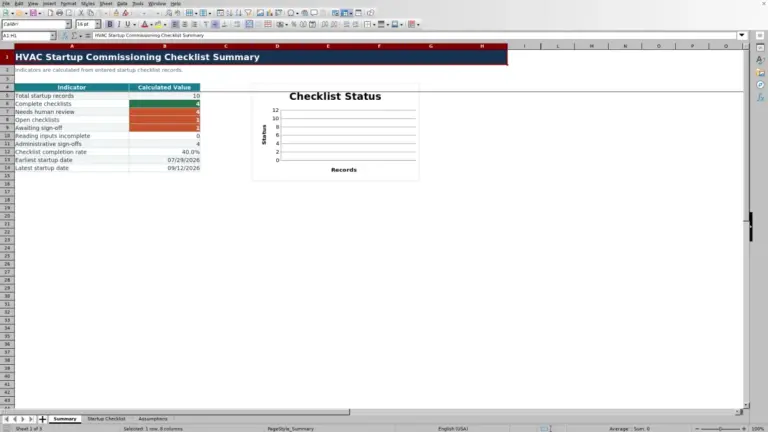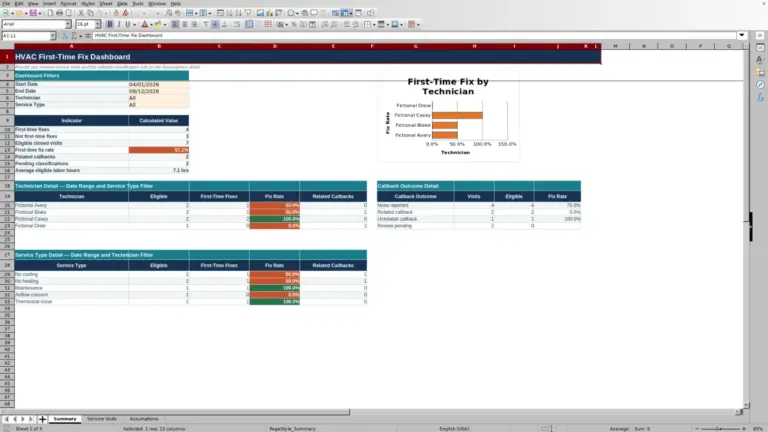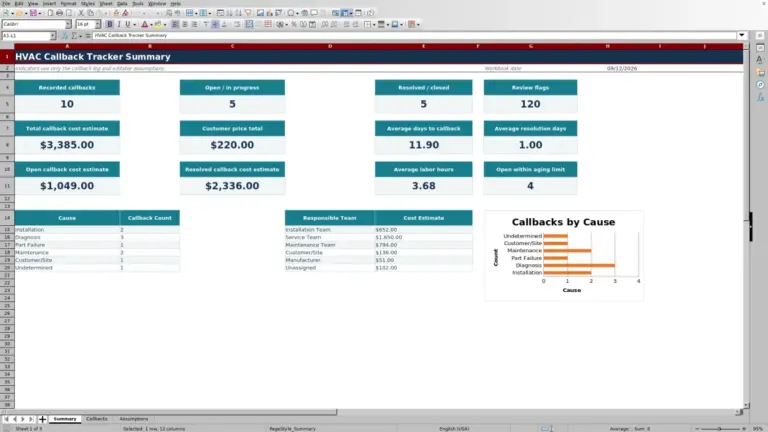
This HVAC warranty service tracker is an editable Excel workbook for separating warranty and billable calls while recording service, cost, claim, and recovery details.
Use the Service Log for individual calls, review workload and recovery indicators on Summary, and adjust planning settings on Assumptions.
How this template can help
- Separates warranty, billable, and review calls without maintaining different logs.
- Identifies whether the manufacturer, customer, contractor, or a pending review is responsible.
- Connects recorded parts, labor, and other costs with expected and received recovery amounts.
- Surfaces aging manufacturer claims that need a manual follow-up decision.
What the workbook contains
How to get started
1. Review the tracking assumptions
On Assumptions, set the As-of Date used to measure open days and the Follow-Up Age (Days) used to prompt a claim check. Review the date, quantity, labor-hour, and dollar limits before entering records. Add the technician names and labor cost rates needed by the Service Log lookup.
2. Prepare a clean working copy
Save an identified copy of the XLSX before editing. The opening Service Log rows contain clearly fictional examples. Replace their editable values with your own records, but preserve the calculated columns. Orange cells are intended for user entries.
3. Enter each service call
Assign a Service ID, then record the customer, equipment, technician, service date, call type, description, parts, labor hours, and other cost. Select Responsibility separately from Call Type. For a manufacturer claim, add the claim reference, submitted date, status, expected recovery, amount recovered, and resolution or recovery date as information becomes available.
4. Recalculate and review the next action
Allow Excel to recalculate the workbook, then filter Service Log by call type, responsibility, claim status, recovery status, or follow-up alert. Use Summary to review counts and totals, but return to the source row before contacting a manufacturer, billing a customer, or closing a record.
Separate call type from financial responsibility
Call Type describes how the service call is being handled: Warranty, Billable, or Review. Responsibility records who is expected to bear or repay the cost: Manufacturer, Contractor, Customer, or Pending Review. These fields answer different questions and should not be treated as interchangeable.
For example, a technician may initially mark a call as Warranty while the office selects Pending Review until coverage is confirmed. If the manufacturer accepts responsibility, update Responsibility to Manufacturer and maintain the claim fields. If the customer is responsible, the calculated Recovery Status becomes Customer Billable. The workbook records that classification; it does not determine whether a warranty is valid.
Build the recorded service cost
Parts Cost multiplies Parts Quantity by Parts Unit Cost. Labor Cost multiplies Labor Hours by the rate associated with the selected Technician in Assumptions. Total Cost adds Parts Cost, Labor Cost, and Other Cost.
A Service ID is needed before these calculated fields return a result. A missing technician match can leave Labor Cost Rate and Labor Cost blank. Total Cost may still add another available cost component, so inspect blank parts or labor results before relying on the total. Enter the rate intended for recorded labor cost; Customer Price Entered is a separate manual field and is not used as the labor rate.
Worked manufacturer claim scenario
Assume a fictional service call for North Loop Dental is dated 09/15/2026 and submitted to the manufacturer on 09/18/2026. Set the Assumptions as-of date to 10/31/2026 and the follow-up age to 30 days. Select a fictional technician, Casey Example, whose lookup rate is $48.00 per hour.
Enter one part at $240.00, 3 labor hours, and $20.00 of Other Cost. The workbook calculates $240.00 of parts cost and $144.00 of labor cost, producing a Total Cost of $404.00. With Responsibility set to Manufacturer, Claim Status set to Approved, expected recovery of $350.00, and $200.00 recovered, Outstanding Recovery is $150.00 and Recovery Status is Partial.
Leave Resolution / Recovery Date blank while collection remains open. Days Open is 43, which is greater than the 30-day threshold, so Follow-Up Alert returns Check Claim. For this single-record example, Summary shows a 57.1% recovery rate: $200.00 recovered divided by $350.00 of expected manufacturer recovery. The next decision is to review the claim documentation and contact history before pursuing the remaining $150.00; the prompt does not prove that amount is collectible.
Use days open and follow-up prompts correctly
Days Open is calculated only for rows assigned to Manufacturer. When Resolution / Recovery Date is present, the calculation measures from Claim Submitted Date—or Service Date if no submitted date exists—to that resolution or recovery date. For an unresolved claim without that date, it measures through the Assumptions as-of date. Closed or denied claims without a resolution date return a blank Days Open result.
The Check Claim prompt appears only when a manufacturer record has a recovery status of Pending, Partial, or Not Filed and its Days Open value is greater than the follow-up threshold. At exactly 30 days with a 30-day threshold, no prompt appears; it can appear at 31 days. This is an on-sheet prompt for human review, not an email, claim submission, or automatic manufacturer action.
Interpret the Summary indicators
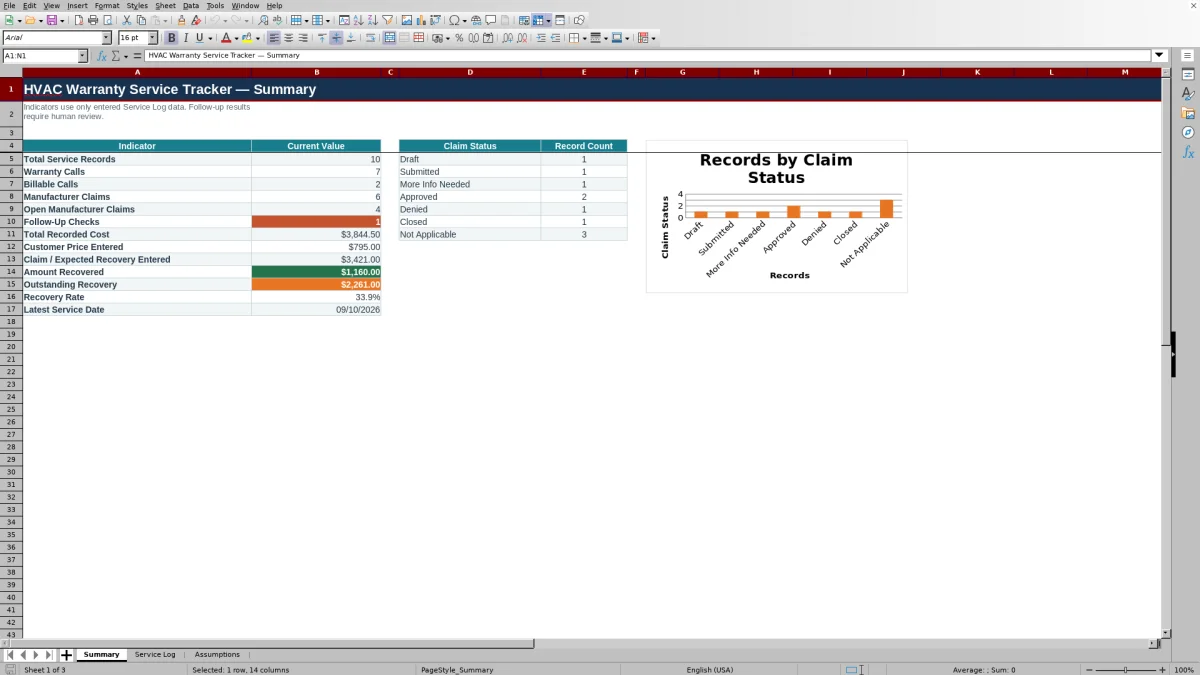
Total Service Records counts rows with a Service ID. Separate indicators count Warranty Calls, Billable Calls, Manufacturer Claims, open manufacturer claims, and Follow-Up Checks. The claim-status area counts Draft, Submitted, More Info Needed, Approved, Denied, Closed, and Not Applicable records and supplies the chart.
Financial indicators total recorded cost, entered customer price, expected manufacturer recovery, recovered amounts, and outstanding recovery. Recovery Rate divides Amount Recovered by the expected recovery entered on Manufacturer rows. However, the recovered total includes every value entered in Amount Recovered, regardless of Responsibility. If that field is used on customer or contractor rows, the displayed rate may not represent manufacturer recovery. Review those entries or calculate a separate analysis before using the rate for a decision.
A blank Recovery Rate means the manufacturer expected-recovery total is zero or absent. Latest Service Date remains blank when no valid service dates are present. A zero count can be accurate, but it can also indicate that a record uses a different classification than expected.
Correct common entry and review errors
If calculated fields are blank, confirm that Service ID is entered. For missing Parts Cost, check both Parts Quantity and Parts Unit Cost. For missing Labor Cost, verify that Technician exactly matches a name in the Assumptions lookup area and that the associated rate is present.
If a follow-up prompt is missing, check Responsibility, Claim Status, expected and recovered amounts, Claim Submitted Date, the as-of date, and the threshold. The age must be greater than the threshold.
If Excel rejects a date, quantity, labor-hour, or dollar entry, compare it with the limits on Assumptions. Adjust a limit only after confirming that the change fits the contractor's tracking practice.
If Summary appears unchanged, make sure the workbook has recalculated and check whether Service Log filters are hiding the row you expected to inspect. Filters do not change the Summary formula ranges.
If Recovery Rate looks unusually high, inspect Amount Recovered entries on rows not assigned to Manufacturer because those amounts are still included in its numerator.
Understand workbook limits and protect service data
The Service Log contains 100 prepared rows, from rows 5 through 104. It is not an expanding Excel table. Adding records beyond that range requires careful extension of formulas, formatting, validation, filters, and Summary ranges. Test an extended copy before using it as the active log.
The workbook does not submit claims, send reminders, store document attachments through a claim-management workflow, monitor equipment, process customer payments, or provide shared-system controls. Dates, statuses, recovery amounts, and follow-up outcomes require manual entry and review.
Store the file where access is limited to authorized staff. Customer names, equipment descriptions, technician information, claim references, costs, and recovery amounts can be sensitive. Avoid adding unnecessary property-access details, payment information, or equipment serial numbers. This operational tracker does not establish warranty coverage or replace manufacturer terms, accounting review, safety procedures, code review, or qualified technical judgment.
Comparison with paper and service management systems
| Criterion | This Excel workbook | Paper log | Field-service management system |
|---|---|---|---|
| Structure | Three worksheets with 100 prepared service rows, editable assumptions, formulas, filters, and a summary. | Structure depends on the form created and maintained by the office. | Structure and record capacity depend on the selected system and configuration. |
| Cost and recovery calculations | Calculates recorded parts, labor, total cost, outstanding recovery, recovery status, and summary indicators. | Calculations and totals require manual work or a separate tool. | Available calculations vary; verify how the system handles warranty cost and recovery. |
| Follow-up handling | Displays an age-based Check Claim prompt for qualifying manufacturer records. | Depends on staff reviewing dates and notes. | Reminder and workflow capabilities vary by product and setup. |
| Collaboration and automation | The workbook itself does not provide messaging, claim submission, live synchronization, or a multiuser workflow. | Physical access and manual handoffs control the process. | Multiuser and integration options may be available, but must be confirmed for the chosen system. |
| Conditional fit | Consider it when one office needs a controlled, editable XLSX for a modest service log. | Consider paper only when volume is very low and manual totals are acceptable. | Evaluate a dedicated system when coordinated dispatch, mobile use, larger volume, or integrated workflows are required. |
Choose based on record volume, staff access, follow-up responsibilities, and required integrations. If the workbook is used, assign one person to maintain assumptions and review open claims so that manual updates have a clear owner.
Frequently asked questions
Does the workbook decide whether an HVAC repair is covered by warranty?
No. Call Type, Responsibility, and Claim Status are operational entries made by the user. Confirm coverage, exclusions, required documentation, and filing deadlines from the applicable warranty terms or responsible party.
Why is the labor cost rate blank?
Labor Cost Rate is looked up from the technician and rate area on Assumptions. Confirm that the selected Technician exactly matches an entered lookup name and that the corresponding rate is numeric. A blank rate also leaves Labor Cost blank.
Can I track more than 100 service records?
The workbook has formulas and validation prepared for rows 5 through 104. Additional rows are not included automatically. Extending the log requires copying the applicable formulas, formatting, and validation and updating the filter and Summary ranges in a separate test copy.
Why is Outstanding Recovery blank or zero?
It remains blank when both Claim Amount / Expected Recovery and Amount Recovered are blank. It returns zero when recovery meets or exceeds the expected amount. It can also show zero if an amount recovered is entered without an expected recovery, so review both source fields before treating zero as a fully recovered claim.
Will the tracker file a claim or contact the manufacturer?
No. It records claim references, dates, statuses, amounts, and a follow-up prompt. Staff must submit claims, retain supporting documents outside the tracked fields, contact the responsible party, and record the outcome manually.
Editorial responsibility

Mara KeeneService operations editor

Owen CalderEstimating and controls editor