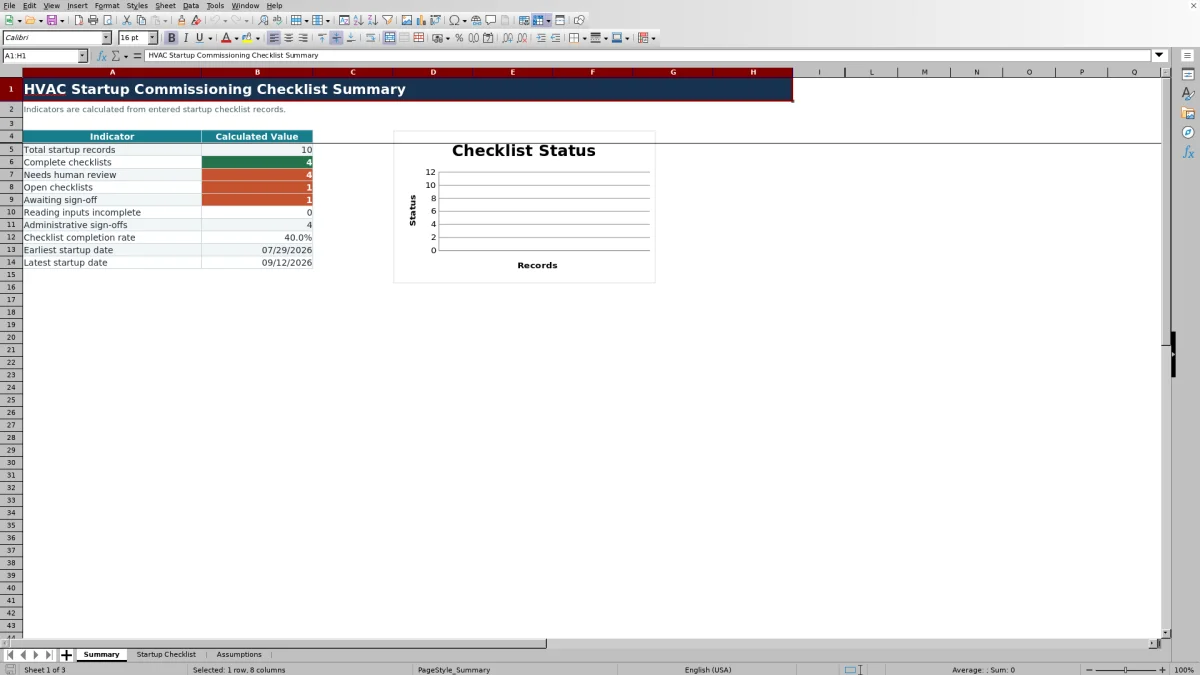
This editable Excel workbook records startup details, measured readings, checklist decisions, and administrative sign-off for newly started HVAC systems.
Use the XLSX to organize up to 100 startup records, review calculated flags, and identify open items before closing the administrative checklist.
How this template can help
- Keep job details, observed readings, checklist decisions, and notes together for each startup.
- Separate incomplete records and review items from checklists recorded as complete.
- Track administrative sign-off status and sign-off dates without treating them as technical approval.
- Use summary counts and date indicators to plan follow-up work.
What the workbook contains
How to get started
1. Review the workbook settings
Confirm the Assumptions first. This sheet contains editable temperature-split ranges, voltage and current review settings, entry limits, dates, and dropdown source lists. Compare them with the job documents and manufacturer information before relying on the review prompts.
2. Start a checklist record
On Startup Checklist, use one row from 6 through 105 for each system. Orange cells are intended for entry. Add a unique Startup ID, startup date, customer, job or site, equipment description, equipment type, operating mode, technician, and responsibility.
3. Enter readings and checklist decisions
Record outdoor, return, and supply air temperatures; measured and rated voltage; running and nameplate amps; and suction and liquid pressures where applicable. Complete the Condensate / Drain, Airflow / Rotation, Controls / Thermostat, and Pressure / Electrical Review fields based on the actual job review.
4. Review the result before sign-off
Inspect the Calculated columns for Temp Split, Reading Alert, and Checklist Status. Resolve missing or questionable information before updating Admin Sign-Off and Sign-Off Date. Then check Summary for open, review, completion, and sign-off counts.
Build a Complete Startup Record
Begin with the information that identifies the work: Startup ID, Startup Date, Customer, Job / Site, Equipment Description, Equipment Type, Operating Mode, Technician, and Responsibility. A consistent Startup ID is especially important because the Summary counts total startup records from populated IDs.
Next, enter the observed temperatures, electrical values, and pressures that apply to the system. The worksheet also provides four decision fields for condensate or drain, airflow or rotation, controls or thermostat, and pressure or electrical review. Use Notes for concise follow-up information rather than unsupported conclusions.
Do not record a value merely to remove an incomplete flag. If a reading is unavailable or does not apply, document the reason according to your internal process and review the row before closing it.
Understand the Calculated Results
Temp Split uses the entered return-air and supply-air temperatures to produce a temperature difference for the record. The Assumptions sheet shows default review ranges of 14°F to 24°F for Cooling and 20°F to 50°F for Heating. These are editable internal ranges, not universal acceptance criteria.
Reading Alert and Checklist Status are formula results. Use them to direct attention to incomplete inputs or records requiring review, then verify the underlying entries. A formula-produced status does not establish that a system is correctly charged, properly installed, or approved for operation.
On Summary, total records are counted from Startup ID, while Complete, Needs Review, Open, and Awaiting Sign-Off are counted from Checklist Status. The Completion rate is complete checklists divided by total startup records. If no Startup IDs have been entered, that rate is intentionally blank instead of showing 0%. Earliest and latest startup dates also remain blank until valid dates exist.
Worked HVAC Startup Scenario
Assume a fictional technician records a split AC startup dated 08/12/2026 in Cooling mode. The return air is 75°F and the supply air is 56°F. The workbook calculates a Temp Split of 19°F, which falls inside the workbook's displayed 14°F to 24°F cooling review range.
The same fictional record has 231 V measured against 230 V rated and 12.4 A running against 18 A nameplate. For review, the voltage difference is about 0.4% of rated voltage, and running current is about 68.9% of nameplate current. Both are below the workbook's default prompts of 10% voltage variance and 100% of nameplate amps.
These comparisons do not prove correct system performance. The workbook has no target pressure values for deciding whether fictional readings of 128 psig suction and 310 psig liquid are appropriate. Review the Reading Alert, operating conditions, manufacturer data, and job requirements. If any item remains unexplained, leave the administrative checklist open or mark it for review rather than signing it off.
Handle Review Items and Administrative Sign-Off
Use Checklist Status to separate records that are complete from those that remain open, need review, or await sign-off. Filter the Startup Checklist by status when assigning follow-up work, or use the Summary counts to see the current mix of records.
Administrative sign-off is recorded through Admin Sign-Off and Sign-Off Date. These fields document an internal status and date; they are not a digital signature, engineering approval, code inspection, or manufacturer authorization.
If a reading or checklist decision changes after review, update the source entry and recheck the formula results. The workbook does not maintain an approval history. Save an identified copy before changing a record that your company treats as a completed baseline.
Common Entry Errors and Practical Fixes
- Summary total is too low: Check for populated rows that lack a Startup ID. The total startup count uses that field.
- A date is rejected: The default accepted range is 01/01/2025 through 12/31/2028. Confirm the date or revise the authorized setting on Assumptions.
- A reading is rejected: Default validation limits include -100°F to 250°F for temperature, 0 to 1,000 V, 0 to 500 A, and 0 to 1,000 psig. Check units and decimal placement before changing a limit.
- A calculated result disappeared: Temp Split, Reading Alert, and Checklist Status contain formulas. Restore the row from a clean copy rather than typing a result into the calculated cell.
- Expected rows are missing: Clear or review the worksheet filter. The filter covers the Startup Checklist records and can temporarily hide rows.
Workbook Comparison for Startup Tracking
| Criterion | This Excel workbook | Blank spreadsheet | Field-service management system |
|---|---|---|---|
| Initial structure | Prepared fields, formulas, validations, assumptions, and summary indicators | Fields and calculations must be designed by the user | Available forms and setup depend on the selected system |
| Startup calculations | Calculates temperature split, review output, status counts, and completion rate | Depends on formulas the user creates and maintains | Depends on configured features and forms |
| Record capacity | 100 prepared startup rows | Chosen by the user | Depends on the selected system and plan |
| Messaging and workflow automation | No built-in messaging, automatic alerts, dispatch, or approval routing | None unless separately created | May be available; verify the specific system before purchase or setup |
| Best fit | Structured file-based tracking with editable internal review prompts | A unique process that requires a custom layout | A team that has verified a need for shared mobile workflows or integrations |
Choose this workbook when 100 prepared rows, local Excel editing, calculated review fields, and a summary match the task. Start with a blank spreadsheet when the required record is materially different. Consider a field-service management system when verified multiuser, mobile, dispatch, or integration capabilities are necessary.
Limits, Assumptions, and Record Protection
The thresholds on Assumptions are internal review prompts. They do not replace manufacturer specifications, design documents, field instruments, code requirements, safety procedures, or a qualified technical decision. The workbook records pressure readings but does not provide operating pressure targets, refrigerant analysis, equipment sizing, or design certification.
The prepared formulas, validation, filters, and Summary references cover rows 6 through 105. Adding rows below that range does not automatically prove that formulas, dropdowns, or summary counts were extended correctly.
Startup records may contain customer names, site information, technician names, equipment details, and operating readings. Store and share the XLSX according to company access and retention practices. The workbook does not send alerts, collect electronic signatures, submit regulatory records, or synchronize with another system.
Frequently asked questions
Does this checklist certify that an HVAC system was commissioned correctly?
No. It records observed startup readings, internal checklist decisions, calculated review results, and administrative status. Technical acceptance still requires review against the specific equipment, job documents, operating conditions, and applicable requirements.
Why is the completion rate blank on the Summary sheet?
The completion-rate formula divides complete checklists by records with a Startup ID. When there are no populated Startup IDs, the workbook returns a blank result rather than displaying 0% or a division error.
How many startup records can the workbook track?
The Startup Checklist contains 100 prepared rows, from row 6 through row 105. Formulas, validation, filters, and Summary references are configured for that range. If more capacity is needed, extend every affected range carefully and test the totals in a separate copy.
Can I change the review thresholds and dropdown choices?
Yes. The Assumptions sheet contains editable temperature-split ranges, voltage and current settings, input limits, dates, and list values. Save a clean copy, make authorized changes, and test several fictional records afterward. Adding entries outside the existing list source areas may not expand dropdowns automatically.
Does Admin Sign-Off collect a digital signature or send an alert?
No. Admin Sign-Off is a recorded status, and Sign-Off Date is a date entry. The workbook does not capture a digital signature, route an approval, send a message, or notify a technician automatically.
Editorial responsibility

Mara KeeneService operations editor

Owen CalderEstimating and controls editor