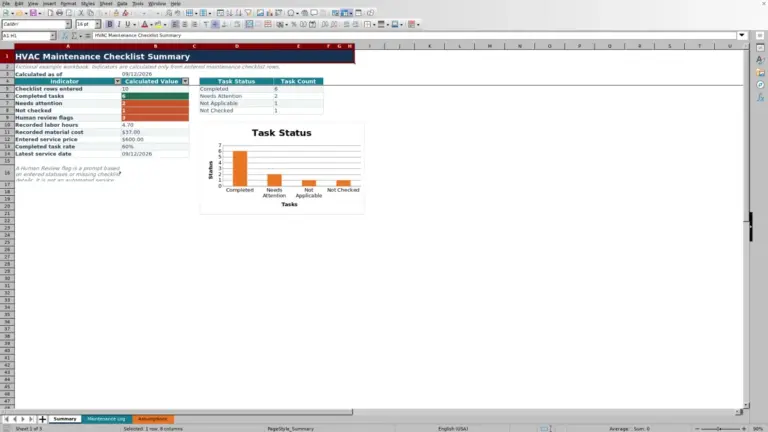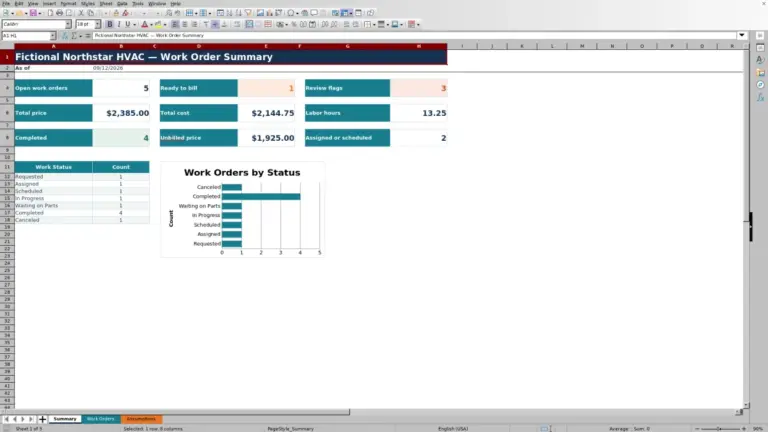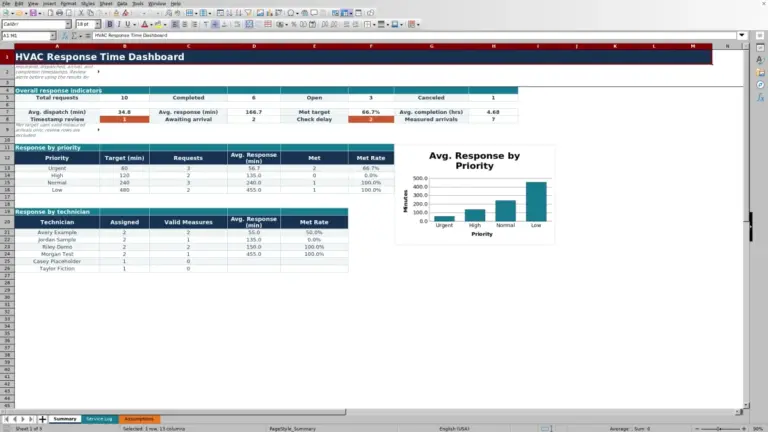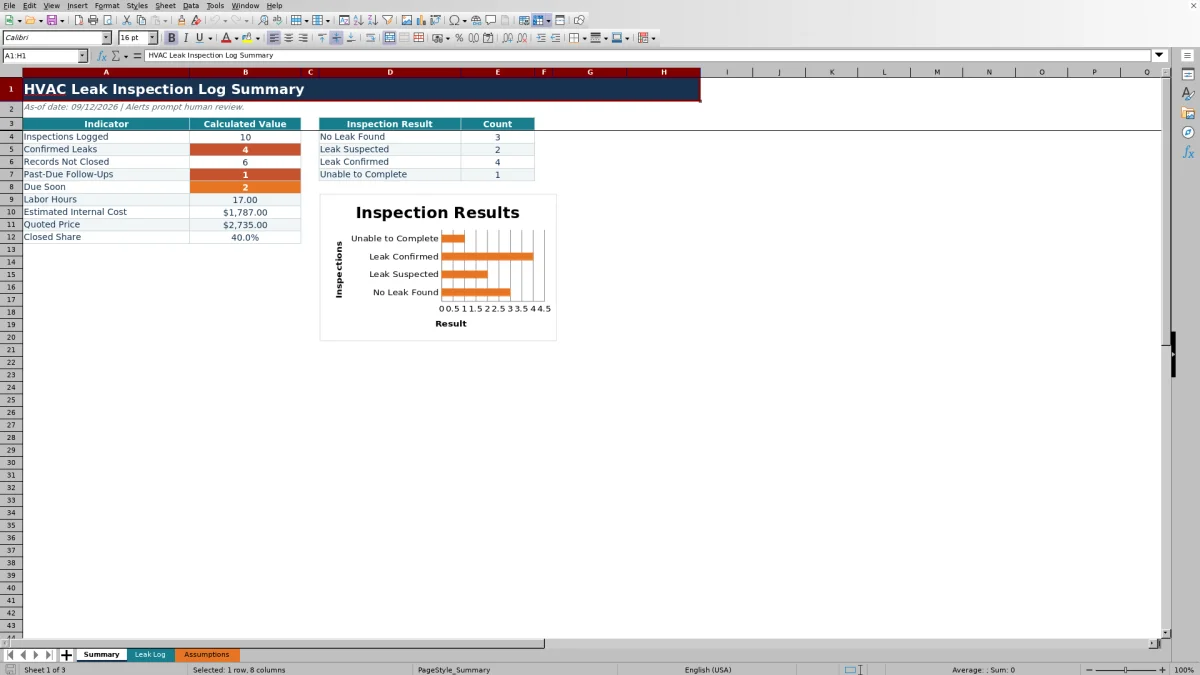
This editable HVAC leak inspection log is an Excel workbook for recording one equipment inspection per row, including the method, result, finding, action, status, and follow-up date.
Use it to organize service records and review open follow-ups, labor, planning costs, and quoted amounts. It does not perform a leak test or validate the technician’s conclusion.
How this template can help
- Keeps inspection details, findings, corrective action, responsibility, and work status together.
- Identifies missing results, missing statuses, overdue follow-ups, and follow-ups due soon.
- Combines entered labor and material amounts into an estimated internal cost for planning.
- Provides summary counts and totals for service follow-up review.
What the workbook contains
How to get started
1. Review the assumptions
Set the control values first. On Assumptions, review the labor rate, due-soon window, report as-of date, allowed date range, maximum leak quantity, and maximum labor hours. These settings control workbook calculations and entry limits; they are not engineering or compliance requirements.
2. Replace the fictional records
Keep one inspection per row. On Leak Log, remove or replace the demonstration entries in rows 5 through 104. Enter a unique Inspection ID and complete the customer, job, equipment, technician, date, refrigerant, method, result, finding, and action fields that apply. Use appropriate safeguards for customer, employee, property-access, pricing, and equipment information.
3. Complete the service and follow-up fields
Enter Labor Hours, Material Cost, Quoted Price, Responsibility, Work Status, and Follow-Up Date as applicable. Review—not blindly accept—the outputs. Days to Follow-Up, Follow-Up Alert, and Estimated Internal Cost are formula columns and should not be overwritten.
4. Review and save the operating record
Use the Leak Log filter to isolate a technician, result, status, or follow-up group. Then review Summary for counts, labor hours, estimated internal cost, quoted price, and closed share. Save the workbook in an access-controlled location using your company’s file-naming and retention practices.
What to Enter for Each Leak Inspection
Begin each Leak Log row with a unique Inspection ID. Use Customer, Job, Equipment, Technician, and Inspection Date to identify the service event without relying on the finding narrative alone.
Record the Refrigerant and Test Method, then choose an Inspection Result such as No Leak Found, Leak Suspected, Leak Confirmed, or Unable to Complete. In Finding Description and Corrective Action, distinguish what the technician observed from what was repaired, adjusted, recommended, or deferred.
Leak Quantity and Unit are separate user-entered fields. The workbook does not convert units, calculate charge, or determine whether the entered quantity is technically valid. Confirm the source and meaning of the quantity before using it outside the service record.
How Follow-Up Dates and Alerts Work
The report as-of date on Assumptions is the workbook’s reference date. For a record that is not Closed, Days to Follow-Up subtracts that date from the entered Follow-Up Date. A negative value means the date has passed, zero means it is due on the as-of date, and a positive value shows the remaining days.
Follow-Up Alert displays Past due when the follow-up date is earlier than the as-of date. It displays Due soon when the date falls on or before the as-of date plus the selected due-soon window. A future date outside that window produces a blank alert; that blank does not mean the follow-up is unnecessary.
A nonclosed record without a date displays Set follow-up. Missing results or statuses produce corresponding prompts, while Unable to Complete produces Human review. Closed records leave the day count blank. These are worksheet labels for staff review, not automatic messages or calendar notifications.
Worked HVAC Leak Inspection Scenario
Fictional example: Assume the report as-of date is 09/12/2026 and the due-soon window is seven days. A technician records an inspection dated 09/10/2026 for Fictional Harbor Lantern Market, selects Leak Confirmed, enters Follow-Up Scheduled, and sets the follow-up for 09/16/2026.
The technician enters 2.25 labor hours and $46.50 of material cost. With the Assumptions labor rate set to $95.00 per hour, Estimated Internal Cost is 2.25 × $95.00 + $46.50, or $260.25. Days to Follow-Up is four days, and Follow-Up Alert displays Due soon because 09/16/2026 is within seven days after 09/12/2026.
In a clean copy containing only this record, Summary would show one inspection, one confirmed leak, one record not closed, one due-soon follow-up, 2.25 labor hours, and $260.25 of estimated internal cost. The result indicates that staff should confirm the scheduled return and keep the record open until the follow-up work and documentation are complete.
Using the Summary for Service Review
Summary is a triage view, not a substitute for reading the underlying inspection record. It counts logged inspections, confirmed leaks, records not closed, past-due follow-ups, and due-soon follow-ups. The result area also separates No Leak Found, Leak Suspected, Leak Confirmed, and Unable to Complete records and plots those counts in a chart.
Records Not Closed includes any row with an Inspection ID whose Work Status is not Closed. That includes a row with a blank status, so use the alert column to distinguish unfinished data entry from active service work.
Labor Hours, Estimated Internal Cost, and Quoted Price are summed separately. The closed share divides Closed records by total logged inspections and remains blank when no inspections are logged. The workbook does not calculate actual profit, invoice balance, tax, payment status, or accounting revenue.
Common Entry Errors and Practical Fixes
- A duplicate Inspection ID conflicts with the uniqueness validation. Assign a distinct ID and check pasted records for duplicates.
- A date outside the Earliest Allowed Date and Latest Allowed Date may fail validation. Correct the date or deliberately revise the allowed range on Assumptions.
- Set result, Set status, or Set follow-up means a required workflow decision is missing. Return to Inspection Result, Work Status, or Follow-Up Date rather than typing over the alert.
- Human review appears when the result is Unable to Complete. Read the finding, determine the next action, and update the service record only when that decision has been made.
- Do not paste over columns T through V. Those columns contain the formulas for timing, alerts, and estimated cost.
- A blank Estimated Internal Cost means neither Labor Hours nor Material Cost contains a numeric entry. A displayed $0.00 can mean a numeric zero was entered, so confirm that zero is intentional rather than missing information.
Comparison: Workbook, Blank Sheet, or Service System
| Criterion | This Excel workbook | Blank spreadsheet | Field-service management system |
|---|---|---|---|
| Initial structure | Prepared fields, lists, formulas, filters, and summary measures | User must design fields, controls, and calculations | Depends on the selected system and configuration |
| Follow-up review | Displays worksheet alerts based on an editable as-of date | Requires user-built formulas or manual review | Workflow features may be available; verify the specific system |
| Capacity | Prepared for 100 inspection rows | Flexible, but consistency depends on setup | Depends on plan, configuration, and data practices |
| Communication | No built-in messaging, dispatch, or live-system monitoring | No built-in communication unless separately developed | May support broader workflows; verify before relying on them |
| Best fit | Small teams that want an editable local log with defined review fields | Teams prepared to build and maintain their own layout | Teams that need managed multiuser workflows beyond a standalone XLSX |
Choose this workbook when a controlled Excel record and manual follow-up review fit the operation. Use a blank sheet when the fields need to be designed from scratch. Evaluate a field-service system when dispatch, permissions, communication, or larger shared datasets are required, but confirm its actual capabilities before making a decision.
Workbook Limits and Record Protection
This file is an operational record. It does not detect refrigerant, verify test quality, size equipment, establish repair safety, determine code obligations, certify compliance, submit regulatory records, or replace qualified technical review.
The prepared formulas, validation, filter, and Summary references cover Leak Log rows 5 through 104. Entries placed below row 104 are not automatically included. Before expanding the log, extend the formulas, validation rules, filter range, conditional formatting, and Summary references, then test the revised copy.
The labor rate produces a planning estimate rather than payroll or accounting cost. Quoted Price is an entered amount, not an invoice or processed payment. Restrict workbook access, avoid unnecessary personal or property-access details, and follow applicable company requirements for storing customer, technician, pricing, and equipment records.
Frequently asked questions
Does this workbook determine whether an HVAC system has a leak?
No. It records the test method, technician-entered result, finding, corrective action, and follow-up information. The workbook does not perform field testing or validate the technical conclusion.
How many inspection records can the prepared log hold?
The prepared Leak Log covers 100 records in rows 5 through 104. Its formulas, validation, filter, and Summary calculations are based on that range. Additional rows require careful extension and testing of those workbook elements.
Can I change the test methods, refrigerants, results, and statuses?
Yes. The source lists are on Assumptions in the Test Method, Inspection Result, Unit, Responsibility, Work Status, and Refrigerant columns. Keep changes within the list ranges used by validation, or revise the validation references if more entries are needed.
Why are Days to Follow-Up or Follow-Up Alert blank?
Days to Follow-Up is blank when the Inspection ID is blank, no follow-up date is entered, or Work Status is Closed. Follow-Up Alert can be blank for a complete nonclosed record whose follow-up date is beyond the due-soon window. Check the underlying result, status, date, and report as-of date before interpreting a blank.
Can Quoted Price and Estimated Internal Cost be used as job profit?
No. Quoted Price is a manually entered planning amount. Estimated Internal Cost uses entered labor hours multiplied by the assumptions labor rate, plus entered material cost. The workbook does not include every possible job cost or calculate gross profit, tax, invoice status, payment, or accounting results.
Editorial responsibility

Mara KeeneService operations editor

Owen CalderEstimating and controls editor