This editable HVAC service call pricing worksheet turns a dispatch fee, diagnostic hours, and a selected repair option into one pricing record in Excel.
Use the XLSX to prepare and review service-call estimates before presenting them. Its included examples are fictional and should be replaced with your own controlled data.
How this template can help
- Combines the dispatch fee, diagnostic price, and selected repair price in one estimated call total.
- Prices alternate repair options from line-item quantities, part costs, markup, and labor hours.
- Separates shared pricing assumptions from individual call records for easier rate review.
- Summarizes priced calls, approval statuses, estimated prices, and selected repair totals.
What the workbook contains
How to get started
1. Save a working copy
Keep an untouched copy before editing. Replace the fictional entries in the orange input cells on Service Calls and Line Items. Preserve calculated columns J, K, M, and N on Service Calls and H through K on Line Items.
2. Review the assumptions
Set pricing assumptions first on Assumptions. Review the default dispatch fee, diagnostic labor price, repair labor price, estimated technician labor cost, and parts markup. Also check the selectable technicians, responsibilities, statuses, repair options, units, date bounds, and entry limits. Changing a shared rate recalculates call and line-item prices that use it.
3. Enter the call and its repair choices
Add a unique Call ID, service date, customer, job description, equipment, technician, responsibility, status, and Diagnostic Hours on Service Calls. On Line Items, enter each repair choice with the same Call ID, an Option A, B, or C label, description, quantity, unit, unit cost, and labor hours. Match both labels exactly so the correct repair lines roll up to the call.
4. Select and review the price
Choose the Selected Repair Option on Service Calls. Check Repair Price and Estimated Call Price, then assign the appropriate status. Review before presentation because the workbook applies entered assumptions but does not determine whether the repair scope or price is appropriate.
How the service call price is calculated
After a Call ID is entered, Dispatch Fee pulls the default fee from Assumptions. Diagnostic Price equals Diagnostic Hours multiplied by the diagnostic labor price per hour. Repair Price sums the Line Price values whose Call ID and Repair Option match the selection on the call.
Estimated Call Price adds Dispatch Fee, Diagnostic Price, and Repair Price. A blank result usually means the Call ID, Diagnostic Hours, or Selected Repair Option is missing. Selecting No Repair intentionally returns a $0 repair price, but an option with no matching line items can also return $0. Verify the option lines before treating that amount as complete.
Building and selecting repair options
Each Line Items row calculates Parts Price as quantity multiplied by unit cost and then increased by the parts markup rate. Labor Price equals repair labor hours multiplied by the repair labor price per hour. Line Price is the sum of those two selling-price components.
Multiple rows can share one Call ID and option. The workbook adds their Line Price amounts together, but the service call includes the selected option only. Use unique Call IDs because the workbook does not validate uniqueness; duplicate IDs can combine unrelated lines when their option labels also match.
Extended Cost uses quantity, unit cost, labor hours, and the estimated technician labor cost per hour. It is not added to Line Price or Estimated Call Price, and the workbook does not calculate margin from it.
Worked service call pricing scenario
Consider a fictional call with a $95 dispatch fee, a $140 diagnostic labor price, a $150 repair labor price, a $55 estimated technician labor cost, and a 40% parts markup. The call requires 1.50 diagnostic hours and selects Option B.
- A contactor line has one part costing $48 and 0.75 repair labor hour. Parts Price is $67.20, Labor Price is $112.50, and Line Price is $179.70.
- A second line has two fuse packs costing $6 each and 0.25 repair labor hour. Parts Price is $16.80, Labor Price is $37.50, and Line Price is $54.30.
The selected repair totals $234.00. Diagnostic Price is $210.00, so the workbook adds $95.00 + $210.00 + $234.00 and returns $539.00 as Estimated Call Price.
The two Extended Cost results total $115.00 under the fictional labor-cost assumption. Do not interpret the difference between that amount and the repair price as margin because the workbook does not include every possible job or business cost. The next decision is to confirm the repair scope and pricing assumptions, then update the status for presentation or further review.
Using statuses and the pricing summary
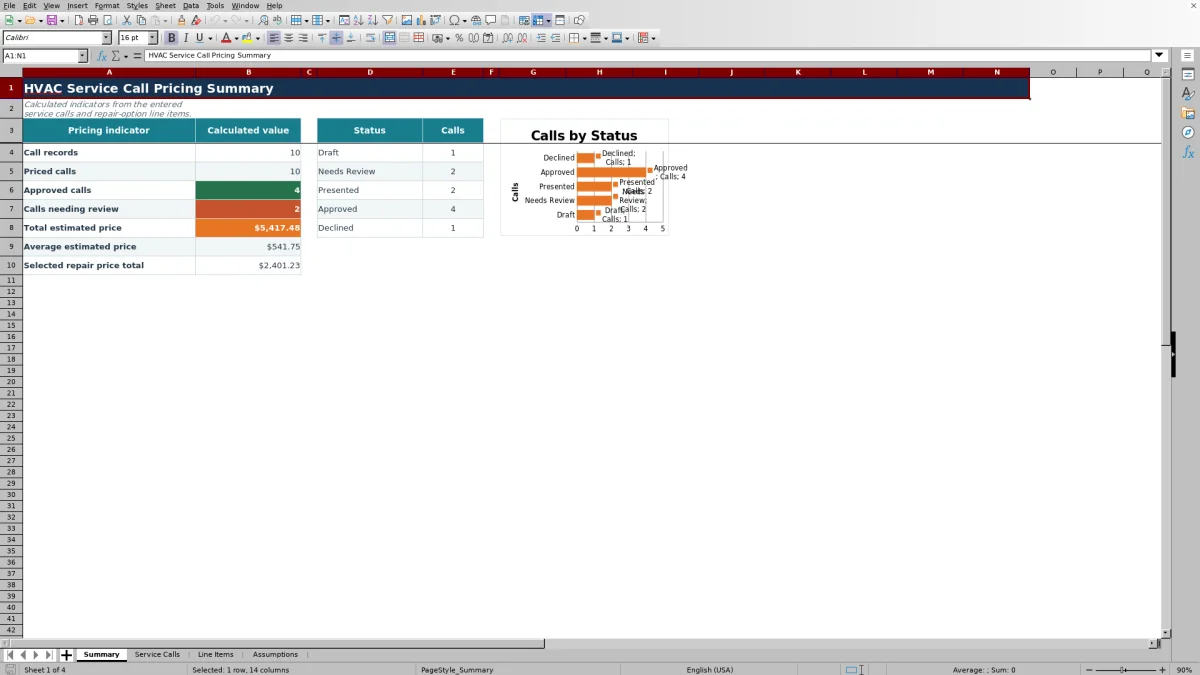
Summary counts nonblank Call IDs as call records and numeric Estimated Call Price results as priced calls. It also reports approved calls, calls needing review, total and average estimated prices, and the total selected repair price.
The status table and chart count the five status labels listed on Assumptions. A status entered on an otherwise incomplete row can appear in those status counts even when the row is not counted as a call record. Complete the Call ID or clear the partial row when the totals do not reconcile.
The Approved calls and Calls needing review indicators use those exact words in their formulas. If the corresponding status labels are renamed on Assumptions, audit and update the summary formulas rather than assuming those two indicators will follow the renamed labels.
Common pricing worksheet errors and fixes
A repair option returns $0 unexpectedly: confirm that Line Items contains at least one row with the same Call ID and Option A, B, or C label selected on Service Calls.
Estimated Call Price is blank: complete Call ID, Diagnostic Hours, and Selected Repair Option. A blank Summary total or average means there are no numeric estimated call prices to aggregate.
A line price is too low: check Quantity, Unit Cost, and Labor Hours. Once Call ID and Description are present, blank numeric inputs can be treated as zero in the calculation.
Excel rejects an entry: review the date bounds and maximum values on Assumptions. Quantity uses the maximum in B9, Unit Cost uses B10, and diagnostic and line labor hours use B11.
Older estimates changed after a rate update: the formulas reference shared assumptions. Restore the earlier assumptions from a dated copy or preserve approved estimates in separate identified files before changing rates.
A formula was overwritten: compare the cell with an untouched workbook and an adjacent calculated row before restoring it. Do not replace a formula with a typed price unless you intentionally redesign the workflow.
Workbook Comparison with other pricing methods
| Practical criterion | This Excel workbook | Blank spreadsheet | Field-service management system |
|---|---|---|---|
| Pricing structure | Includes fixed formulas for dispatch, diagnostic, parts, labor, and the selected repair option. | Requires the user to design and test the structure. | Pricing structure depends on the selected system and configuration. |
| Repair choices | Supports Option A, B, and C line items plus a No Repair selection. | Supports only the option logic the user creates. | Option handling varies by system and setup. |
| Review view | Provides pricing indicators, status counts, totals, an average, and a status chart. | Requires custom formulas or summaries. | Reporting varies by system and configuration. |
| Broader operations | Remains a standalone XLSX without messaging, payment, or live dispatch functions. | Remains limited to what the user builds. | May support broader workflows depending on the selected system. |
Choose this workbook when a controlled Excel file and its defined pricing workflow fit the task. Start with a blank spreadsheet when the required calculation is materially different and you can design and test it. Consider a field-service system when connected scheduling, customer communication, invoicing, or other broader functions are required and have been evaluated separately.
Workbook limits, file control, and review
The existing formulas, validation ranges, filters, and summary references cover 100 service-call rows and 100 repair line-item rows. Adding more rows requires careful extension of formulas, validations, filter ranges, and Summary references. Dropdown source ranges are also fixed, so entries added below the current source lists will not automatically become selectable.
The workbook has no dedicated fields for sales tax, discounts, mileage, overtime, permits, actual costs, payments, or invoice balances. It does not send estimates, monitor live work, maintain approval history, or preserve prior pricing assumptions. Save dated copies when an approved estimate or rate set must remain unchanged.
This is an operational pricing aid, not an equipment-sizing, engineering, code, safety, accounting, tax, legal, environmental, or licensing determination. A qualified person must review the repair scope and any requirements outside the workbook.
Customer, technician, equipment, pricing, and service details may be sensitive. Store the XLSX according to your access and retention practices, limit entries to information needed for the estimate, and remove fictional sample records before operational use.
Frequently asked questions
Can the worksheet price more than one repair option?
Yes. Line Items accepts Option A, Option B, and Option C for the same Call ID. Only the option chosen in Selected Repair Option rolls into Repair Price and Estimated Call Price. No Repair produces a $0 repair amount.
Why is the estimated service call price blank?
The Service Calls formula requires a Call ID, Diagnostic Hours, and a Selected Repair Option. Complete those inputs first. If an option is selected but its lines do not match the Call ID and option label, the repair portion may show $0 rather than blank.
Is Extended Cost the price presented for the repair?
No. Extended Cost combines entered part cost with labor hours valued at the estimated technician labor cost rate. Line Price instead uses marked-up parts and the repair labor price rate. The selected Line Price amounts feed the service-call estimate.
Can pricing rates vary by technician or service call?
Not in the verified workbook's current formulas. Dispatch, diagnostic labor, repair labor, estimated technician labor cost, and parts markup come from shared Assumptions values. Per-technician or per-call rates would require workbook changes and formula review.
Does the workbook create an invoice or prove customer approval?
No. It prepares estimated pricing and records a selected status. It does not generate a verified invoice, process payment, send the estimate, capture a signature, or independently prove authorization. Keep required approvals and billing records through your established process.
Editorial responsibility

Mara KeeneService operations editor

Owen CalderEstimating and controls editor