This HVAC refrigerant usage log is an editable Excel workbook for recording cylinder movements against technicians, customers, jobs, and equipment.
Use the transaction record to connect pounds issued, used, and returned with a running balance, usage cost, record status, and a check that still requires staff review.
How this template can help
- Follow each cylinder from its opening quantity through non-voided issues and returns.
- Connect refrigerant usage to a technician, customer, job number, equipment record, and responsibility.
- Calculate usage cost from pounds used and the editable unit cost assigned to the cylinder.
- Focus office review on draft records, entry checks, negative balances, and low-balance cylinders.
What the workbook contains
How to get started
1. Set the reporting controls and lists
Replace demo data on the Assumptions sheet with the report dates, low-balance threshold, quantity variance tolerance, entry limits, refrigerants, technicians, and status choices used by your company. The supplied names and records are fictional examples.
2. Create the cylinder records
Enter cylinders first on the Cylinders sheet. Complete Cylinder ID, Refrigerant, Description, Opening Qty, Unit Cost, and Cylinder Status. Current Qty, Remaining, Unit, and Check are calculated fields, so preserve those formulas.
3. Record each movement
Enter transactions in order on Usage Log rows 6 through 105. Select the cylinder, then enter the date, technician, job details, Qty Issued, Qty Used, Qty Returned, responsibility, job status, and record status. Quantities are recorded in pounds. Enter 0 rather than leaving Qty Returned blank when nothing came back.
4. Review checks and totals
Review before relying on totals. Resolve messages in the Usage Log Check column and the Cylinders Check column, then set the desired report period on Assumptions and inspect Summary. A calculated check is a prompt for staff investigation, not confirmation of the physical cylinder quantity.
How cylinder quantities move through the log
Qty Issued drives the balance. For each Cylinder ID, the workbook calculates Current Qty as Opening Qty minus all non-voided quantities issued, plus all non-voided quantities returned. Qty Used is not subtracted a second time.
The quantity check compares Qty Issued with Qty Used plus Qty Returned, allowing for the Quantity Variance Tolerance on Assumptions. Entering records in transaction order matters because Balance After Entry is cumulative through the current row. If an older transaction is entered below newer activity, the final cylinder total may still calculate, but the row-by-row balance will not represent the actual sequence.
Using cost, responsibility, and record status
The selected Cylinder ID brings its Refrigerant and Unit Cost into Usage Log. Usage Cost equals Qty Used multiplied by Unit Cost. For example, 4.00 lb used at $18.25 per lb produces a $73.00 usage cost.
A blank Usage Cost can mean the row is voided or one of the required numeric inputs is unavailable. A $0.00 result can occur when Qty Used or Unit Cost is zero and should be reviewed rather than assumed to mean no cost.
Draft is not excluded from balance and period calculations. The formulas exclude only rows marked Voided. Responsibility and Job Status provide operational context, but they do not change the cost formula.
Worked refrigerant usage scenario
Fictional example: Add cylinder FICTION-CYL-21 as R-410A with a 24.00 lb opening quantity, a $15.20 unit cost, and an In Service status. On 09/03/2026, fictional technician Jamie Reed issues 6.00 lb for job DEMO-SVC-210, uses 5.50 lb, returns 0.50 lb, and marks the record Reviewed.
The quantities reconcile because 6.00 lb issued equals 5.50 lb used plus 0.50 lb returned. Usage Cost is $83.60. Balance After Entry is 18.50 lb: 24.00 − 6.00 + 0.50. The Cylinders sheet reports about 77.1% remaining.
With the Low Balance Threshold set to 20.0%, this calculated balance is above the threshold. The next decision is to reconcile the entry with the job documentation and decide whether 18.50 lb is adequate for upcoming dispatch needs. If 09/03/2026 falls within the selected report period, Summary adds one transaction, 5.50 lb used, and $83.60 to the applicable totals.
Reading the Summary indicators correctly
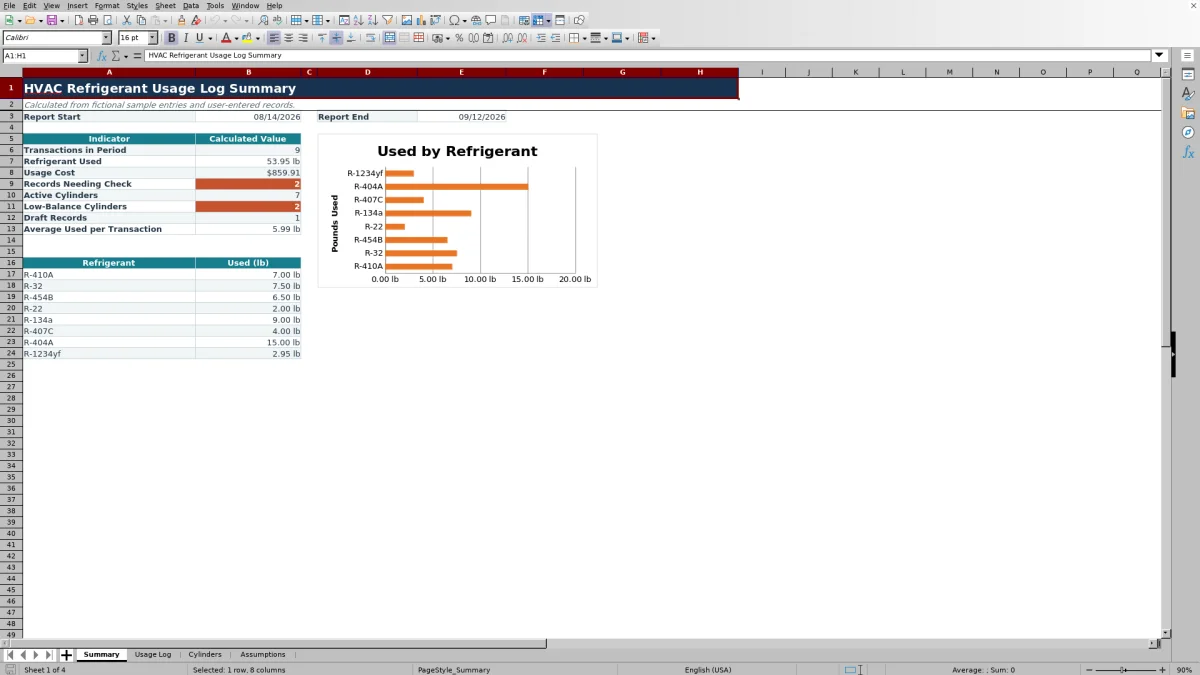
Transactions in Period, Refrigerant Used, Usage Cost, and Average Used per Transaction use the Report Start and Report End dates and exclude Voided rows. The refrigerant totals feeding the chart follow the same date range and listed refrigerants.
Records Needing Check, Draft Records, Active Cylinders, and Low-Balance Cylinders are not restricted to the report dates. They scan their applicable prepared ranges, so these counts can include records outside the displayed period.
If there are no qualifying transactions, the transaction, usage, and cost indicators can show zero. Average Used per Transaction remains blank instead of dividing by zero. Confirm the report dates, Cylinder ID, and Record Status before treating a blank average as missing workbook logic.
Common entry errors and practical corrections
Resolve the cause of each message rather than overwriting a formula cell.
- CHECK REQUIRED INPUTS: Add the missing date, technician, or record status.
- CHECK CYLINDER: Select a Cylinder ID that exists on Cylinders. Check spelling and avoid duplicate IDs.
- CHECK QUANTITIES: Complete all three quantity fields and confirm that issued equals used plus returned within the configured tolerance.
- CHECK NEGATIVE BALANCE: Review the opening quantity, transaction order, issued amount, returns, duplicate entries, and voided status.
- CHECK LOW BALANCE: Compare the calculated remaining percentage with the threshold and decide whether the cylinder needs operational attention.
- CHECK OPENING QTY: Enter a valid positive opening quantity for the cylinder.
These messages identify data conditions inside the XLSX. They do not verify cylinder weight, refrigerant handling, job scope, or technician work.
Workbook limits and record protection
The prepared calculation ranges run from row 6 through row 105, providing 100 usage rows and 100 cylinder rows. The sheets are not configured as Excel tables. Entries added below row 105 will not automatically join the verified formulas, filters, validations, or summary ranges.
Cylinder IDs do not have a verified uniqueness check. A duplicate ID can cause lookups to return the first matching cylinder while transaction totals combine activity under the shared ID. Assign one distinct ID to each cylinder and review duplicates before use.
This workbook does not provide live inventory monitoring, automatic messages, payment processing, regulatory filing, or version history. Save identified copies when preserving a reporting period or approved record set.
Customer names, employee names, job details, equipment information, pricing, and cylinder identifiers can be sensitive. Store the file in an access-controlled location, limit distribution, and remove fictional examples before entering operational records.
Comparison with paper and field-service systems
| Criterion | This Excel workbook | Paper log | Field-service system |
|---|---|---|---|
| Cylinder balance | Calculates opening quantity minus non-voided issues plus returns. | Requires manual arithmetic. | Depends on the selected system and configuration. |
| Cost calculation | Multiplies pounds used by the cylinder unit cost. | Requires a separate calculation. | Depends on available inventory and costing features. |
| Entry review | Provides validations and calculated check messages for prepared rows. | Relies on visual review. | Varies by product, setup, and user permissions. |
| Capacity and collaboration | Fixed prepared ranges in one editable XLSX file. | Limited by the paper process and filing method. | May suit shared workflows, depending on the chosen service. |
| Automatic communication | Does not send alerts or messages. | Does not send alerts or messages. | Varies by product and configuration. |
Choose this workbook when one controlled Excel file and a 100-entry prepared range fit the process. Keep a paper log only when manual recording and reconciliation are acceptable. Evaluate a field-service system when the company needs configured multiuser workflows, mobile access, integrations, or automated communication that this XLSX does not provide.
Frequently asked questions
Can I add entries below row 105?
You can type below row 105, but those rows are outside the verified formula, validation, filter, and summary ranges. Expand and test every affected range before depending on added rows, or begin a new identified workbook when the prepared 100-row capacity is reached.
Can I change the refrigerant and technician lists?
Yes. Edit the choices on Assumptions. The prepared refrigerant list uses D4:D11, and the technician list uses E4:E11. Replacing unused choices within those ranges preserves the existing dropdown references. Values entered outside those ranges will not automatically appear in the prepared lists or refrigerant summary.
What happens when a usage record is marked Voided?
A Voided row is excluded from calculated cylinder balances, date-range transaction totals, pounds used, usage cost, and refrigerant summary totals. Its row-level Usage Cost is blank. Keep enough non-sensitive description to explain the correction according to your company process.
Does Reviewed mean that the entry is approved?
No. Reviewed is a selectable Record Status, not an approval, certification, or signature. The workbook also includes Draft and Voided choices. Staff must define who reviews records and what evidence is required before selecting a status.
Does this refrigerant log satisfy regulatory requirements?
The workbook organizes internal operational records, but it does not determine filing obligations, verify technician credentials, certify refrigerant handling, or prove compliance. Have a qualified person determine which records, units, retention periods, and supporting documents apply to your work.
Editorial responsibility

Mara KeeneService operations editor

Owen CalderEstimating and controls editor