This editable Excel HVAC maintenance plan renewal tracker keeps expiration, pricing, contact, responsibility, and outcome details in one working list.
Use its date calculations and internal review prompts to decide which renewals need attention, then record the action manually after it occurs.
How this template can help
- Prioritizes open plans by expiration timing and recorded notice activity.
- Keeps pricing, contact attempts, responsibility, and renewal status together.
- Summarizes open proposed value, outcomes, and completed contact attempts.
- Lets the service team adjust timing assumptions and approved list choices.
What the workbook contains
How to get started
1. Review the assumptions
Set operating assumptions first. On the Assumptions sheet, review Notice lead days, Due soon window days, Follow-up interval days, date limits, maximum plan price, and maximum contact attempts. Replace the fictional technician choices in H3:H7 as needed. Preserve the exact terminal status labels Renewed, Declined, and Lapsed because workbook formulas use those words.
2. Replace the fictional records
Use one row per plan. On Renewals, replace the clearly fictional examples in the peach input cells. Enter the renewal ID, customer, plan description, technician, expiration date, pricing, responsibility, and current status. Leave the calculated columns Recommended Notice Date, Days to Expiration, Follow-Up Alert, and Price Change % intact.
3. Record each completed action
Record actions after they occur. Add Notice Sent Date, Last Contact Date, and Contact Attempts when staff completes those steps. When the plan reaches a final outcome, select Renewed, Declined, or Lapsed and enter the Outcome Date.
4. Review the working list and summary
Review prompts, then decide. Use the Renewals filter to isolate assigned staff, statuses, or expiration dates. Check Summary for open records, near-term expirations, missing notice records, status counts, and open proposed value. Confirm the source row before contacting a customer or changing a status.
Set the notice and review timing
The Recommended Notice Date subtracts Notice lead days from the plan's Expiration Date. With the included 30-day setting, a 06/26/2026 expiration produces a recommended notice date of 05/27/2026. If either the expiration date or notice lead setting is blank, the calculated notice date stays blank.
Days to Expiration subtracts Excel's current date from the expiration date. A positive result is the number of days remaining, zero means the plan expires today, and a negative result means it has passed its expiration date. Summary treats an open record as expiring within the review window when that result is from zero through the Due soon window days setting, which is initially 45 days.
Worked renewal review scenario
Assume the workbook date is 06/01/2026 and a fictional customer, Maple Street Books, has a plan expiring 06/26/2026. Enter a current price of $400.00, a proposed price of $440.00, Pending Notice as the status, no Notice Sent Date, and zero contact attempts. Keep the notice lead at 30 days and the due-soon window at 45 days.
Workbook result: Recommended Notice Date is 05/27/2026, Days to Expiration is 25, Price Change % is 10.0%, and Follow-Up Alert reads Notice due - human check. If this is the only populated record, Summary shows one entered plan, one open record, one plan inside the review window, one notice due but not recorded, and $440.00 of open proposed value.
The record needs attention because the recommended notice date has passed while the expiration date is still ahead. Verify the customer and approved proposal details, assign responsibility, complete the outreach through the company's normal channel, and then record the notice and contact dates in the workbook.
Interpret the Summary indicators
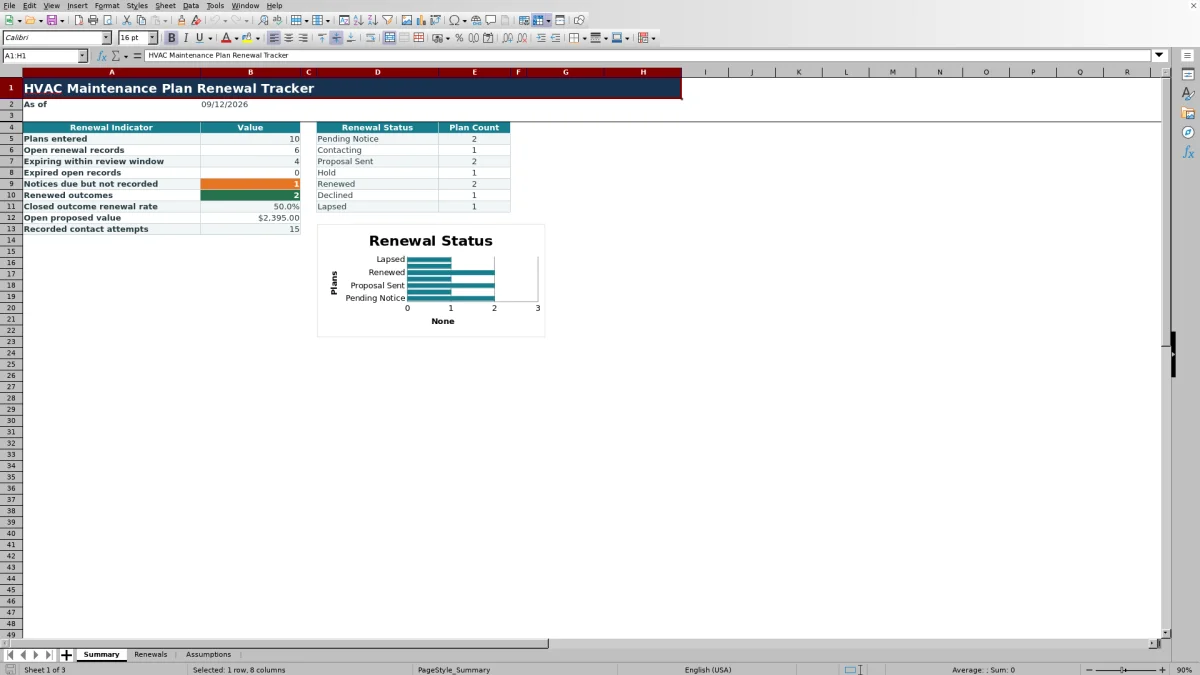
Plans entered counts rows with a value in Customer, not merely a Renewal Job ID. Open renewal records include populated customer rows whose status is not Renewed, Declined, or Lapsed. A row with a blank status can therefore remain in the open count until the missing status is corrected.
Closed outcome renewal rate divides Renewed outcomes by all Renewed, Declined, and Lapsed outcomes. It remains blank when there are no terminal outcomes because there is no closed-result denominator. Open proposed value totals Proposed Price for nonterminal records; a blank proposed price contributes zero, so review the working list before treating the total as a complete pipeline figure.
The status area counts the seven choices listed on Assumptions and feeds the Summary chart. Recorded contact attempts is the sum of the Contact Attempts column, including any stray number entered on an otherwise incomplete row.
Maintain contact and outcome records
Notice Sent Date confirms that staff recorded a notice as sent; entering a date does not send anything. Last Contact Date and Contact Attempts provide the latest date and a cumulative count, but the workbook does not contain a separate history row for each call, email, or conversation.
Use Responsibility to identify whether the Office Coordinator, Service Manager, or Assigned Technician owns the next action. Assigned Technician is a separate field for the technician choice. Update both when operational ownership differs from the technician associated with the plan.
For a closed record, select Renewed, Declined, or Lapsed and add the Outcome Date. A terminal status without an outcome date can still affect Summary counts and the renewal-rate calculation, while Follow-Up Alert asks for the missing date. Confirm both fields before relying on the closed record.
Correct common renewal tracker errors
- A blank Recommended Notice Date usually means Expiration Date or Notice lead days is missing. Confirm both inputs before changing the formula.
- A rejected date may fall outside the current allowed range of 09/12/2024 through 09/11/2029. If a legitimate plan falls outside that range, update Earliest allowed date or Latest allowed date on Assumptions before entering it.
- A rejected price may exceed the current $100,000.00 maximum, and a rejected attempt count may exceed 99. Review the corresponding limits rather than entering an inaccurate value.
- Price Change % stays blank when Current Plan Price or Proposed Price is missing, or when the current price is zero or negative. Enter a valid positive current price before interpreting the percentage.
- If a calculated column no longer updates, its formula may have been overwritten. Restore the appropriate formula from an unaffected row and verify its row references before using the result.
- If open and closed totals appear inconsistent, confirm the Customer and Renewal Status fields. Do not rename Renewed, Declined, or Lapsed on Assumptions unless the dependent formulas are also reviewed.
Comparison with a blank spreadsheet and service system
| Criterion | This Excel workbook | Blank spreadsheet | Field-service management system |
|---|---|---|---|
| Starting structure | Three prepared sheets with 100 renewal rows | User must design fields and layout | Depends on the selected system and configuration |
| Timing calculations | Prepared notice date, days remaining, prompts, and summary formulas | User must create and test calculations | Available capabilities must be confirmed for the selected system |
| Contact detail | Latest contact date and cumulative attempt count | Can be designed for the desired level of detail | Record history varies by system and setup |
| Messages and workflow | No sending or automatic task assignment | No sending unless separate tools and processes are added | Possible capabilities vary and require vendor review |
| Adaptation | Editable assumptions and fixed validation ranges | Highly flexible but manually maintained | Configuration options and effort vary |
Choose this workbook when a small team needs a defined, manually maintained renewal list in Excel. Start with a blank spreadsheet when the required fields differ substantially. Evaluate a field-service management system when shared activity history, permissions, messaging, or broader service workflows are required, and confirm those capabilities directly.
Understand capacity, automation, and data limits
Internal prompts only. Follow-Up Alert and Summary indicators are cell results for staff review. The XLSX does not send notices, create appointments, assign live tasks, monitor equipment, or confirm that anyone contacted the customer.
The prepared formulas, validation, filters, and Summary ranges cover Renewals rows 5 through 104. Adding records below row 104 requires careful extension of formulas, validation, formatting, filters, and Summary references. The workbook itself does not maintain a detailed change log or historical snapshots, so save an identified copy before making material structural changes.
TODAY-based results depend on Excel's current date and recalculation. Confirm the computer date and recalculate before using time-sensitive indicators. Proposed values are planning figures, not invoices, collected revenue, payment records, or accounting entries.
Protect the file. Customer names, employee assignments, prices, and contact dates can be sensitive. Store and share the workbook according to company access practices. It does not provide contract, accounting, tax, legal, engineering, safety, code, environmental, or licensing review.
Frequently asked questions
Does the workbook send maintenance plan renewal notices?
No. Notice Sent Date is a manual record, and Follow-Up Alert is an internal cell prompt. Staff must verify the details, use an approved communication method, and enter the completed action afterward.
Can I change the notice and follow-up timing?
Yes. Assumptions contains Notice lead days, Due soon window days, and Follow-up interval days. The timing cells accept whole numbers from 0 through 365. Review the calculated dates and prompts after changing them.
Why is the closed outcome renewal rate blank?
The rate stays blank until at least one record has a terminal status of Renewed, Declined, or Lapsed. Once terminal outcomes exist, the calculation divides Renewed records by the total of those three outcomes.
How many renewal records does the prepared workbook support?
The Renewals sheet provides 100 prepared entry rows, from row 5 through row 104. Records below that range are not automatically included in the existing formulas, validation, filter range, or Summary calculations.
Can I replace the fictional technicians and responsibility choices?
Yes. Replace technician choices in Assumptions H3:H7 and responsibility choices in F3:F5. The existing dropdowns point to those fixed ranges, so adding choices outside them requires updating the related data validation range.
Editorial responsibility

Mara KeeneService operations editor

Owen CalderEstimating and controls editor