This Excel workbook records initial HVAC service visits and measures first-visit resolution using entered outcomes, callback classifications, and job statuses.
Use the Summary sheet to review a selected period, technician, or service type. Follow pending and callback records back to Service Visits before making an operational decision.
How this template can help
- Separates eligible closed visits from pending and canceled records before calculating the fix rate.
- Filters period results by technician and service type for focused service reviews.
- Shows related callbacks and average labor hours beside the first-time fix results.
- Provides technician, service-type, and callback-outcome detail without rebuilding formulas.
What the workbook contains
How to get started
1. Save a clean working file
Keep an untouched original and create a working copy. Replace the fictional examples in the editable Service Visits fields, but do not clear the formulas in First-Time Fix Result or Review Alert.
2. Review the Assumptions sheet
Replace the sample technician and service-type names in their existing list slots. Review the labor-hours threshold, accepted service-date range, and first-time fix review benchmark. Keep rule labels aligned: the result formulas rely on exact entries such as Resolved, Related callback, Review pending, Open, Scheduled, and Canceled.
3. Enter each initial visit
Use one initial service visit per row on Service Visits. Complete Job ID through Status, including Labor Hours, Visit Outcome, Callback Outcome, and Responsibility. The sheet provides 100 prepared entry rows and calculates the two result columns.
4. Set filters and investigate results
On Summary, enter Start Date and End Date, then choose a Technician and Service Type or leave each dropdown at All. Review Pending classifications and Related callbacks before relying on the displayed rate.
What counts as a first-time fix
The workbook treats a record as a first-time fix when every required field from Job ID through Status is complete, the visit is resolved, the callback is not classified as Related callback, and the status is not open, scheduled, or canceled.
A complete closed record becomes No when it does not meet that rule. A related callback therefore produces No even if Visit Outcome says Resolved. An unrelated callback can still produce Yes when the other conditions are met.
Open or scheduled work, Review pending callback outcomes, and incomplete rows remain Pending. Canceled records are Excluded. Responsibility must be completed, but its selected value does not determine Yes or No.
Read the Summary before comparing technicians
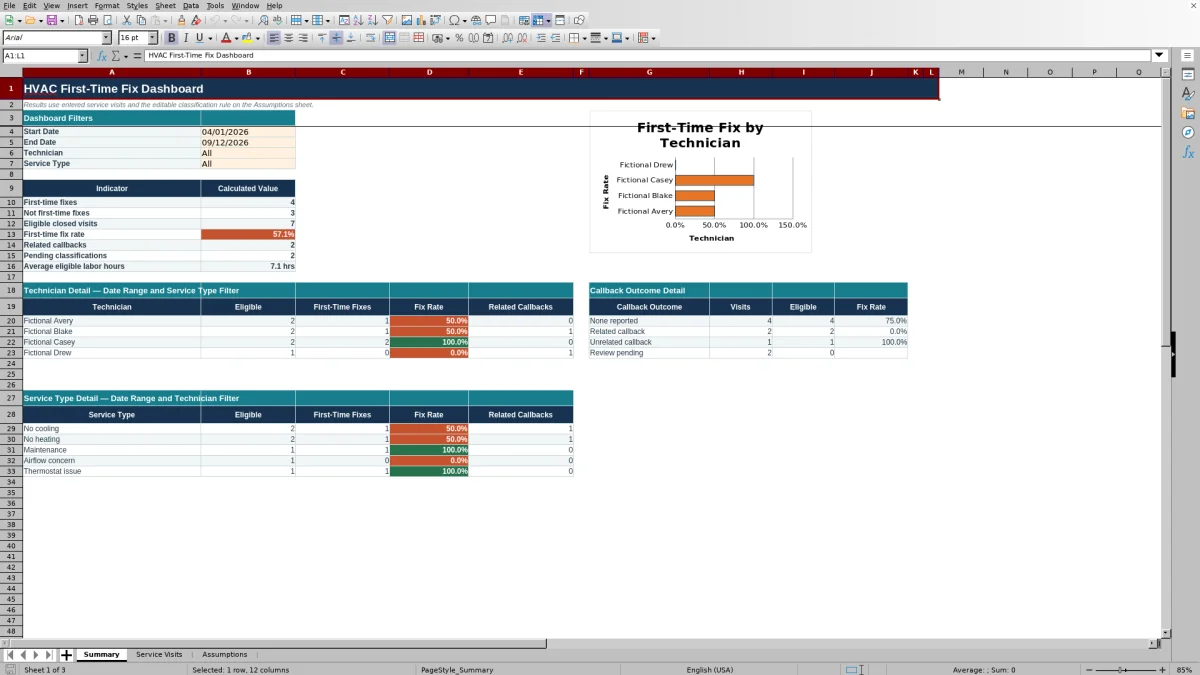
The main indicators apply the Start Date, End Date, Technician, and Service Type filters. Eligible closed visits equal the Yes and No results. First-time fix rate is the number of Yes results divided by eligible visits, while Average eligible labor hours uses labor from those eligible records.
A blank rate is not 0%. The rate remains blank when the date filters are missing or invalid, or when no eligible visits match the selection. Check the filter period and Pending count before interpreting an empty result.
Technician Detail uses the date range and Service Type filter while displaying each technician listed on Assumptions. Service Type Detail uses the date range and Technician filter while displaying each listed service type. Callback Outcome Detail applies the overall filters. The chart uses the technician names and their calculated fix rates.
Worked service-period scenario
Assume six fictional No cooling records for Fictional Avery fall between 07/01/2026 and 07/31/2026. Two closed visits are resolved with no related callback and use 2.0 and 3.0 labor hours. Two other closed visits use 4.0 and 2.5 hours: one needs follow-up and both have Related callback outcomes. A 1.0-hour visit is still Open, and a 0.5-hour visit is Canceled.
The workbook returns two Yes results, two No results, one Pending result, and one Excluded result. That produces four eligible closed visits and a 50.0% first-time fix rate. It also shows two related callbacks. Eligible labor totals 11.5 hours, so Average eligible labor hours displays 2.9 hrs after rounding to one decimal place.
The 50.0% result means half of the four eligible records met this workbook's rule—not half of all six entries. Review the two related callback records and confirm their classifications before discussing parts availability, diagnosis, job scope, or technician coaching. Four eligible visits are too small a group for a broad performance conclusion.
Handle callbacks and pending classifications
Callback Outcome distinguishes None reported, Related callback, Unrelated callback, and Review pending. The Summary counts Related callbacks when the record is not canceled. It does not establish why the callback occurred; use Service Description and Responsibility as operational context.
A blank Callback Outcome is not equivalent to None reported. Because all input fields are required for classification, leaving it blank keeps the row Pending. Review pending also keeps the record out of the eligible total until staff select a final callback outcome.
This workbook records the callback classification on the initial visit row. It does not maintain a separate callback visit history or verify that two service records concern the same issue.
Correct common entry and filter errors
- Review Alert is an in-cell prompt, not a message or notification. Follow it back to the affected row.
- If Summary results are blank, confirm both dates are entered and End Date is not earlier than Start Date.
- If a row says Complete required inputs, review every field from Job ID through Status rather than entering placeholder information.
- If it says Check service date, confirm the entry is a valid Excel date within the accepted range on Assumptions.
- If it says Check labor hours, compare the entry with the Labor hours review threshold. Labor-hour validation also has an accepted upper limit controlled by Assumptions.
- If a resolved visit unexpectedly returns No after list edits, verify that the exact rule terms have not been renamed. Changing Resolved or other rule labels without revising formulas changes classification behavior.
Comparison: Excel dashboard, blank sheet, or service system
| Criterion | This Excel workbook | Blank spreadsheet | Field-service management system |
|---|---|---|---|
| Initial setup | Prepared visit fields, lists, formulas, filters, and Summary areas | User must design fields, rules, formulas, and reporting | Setup depends on the selected system and configuration |
| Classification | Uses the workbook's fixed status, outcome, and callback logic | Depends entirely on rules created by the user | Available logic varies; confirm how first-time fixes are defined |
| Working volume | 100 prepared service-visit rows | Capacity depends on how the file is built | Evaluate based on expected record volume and plan limits |
| Dispatch or live workflow connection | No verified integration or live connection | No connection unless separately built | Capabilities vary by system and configuration |
| Best fit | Manual, file-based review for a defined set of visits | A custom process when staff can build and maintain the logic | A broader workflow when multiuser access or connected operations are required |
Choose this workbook when a small team can maintain one controlled XLSX and 100 prepared rows cover the review period. Start with a blank sheet only if the team wants to design and test its own classification method. Evaluate a field-service system when connected dispatch, larger record volumes, or multiuser processes are requirements.
Limits, capacity, and record handling
This is an operational classification tool based on entered data. It does not verify field diagnosis, equipment condition, technician responsibility, warranty coverage, code compliance, or the cause of a callback.
The prepared Service Visits range ends at row 104, providing 100 data rows. Adding records below that range does not guarantee inclusion in formulas, validation, filters, or Summary calculations. Expanding the workbook requires coordinated changes to those ranges.
No integration, notification service, or version history is verified. Save identified copies before changing lists or formulas. Because the file can contain customer names, service descriptions, equipment details, employee names, and operating data, restrict access and follow the company's retention and backup practices.
Frequently asked questions
What makes a visit eligible for the first-time fix rate?
An eligible visit has a calculated First-Time Fix Result of Yes or No. In practice, its required fields are complete, it is not canceled, open, or scheduled, and its callback outcome is no longer Review pending. Pending and Excluded records are not part of the rate denominator.
Why is the first-time fix rate blank?
The rate is blank when Start Date or End Date is missing, End Date is before Start Date, or the current filters return zero eligible visits. A blank should not be reported as a 0% fix rate.
Can I enter more than 100 service visits?
The workbook provides rows 5 through 104 for 100 visits. Do not assume entries below row 104 will appear in the dashboard. Additional capacity requires extending formulas, validation, the filter range, and Summary source ranges consistently.
Can this dashboard be used to score technicians?
It can organize technician-level results for operational review, but it does not prove individual performance. Consider eligible visit count, service mix, job difficulty, parts availability, record completeness, and callback classification before deciding on coaching or process changes.
Does the workbook send callback or review alerts?
No. Review Alert is a calculated worksheet column. Staff must open the file, inspect the prompt, and update the underlying service record; the workbook does not send messages or monitor another system.
Editorial responsibility

Mara KeeneService operations editor

Owen CalderEstimating and controls editor