This Excel HVAC maintenance inspection report keeps an itemized service inspection record and a calculated management summary in one XLSX file.
Use it to document observed conditions, recommended work, cost and price context, photo references, and approval decisions. It supports follow-up tracking; it does not perform field tests or certify equipment condition.
How this template can help
- Keep each observed deficiency connected to its equipment and recommended work.
- Apply consistent condition, responsibility, work status, and approval categories.
- Develop a planning cost from entered material quantities and labor hours.
- Review open work, pending approvals, aging items, and condition counts from one summary.
What the workbook contains
How to get started
1. Review the assumptions
Save a working copy, then open Assumptions. Set the loaded labor cost per hour in B3 and review the age alert days, allowed inspection-date window, numeric limits, technician names, and other choice lists. These entries control calculations and data validation.
2. Replace the fictional inspection entries
On Inspection Items, use one observed item per row in rows 5 through 104. Enter the inspection date, Job ID, customer, equipment, technician, condition, observed deficiency, and recommended work in the peach cells. Keep separate equipment issues on separate rows so each can have its own cost and status.
3. Complete the cost and workflow fields
Enter quantity and unit cost together, then add labor hours when applicable. Preserve the formulas in Estimated Cost. Enter Estimated Price manually, and select the applicable Responsibility, Work Status, and Approval Status. Photo Reference stores a text identifier, not an image.
4. Review the calculated indicators
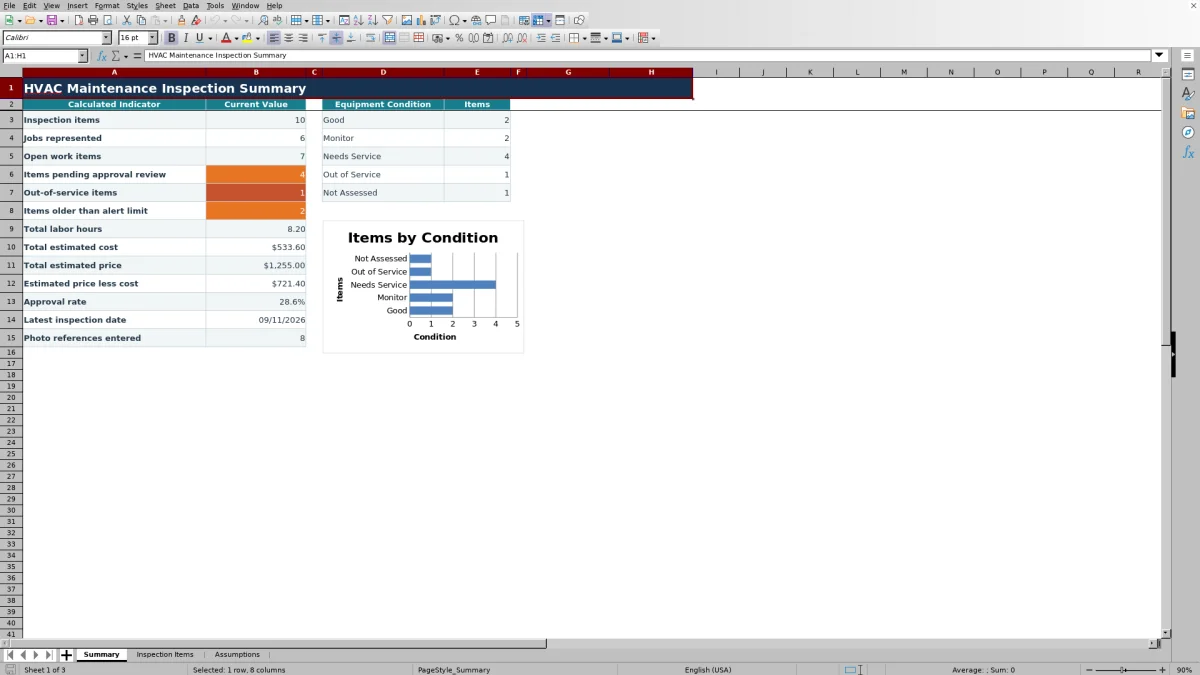
Open Summary to review inspection and job counts, open work, pending approval review, condition totals, labor hours, estimated amounts, aging items, and photo-reference counts. Use those results to decide which recommendation needs clarification, pricing, approval follow-up, or scheduling outside the workbook.
Turn field observations into actionable rows
Start with what was actually observed. Identify the job, equipment, technician, and inspection date, then describe the visible condition in Observed Condition / Deficiency. Put the proposed response in Recommended Work rather than mixing the observation and recommendation into one statement.
Select Equipment Condition for that item from Good, Monitor, Needs Service, Out of Service, or Not Assessed. Keep unrelated deficiencies on separate rows. For example, a loaded filter and a worn belt should have separate rows even when they belong to the same rooftop unit. This lets the office assign different costs, approvals, and next actions.
Condition labels are operational records, not engineering or safety determinations. In particular, selecting Out of Service does not itself authorize shutdown work or prove that equipment is unsafe.
Understand the estimated cost and price calculation
Estimated Cost adds material or part cost to labor cost. The calculation is: quantity × unit cost, plus labor hours × the loaded labor cost in Assumptions B3. Labor-only and material-only items can be calculated when their applicable inputs are complete.
Quantity and Unit Cost must be entered together. If only one is present, Estimated Cost stays blank so an incomplete material calculation is not presented as a usable amount. It also stays blank when quantity, unit cost, and labor hours are all empty. A zero may be valid when complete inputs produce zero, so review the source entries before treating zero as missing work.
Estimated Price is entered manually. Summary subtracts total estimated cost from total estimated price, but that difference is not automatically a profit or accounting margin. It includes only the cost factors entered through this workbook and does not create an invoice.
Worked maintenance inspection scenario
Assume a fictional 03/18/2026 inspection for Job ID DEMO-260318-04 identifies wear on two belts for Fictional RTU-2. The estimator enters a quantity of 2, a unit cost of $22.00, 1.25 labor hours, and a loaded labor cost of $48.00 per hour.
The material portion is $44.00, and the labor portion is $60.00. The workbook returns a $104.00 estimated cost. If the manually entered Estimated Price is $165.00, the price-less-cost result is $61.00 when this is the only item.
Set the condition to Needs Service, Work Status to Recommended, Approval Status to Pending Review, and Photo Reference to DEMO-IMG-07. With only this row, Summary shows one inspection item, one open work item, one pending approval, and an approval rate of 0%. The next decision is to verify scope and pricing, then obtain and record the decision through the contractor's normal process; the workbook does not send the request.
Separate work progress from approval review
Approval status is not work status. Work Status tracks the operational stage of an item, while Approval Status records whether review was not requested, is pending, was approved, or was declined. Update each field according to what happened rather than assuming a recommendation was approved because it was quoted or scheduled.
The Summary open-work count includes Work Status values of Observed, Recommended, Quoted, Approved, and Scheduled. The approval rate divides Approved items by Approved, Declined, and Pending Review items combined. Pending items therefore reduce the displayed rate, while Not Requested and blank entries are excluded from that calculation.
The status fields do not capture a signature, approval date, approver identity, or audit trail. Keep any required authorization evidence in the appropriate external job record.
Read the summary without overreading it
Inspection items are counted from nonblank Job ID entries, and Jobs represented counts unique nonblank Job IDs. Consistent Job IDs are therefore essential. The condition chart separately counts rows assigned to each equipment-condition category.
Items older than the alert limit counts rows with both an Inspection Date and Job ID when the date is earlier than the current date minus the Age alert days setting. This is a calculated review count, not an automatic alert, email, or dispatch notice.
Total labor, cost, and price can show zero when no numeric values have been entered. Estimated price less cost remains blank when there is no numeric Estimated Price. Approval rate is blank when there are no Approved, Declined, or Pending Review entries, and Latest inspection date is blank when no dates are present.
Correct common entry and formula problems
If Estimated Cost is blank, check whether Quantity and Unit Cost were entered as a pair. Enter both values or clear both, then verify Labor Hours and the loaded labor assumption.
If an inspection date is rejected, compare it with the earliest and latest allowed dates on Assumptions. Correct the date or deliberately revise the allowed window before entering it again.
If a dropdown rejects a technician, unit, condition, responsibility, or status, select an existing choice or edit the corresponding choice cell on Assumptions. Do not free-type a near match that would split summary counts.
If Summary counts appear inconsistent, look for blank or inconsistent Job IDs. A row can contribute to a condition or status count while being excluded from the Inspection items and Jobs represented indicators.
If an item added below row 104 does not appear in Summary, move it into the prepared range or carefully extend the formulas, validation, filters, and summary references in a separate working copy.
Respect the workbook’s operating limits
The prepared inspection range contains 100 rows. The workbook does not provide live system monitoring, automated dispatch, notifications, payment processing, embedded photo management, or an approval audit trail. Photo Reference is a text field that can hold a controlled filename or other identifier for an image stored elsewhere.
Estimated Cost includes entered quantity, unit cost, labor hours, and the loaded labor-cost assumption. It does not automatically include every overhead, subcontractor charge, tax, permit, warranty, or accounting adjustment. Responsibility is a tracking choice and does not establish contractual or legal responsibility.
Customer, technician, pricing, equipment, and photo-reference information may be sensitive. Store the XLSX with access appropriate to your business and avoid adding unnecessary property-access details. Qualified personnel must still address equipment safety, code, environmental, engineering, and licensing questions.
Workbook Comparison: Excel File, Blank Sheet, or Paper
| Criterion | HVAC Sheets workbook | Blank spreadsheet | Paper inspection log |
|---|---|---|---|
| Starting structure | Prepared fields for observations, recommendations, cost inputs, responsibility, status, approval, and photo references | Fields and layout must be designed by the user | Limited to the fields printed on the form |
| Cost calculation | Formula combines quantity, unit cost, labor hours, and loaded labor cost | Depends on formulas the user creates and maintains | Requires separate or manual arithmetic |
| Entry consistency | Uses defined dropdown choices and date or numeric validation in prepared rows | Depends on controls added by the user | Depends on written instructions and handwriting |
| Management review | Provides full-range indicators and an equipment-condition chart | Requires custom summaries | Requires manual review and tallying |
| Photo handling | Stores a text photo reference only | Depends on the design chosen by the user | Usually relies on a handwritten or printed reference |
| Capacity and adaptation | Has 100 prepared rows; extending it requires formula and validation review | Flexible, but all controls must be built and checked | Additional pages can be added, with separate filing and consolidation |
Choose this workbook when the prepared fields, calculations, and 100-row range fit a shared Excel process. Start with a blank spreadsheet when the operation needs substantially different fields and someone can maintain the formulas and controls. A paper log may fit a temporary manual process, while a dedicated field-service system should be evaluated when mobile capture, integrated dispatch, messaging, or managed attachments are required.
Frequently asked questions
How many inspection items can the workbook hold?
Inspection Items provides 100 prepared rows, from row 5 through row 104. Those rows include the Estimated Cost formulas, validation, formatting, filter range, and Summary references.
Can I attach inspection photos inside the report?
No attachment feature is provided. Photo Reference accepts text, such as a controlled filename or image ID. Store the actual photo in an authorized location and use a reference that staff can match without exposing sensitive access information.
Can this workbook track more than one job?
Yes. Summary counts unique nonblank Job IDs as Jobs represented, and Inspection Items can be filtered by Job ID. However, filtering the visible rows does not change the Summary formulas, which continue to evaluate the full prepared range.
Does the workbook calculate both estimated cost and estimated price?
It calculates Estimated Cost from quantity, unit cost, labor hours, and loaded labor cost. Estimated Price is entered manually. Summary totals both amounts and subtracts total estimated cost from total estimated price when at least one numeric price is present.
Does it send approval requests or document signatures?
No. Approval Status records a selected state for follow-up, but the XLSX does not send messages, collect signatures, identify the approver, or maintain an approval audit trail.
Does an equipment condition prove safety or code compliance?
No. Good, Monitor, Needs Service, Out of Service, and Not Assessed are tracking categories. They do not replace field testing, manufacturer procedures, qualified safety judgment, engineering review, or applicable code and licensing requirements.
Editorial responsibility

Mara KeeneService operations editor

Owen CalderEstimating and controls editor