This HVAC seasonal tune-up campaign tracker is an editable Excel workbook for organizing outreach, booked appointments, completed tune-ups, and campaign revenue.
Use it to move each campaign record from a contact attempt to its next action, then read the campaign-level results on Summary.
How this template can help
- Keep up to 200 prepared campaign records in one filterable tracker.
- Turn outreach, booking, and completion dates into stage counts and conversion rates.
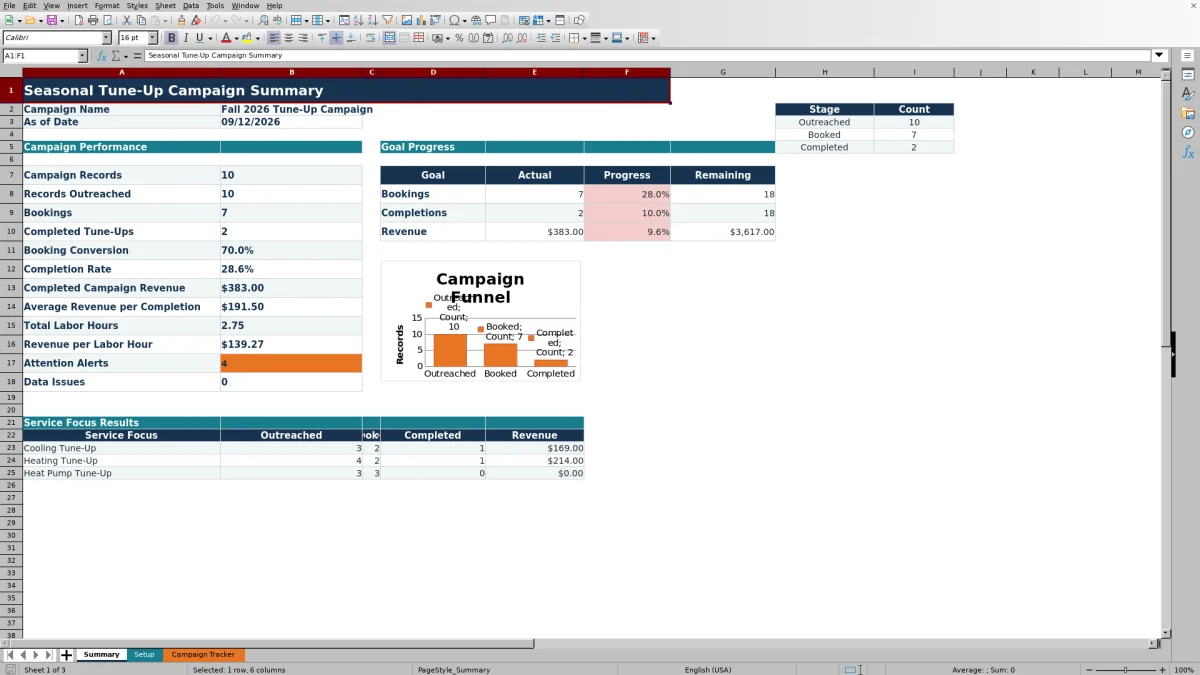
- Compare bookings, completions, and completed revenue with campaign goals.
- Identify follow-ups, scheduling gaps, no-shows, and selected data problems.
What the workbook contains
How to get started
1. Replace the example campaign setup
Start with a clean copy of the XLSX, and replace the included fictional records. On Setup, enter the Campaign Name, Campaign Start, Campaign End, As of Date, booking goal, completion goal, revenue goal, and follow-up interval.
2. Review the campaign categories
Use or replace the listed Area, Relationship Type, Service Focus, Outreach Method, Outreach Outcome, and Appointment Result choices. The tracker’s lists reference the existing Setup ranges, so adding choices below those ranges does not expand the lists automatically.
3. Enter outreach and appointment activity
Use one campaign record per row on Campaign Tracker. Enter a unique Campaign Record ID, a non-sensitive Site Alias, the applicable categories, dates, price, add-on revenue, and labor hours. Use MM/DD/YYYY dates and avoid storing customer contact, access, payment, or equipment-serial details that are not needed for this campaign.
4. Review calculated fields and the summary
Leave calculated columns P through W intact. They produce booking and completion flags, campaign revenue, days to book, follow-up dates, statuses, alerts, and data checks. Update As of Date before each review, then filter Campaign Tracker for items needing action and use Summary to compare actual results with goals.
What Each Campaign Stage Means
Dates drive the main totals. Campaign Records counts rows with a Campaign Record ID, while Records Outreached counts numeric entries in Outreach Date. A booking is counted when Booking Date is present, and a completion is counted when Completion Date is present.
This distinction matters when reviewing an appointment marked Completed but missing its Completion Date. That row does not increase the completed count. It instead receives a Completion Date Needed status or alert so the office can verify and enter the missing date.
Campaign Revenue is calculated only when both Completion Date and Tune-Up Price are present. It adds Tune-Up Price and Add-On Revenue; a blank add-on is treated as zero. A completed row with no price can therefore contribute to the completion count without contributing revenue until the price is entered.
Worked Seasonal Tune-Up Campaign Scenario
Consider a fictional example with 12 campaign records that all have outreach dates. Five records have booking dates, and four of those have completion dates. The four completed visits have campaign revenue amounts of $200, $189, $205, and $199 after adding each tune-up price and applicable add-on revenue. Their recorded labor totals 6.00 hours.
Summary would report 12 outreached, 5 booked, 4 completed, and $793 in completed campaign revenue. Booking Conversion would be 41.7% because 5 bookings are divided by 12 outreached records. Completion Rate would be 80.0% because 4 completions are divided by 5 bookings. Average Revenue per Completion would be $198.25, and Revenue per Labor Hour would be approximately $132.17.
If the campaign goals were 8 bookings, 6 completions, and $1,200 in revenue, the Remaining figures would be 3 bookings, 2 completions, and $407. The next decision is not simply to increase outreach. First review the uncompleted booking, then filter open records for follow-ups that are already due.
Using Follow-Up Dates and Attention Alerts
Follow-Up Due Date applies to an outreach record that has not been booked and is not marked Declined. The workbook adds the Follow-Up Interval from Setup to the Outreach Date. For example, an outreach date of 09/03/2026 with a seven-day interval produces a follow-up date of 09/10/2026.
If Setup’s As of Date is 09/12/2026, that record can show Follow-Up Due in Attention Alert. Other attention messages direct the user to schedule a booked call, enter a completion date, review a past scheduled date, or address a no-show.
These are in-cell review prompts, not messages or automatic notifications. Update As of Date manually, open the workbook, and filter Attention Alert to find the records requiring a call, scheduling decision, or data correction.
Reading Goals, Rates, and Service-Focus Results
Summary compares actual bookings, completions, and completed revenue with the goals entered on Setup. Progress divides each actual result by its goal, while Remaining shows the amount still needed and does not fall below zero when a goal is exceeded.
Booking Conversion divides bookings by outreached records. Completion Rate divides completed tune-ups by bookings. If there are no outreached records or no bookings, the applicable rate stays blank rather than displaying a misleading percentage. Revenue goal progress also stays blank if the revenue goal is zero because there is no usable denominator.
Service Focus Results separates outreached, booked, completed, and revenue figures for Cooling Tune-Up, Heating Tune-Up, and Heat Pump Tune-Up. Use those figures to identify which service focus needs record review or additional outreach. They do not explain why one category performs differently, so confirm timing, customer mix, pricing, and data completeness before changing the campaign plan.
Common Tracker Errors and Practical Fixes
- Duplicate Record ID: Assign a unique Campaign Record ID so one contact is not confused with another.
- Site Alias Required, Area Required, Relationship Type Required, or Service Focus Required: complete the identified input before relying on filtered results.
- Outreach Date Required or Outreach Outcome Required: enter the matching outreach details together. An outcome without a date does not count as outreach.
- Completion Date Needed: verify that the appointment was completed, then enter the actual Completion Date. Do not enter a date merely to clear the message.
- Schedule Needed or Review Scheduled Date: enter a confirmed scheduled date or investigate an appointment date that has passed.
- Date validation rejection: confirm that Outreach Date is within the campaign period. Booking, scheduled, and completion dates are accepted from the campaign start through 90 days after the campaign end.
Data Check displays a specific issue found on the row. Correct that issue and review the row again because another missing or conflicting entry may become visible afterward. Pasted values may also deserve a manual review even when they appear in the sheet.
Workbook Comparison: Excel and Other Tracking Options
| Criterion | This Excel workbook | Blank spreadsheet | Field-service management system |
|---|---|---|---|
| Initial structure | Prepared Setup, Campaign Tracker, and Summary workflow | User must design fields, formulas, and review views | Depends on the selected system and its configuration |
| Campaign calculations | Includes stage counts, rates, revenue, labor-hour metrics, goals, and follow-up logic | Requires user-created calculations | May offer campaign reporting; verify the exact fields and formulas |
| Operational prompts | Provides in-workbook statuses, attention alerts, and data checks | Must be created and maintained manually | May provide tasks or notifications if supported and configured |
| Communication and scheduling | Does not send messages or update a live calendar | Does not provide those functions by itself | May support them; confirm before relying on them |
| Prepared capacity | 200 campaign rows | Set by the user | Depends on the system and plan |
| Practical fit | Focused review of one seasonal campaign in Excel | Useful when a completely custom layout is needed | Consider when a verified connected dispatch or communication workflow is required |
Choose this workbook when the office wants a contained Excel campaign log and can maintain dates and statuses manually. Start with a blank sheet when the prepared fields do not match the process. Evaluate a field-service system when connected scheduling, messaging, or broader service history is required, and verify those capabilities directly.
Workbook Limits and Record Handling
This is a manual campaign log, not a live dispatch, messaging, payment, accounting, or customer relationship system. It does not size equipment, validate tune-up scope, confirm technician work, prove code compliance, or replace qualified safety, engineering, accounting, tax, or legal review.
Campaign Revenue is a completed-service revenue measure, not profit or margin. The workbook has no material cost, overhead, payment, or tax calculation fields. Total Labor Hours sums every numeric Labor Hours entry, including one entered on an incomplete row, while campaign revenue includes only qualifying completed rows. Review those records before interpreting Revenue per Labor Hour.
The prepared table ends at row 201, providing 200 data rows. Extending it requires careful adjustment of the table, formulas, validation, and Summary ranges. Protect pricing and operational information with appropriate file access and storage controls. A Site Alias can reduce unnecessary identifying information, but the workbook itself is not a security control.
Frequently asked questions
Can I track multiple seasonal campaigns in one workbook?
The workbook is structured around one Campaign Name and one set of campaign dates and goals. Campaign Tracker does not include a separate campaign-name field for each row. Use a separately named copy for each campaign when you need distinct goals and summaries.
Why does a Booked outreach outcome not increase the booking count?
The booking count is based on Booking Date, not Outreach Outcome. Enter the verified booking date in Campaign Tracker. If the booking has no Scheduled Tune-Up Date, the record can then show Booked - Schedule Needed.
Why is completed campaign revenue blank or zero?
A row’s Campaign Revenue requires both Completion Date and Tune-Up Price. Add-On Revenue can be blank and is then treated as zero. Summary may show $0 when no qualifying row contributes revenue, while an individual incomplete calculation can remain blank.
Can I add more than 200 campaign records?
The prepared table, formulas, and validation cover rows 2 through 201. Adding more records requires extending the Excel table and all dependent formula, validation, and Summary ranges. Test an expanded copy before using its totals for campaign decisions.
Can I change the areas, outreach methods, and service types?
Yes. Replace choices within the existing Setup list ranges so they remain available to Campaign Tracker. Adding items below those fixed ranges does not expand the lists automatically. If service-focus choices change, also review the labels in Summary cells A23:A25 so the service-focus results continue to match the tracker entries.
Editorial responsibility

Mara KeeneService operations editor

Owen CalderEstimating and controls editor