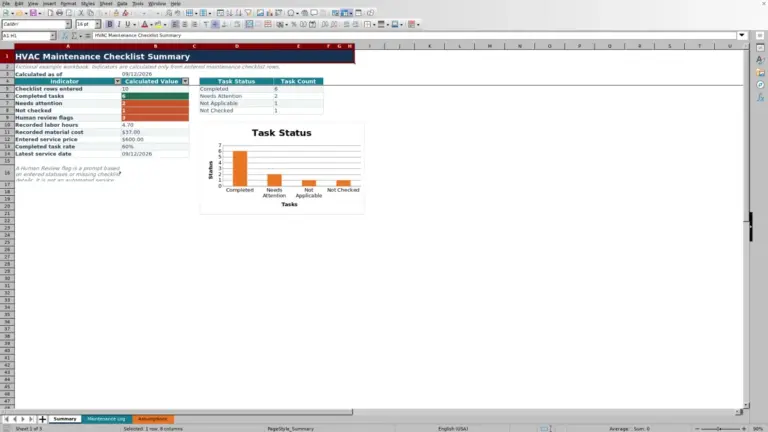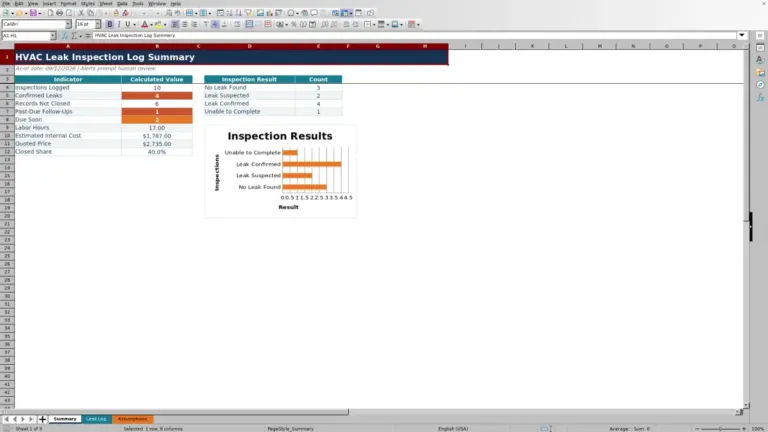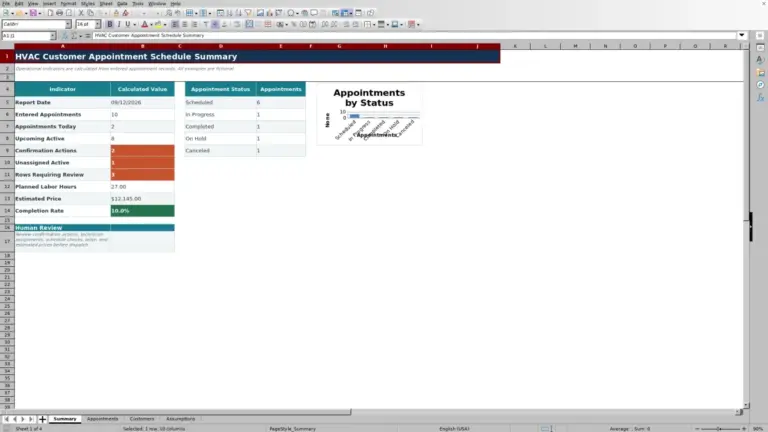
This HVAC technician route planner is an editable Excel workbook for sequencing daily service stops and recording planned and actual route details.
Use it to compare drive miles, drive hours, job hours, and arrival times for a selected service date and technician before deciding which schedule or completed call needs review.
How this template can help
- Build a clear daily stop order with stop numbers and planned arrival times.
- Keep planned and actual miles and hours together for each service call.
- Separate completed, active, canceled, and other scheduled work in the daily view.
- Compare one technician’s planned route against editable internal review limits.
What the workbook contains
How to get started
1. Configure the route assumptions
Open Assumptions. Replace the fictional technician names in F6:F9, review the status and responsibility lists, and adjust the review limits in B5:B10 for your internal dispatch practices. B11:B12 set the date bounds accepted by the workbook. Keep the exact status terms unless you also revise the formulas that use them.
2. Enter the planned stops
On Route Plan, use one row per call in rows 6 through 105. Enter the service date, stop number, technician, customer, location, Job ID, equipment, service description, planned arrival, planned drive miles, planned drive hours, and planned job hours. Clear fictional input data before production use, but preserve the formulas in columns Q:T.
3. Record field results
After each call, complete the field updates: Actual Arrival, Actual Drive Miles, Actual Drive Hours, Actual Job Hours, Responsibility, and Status. Available statuses are Planned, Dispatched, In Progress, Completed, and Canceled.
4. Review the selected route
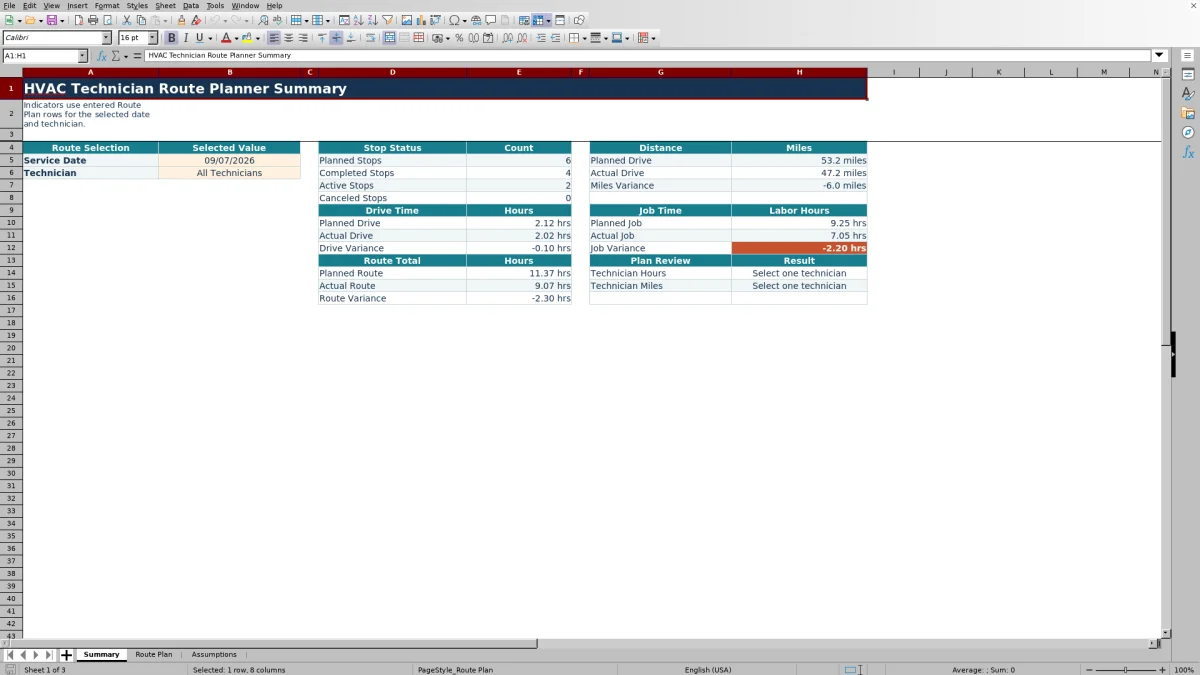
Open Summary, select a Service Date in B5 and either one technician or All Technicians in B6. Review stop counts, planned and actual totals, variances, and the individual-technician plan review results before changing the next route or investigating a completed call.
Turn stop numbers into a workable service sequence
The workbook records route order rather than calculating it. Assign Stop # values from 1 through 20 for each technician and service date, then enter a Planned Arrival for each call. Use dispatch knowledge or a separate approved routing source to decide the geographic order.
Customer, Service Location, Equipment, and Service Description give the dispatcher enough context to distinguish calls. Job ID is especially important because Summary calculations require it. Responsibility can identify whether the technician, dispatcher, customer, office, or no one currently owns the next action.
If the sequence changes, revise the affected stop numbers and planned arrival times together. Stop numbers do not have to be unique under the workbook’s validation, so check for duplicates. Save a dated copy first if the original plan must remain available; the XLSX has no dedicated baseline or route-version field.
Understand what each route variance means
Each variance compares actual input with its matching plan. Miles Variance is Actual Drive Miles minus Planned Drive Miles. Drive Time Variance and Job Time Variance use the same actual-minus-planned method. Arrival Variance converts the difference between Actual Arrival and Planned Arrival into decimal hours.
A positive variance means the actual value was higher or later. A negative result means fewer miles, fewer hours, or an earlier arrival. For example, an arrival variance of 0.25 hours means the actual arrival was 15 minutes later than planned.
The limits on Assumptions identify positive values that need human review; they do not evaluate the absolute size of an early or below-plan result. Review the reason before changing future allowances because traffic, added scope, access delays, and incorrect entries can produce similar numbers.
Worked daily route scenario
Fictional example: Fictional Tech Birch has three completed calls on 09/07/2026, each with a Job ID. Stop 1 has 12 planned miles versus 14 actual, 0.40 planned drive hours versus 0.50 actual, 1.50 planned job hours versus 1.75 actual, and an 8:00 AM arrival versus 8:10 AM. Stop 2 has 8 versus 7.5 miles, 0.30 versus 0.25 drive hours, 2.00 versus 2.80 job hours, and a 10:15 AM arrival versus 10:25 AM. Stop 3 has 15 versus 18 miles, 0.50 versus 0.65 drive hours, 1.25 versus 1.50 job hours, and a 1:30 PM arrival versus 1:45 PM.
The Summary result is 35 planned miles versus 39.5 actual miles, a 4.5-mile variance. Planned drive time is 1.20 hours versus 1.40 actual, while planned job time is 4.75 hours versus 6.05 actual. The planned route total is 5.95 hours, the actual route total is 7.45 hours, and the route variance is 1.50 hours.
Using the workbook’s displayed assumptions, the 5.95 planned hours and 35 planned miles remain within the 10-hour and 175-mile daily planning limits. However, Stop 2 has a 0.80-hour job variance, which is above the 0.75-hour stop review level. The next decision is to check that call for added scope, access delay, or an inaccurate allowance before changing a future schedule.
Use the Summary without misreading the counts
Planned Stops is a count of rows for the selected date and technician that have a Job ID and a nonblank, noncanceled Status. Completed Stops counts Completed records, Active Stops combines Dispatched and In Progress, and Canceled Stops counts Canceled records.
The distance and time totals exclude canceled rows, blank statuses, and rows without a Job ID. Planned Route and Actual Route combine the corresponding drive hours and job hours. These totals do not include breaks, waiting time, parts runs, or other time unless those hours were entered in the available drive or job fields.
All Technicians is useful for aggregate status and route totals. The Technician Hours and Technician Miles plan-review cells require one selected technician. They compare planned route hours and planned drive miles—not actual totals—with the limits in Assumptions and return either Within entered limit or Review plan.
Fix blanks, partial totals, and time-entry errors
- Blank variance: confirm that both the planned and actual fields used by that variance contain numeric values. A missing member of the pair leaves the result empty.
- Zero variance: this normally means the entered actual value equals the plan. It is different from an empty result caused by missing inputs.
- Missing Summary row: check the exact service date, technician, Job ID, and Status. Blank statuses, missing Job IDs, and canceled records are excluded from most totals.
- Actual total looks too low: inspect every qualifying row. Once at least one numeric actual exists, a Summary total may reflect available values even if other actual fields are still empty.
- Unexpected overnight arrival variance: Planned Arrival and Actual Arrival are time-only values. A call crossing midnight can produce a large negative result because the formula does not include separate arrival dates.
- Rejected entry: Stop # accepts 1 through 20, miles accept 0 through 500, drive and job hours accept 0 through 24, and arrival fields require valid Excel times. Dates must fall within the bounds entered on Assumptions.
Comparison: workbook, blank spreadsheet, or service system
| Criterion | This Excel workbook | Blank spreadsheet | Field-service system |
|---|---|---|---|
| Starting structure | Prebuilt route fields, formulas, summary indicators, and editable assumptions | Fields, formulas, controls, and reports must be designed and tested | Structure and configuration depend on the selected system |
| Stop sequence | Dispatcher enters Stop # and Planned Arrival manually | Manual unless custom logic is built | Routing features may be available, depending on the system and plan |
| Plan versus actual | Calculates four stop variances and selected-route totals from entered values | Requires custom formulas | Availability and calculation rules vary |
| Connected dispatch tools | No verified mapping, GPS, live traffic, messaging, or mobile synchronization | None unless separately built or connected | May provide connected functions; verify required features before selection |
| Administration | File storage, access, backups, and version control remain the user’s responsibility | The same file-management responsibilities apply | Licensing, permissions, setup, and administration depend on the provider |
Choose this workbook when the team wants a structured, editable file and can enter route actuals manually. Start from a blank spreadsheet when the workflow is highly specialized and someone can build and test it. Evaluate a field-service system when shared mobile dispatch, mapping, or synchronized records are required, then verify its actual capabilities, security, and cost.
Operational limits and safe file handling
This workbook does not optimize routes, calculate travel from addresses, monitor vehicles, send technician messages, or import GPS records. Its verified formula and validation ranges end at row 105, so adding records below that row will not automatically extend the existing calculations, dropdowns, or Summary ranges.
The file is an operational planning record, not an equipment diagnostic, engineering calculation, safety procedure, code review, payroll record, or proof of technician performance. Warning shading and review messages request human attention; they do not determine the cause of a variance.
Customer names, service locations, equipment descriptions, Job IDs, and technician route details can be sensitive. Store the XLSX in an approved location, limit access, remove fictional examples before use, and avoid entering door codes, payment information, or other details that are not needed for route planning.
Frequently asked questions
Does the workbook optimize the technician’s route?
No. The dispatcher enters the Stop # and Planned Arrival. The workbook records that sequence and compares entered plan values with actual results, but it does not use maps, traffic, or address calculations to choose the order.
Can I change the technician, status, and responsibility lists?
Yes, within the source cells on Assumptions. Technician dropdowns use F6:F9, while the Summary also includes All Technicians in F5. Statuses use G5:G9, and responsibilities use H5:H9.
Keep Planned, Dispatched, In Progress, Completed, and Canceled unchanged unless you also revise the Summary formulas that refer to those exact terms. Entries added outside the listed source ranges will not automatically appear in the existing dropdowns.
Why does the plan review say Select one technician?
The daily planned-route and mileage limits are designed for one technician. Select a specific name in Summary cell B6 to receive the Within entered limit or Review plan result. All Technicians can still be used to view aggregate counts and route totals.
How are canceled or incomplete route rows handled?
Canceled rows appear in the Canceled Stops count but are excluded from planned stops and route distance or time totals. Rows with a blank Status or missing Job ID are also excluded from the main Summary calculations. Missing actual values can leave a variance blank or produce a partial aggregate total when other actual values are present.
Can actual mileage and time be imported from another system?
No import or integration is verified in this XLSX. You can manually enter values from an approved operational record, using miles, decimal hours, and Excel time values as required. Confirm that the source and workbook use the same definitions before interpreting a variance.
Editorial responsibility

Mara KeeneService operations editor

Owen CalderEstimating and controls editor