This Excel HVAC work order tracker keeps request, technician, service, cost, completion, and billing details in one service record.
Use the XLSX to coordinate active calls, identify records that need review, and prepare completed work for the next billing step.
How this template can help
- Keep request, assignment, service, completion, and billing details together.
- Convert recorded labor hours into labor cost using editable technician rates.
- Identify aging, incomplete, and billing-related records that need a human check.
- Review work-order counts, entered price, cost, and labor-hour totals from one summary.
What the workbook contains
How to get started
1. Set the operating assumptions
Open Assumptions and replace the fictional technician names and hourly labor rates. Review the 14-day open-age setting, 20% minimum price-to-cost margin, entry limits, date bounds, units, responsibility choices, and billing choices. Keep formula-dependent labels such as Completed, Canceled, Assigned, Scheduled, Not Ready, Ready to Bill, Billed, and No Charge unless you also revise the formulas that match those words.
2. Prepare the work-order rows
Save a clean working copy, then use the peach input cells on Work Orders. Replace fictional examples with a work order ID, customer, equipment, technician, request date, and service description. Rows 5 through 104 are prepared for entries. Preserve the formulas in Labor Cost, Total Cost, and Review, as well as the helper formulas in columns T through Y.
3. Update the record after service
Enter the service and completion dates in MM/DD/YYYY format. Record the quantity, unit, labor hours, material cost, price, responsibility, Work Status, and Billing Status that apply. Use the dropdown choices where provided so technician-rate lookups and status calculations can match the entry.
4. Review the queue and totals
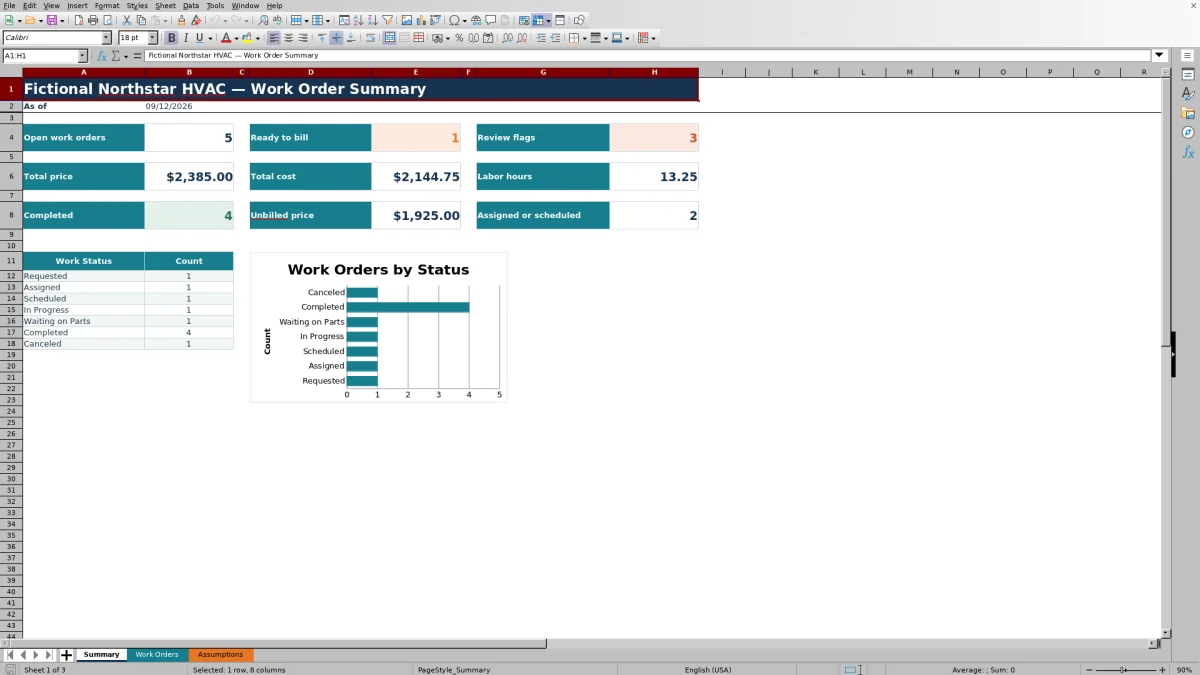
Filter the Work Orders headers to focus on a technician, date, status, or billing stage. Then open Summary to review open work orders, completed records, assigned or scheduled calls, ready-to-bill records, review flags, unbilled price, and entered cost and labor totals. Investigate the underlying rows before making scheduling, pricing, or billing decisions.
Build a consistent work order record
Use one row per work order so the service office can follow the same record from request through billing review. Work Order ID identifies the record, while Customer, Equipment, Technician, and Request Date establish who needs service, what equipment is involved, and who is assigned.
Service Date, Completion Date, and Work Status show operational progress. Service or Parts Description, Quantity, Unit, Labor Hours, and Material Cost capture a concise account of the work. The workbook does not provide a separate line-item parts table, so the description field should summarize the service and material use that belong to that work-order row.
Understand labor and total cost calculations
Labor Cost multiplies Labor Hours by the hourly rate assigned to the selected technician on Assumptions. For example, 2.00 hours entered for a technician with a $112.00 hourly rate returns $224.00 in labor cost.
Total Cost adds Material Cost and Labor Cost. If the material amount is $85.00 and calculated labor is $224.00, total cost is $309.00. This result represents only the two cost fields included in the workbook; it does not automatically add overhead, equipment, subcontractor, travel, tax, or other job costs.
A blank Labor Cost does not necessarily mean labor was free. The result stays blank when the work order ID or labor hours are blank, and it can also stay blank when the technician does not match the rate list. If Material Cost is present while Labor Cost is blank, Total Cost can show material alone, so verify the technician and hours before relying on that total.
Move completed service toward billing
Work Status and Billing Status are separate controls. A technician assignment or scheduled date does not make a job complete, and a Completed status does not make it billed. Enter the Completion Date when the work is actually completed, then select the applicable billing stage.
Summary counts records marked Ready to Bill and separately calculates Unbilled Price. Unbilled Price includes entered prices for work-order IDs whose Billing Status is neither Billed nor No Charge. It is a follow-up amount, not proof that an invoice is correct, approved, created, or sent.
The Summary totals for price, cost, and labor hours cover the prepared Work Orders range without limiting those totals to completed or billed records. Interpret them as entered workbook totals rather than cash collected or accounting revenue.
Worked HVAC service scenario
Assume fictional work order FWO-26-020 is for Fictional Harbor Arts Center. The selected technician has a $112.00 hourly labor rate. Enter a request date of 10/06/2026, a service and completion date of 10/07/2026, 2.50 labor hours, $85.00 of material cost, a $450.00 price, Customer responsibility, Completed work status, and Ready to Bill billing status.
Worked result: 2.50 hours multiplied by $112.00 produces $280.00 of labor cost. Adding $85.00 of material produces a $365.00 total cost. The difference between the $450.00 price and $365.00 cost is $85.00, or about 18.9% of price.
That percentage is below the workbook's fictional 20% minimum price-to-cost margin setting. Treat a resulting price or margin review prompt as a cue to confirm scope, recorded costs, and approved price. The next decision is whether the inputs need correction or an authorized person should review the price; the workbook does not approve pricing changes.
Fix review prompts and entry problems
The Review formula can call attention to a completed record without a completion date, a completed record that is blank or Not Ready for billing, an unfinished record older than the open-age setting, or customer-responsible work whose price needs review.
- If Labor Cost is blank, select a technician from the dropdown, confirm that the technician has a rate on Assumptions, and enter Labor Hours.
- If Check completion date appears, verify that the work is complete before entering the actual completion date. Do not add a date only to clear the prompt.
- If Check billing appears, confirm the service record and responsibility before selecting Ready to Bill, Billed, or No Charge.
- If Check age appears, review the Request Date and current Work Status. Update the status only when it reflects the actual job.
- If Excel rejects a quantity, labor, cost, price, or date, compare the entry with the maximum values and date bounds on Assumptions.
The Review formula returns the first matching issue. After one issue is corrected, another prompt may appear for the same row. The age check uses Excel's current date when the workbook recalculates; it does not monitor closed files or send alerts.
Workbook Comparison
| Criterion | This Excel tracker | Paper log | Field-service management system |
|---|---|---|---|
| Record structure | Prepared fields and 100 work-order rows in one XLSX | Structure depends on the form and staff entry habits | Structure depends on the selected system and configuration |
| Cost calculations | Calculates labor from technician rates and adds material cost | Requires manual calculation | Capabilities vary by product and setup |
| Follow-up | Provides status counts, filters, and formula-based review prompts | Requires manual scanning and follow-up | May offer broader workflows or notifications; verify before choosing |
| Outside actions | Does not dispatch messages, process payments, create invoices, or sync other systems | Does not perform automatic outside actions | Integrations and outside actions vary and require evaluation |
| Best-fit condition | A small team can maintain a controlled workbook and needs the included fields | A temporary, very small log does not require calculated totals | Multiuser, mobile, messaging, or integrated workflows are required |
Choose this workbook when a single editable file and its 100 prepared rows fit the operating process. Use paper only when manual follow-up is acceptable. Evaluate a field-service system when concurrent access or broader automation is essential, and verify the actual system rather than assuming those functions are included.
Operating limits, privacy, and handoff
This is a planning and control workbook, not a live dispatch, inventory, invoicing, payment, accounting, or customer-notification system. Recording a part quantity does not reduce stock. Recording Ready to Bill does not generate or send an invoice.
- Prepared formulas, validations, and Summary ranges end at row 104. Added rows are not automatically included unless the workbook is carefully adapted.
- Each work order has one description, quantity, unit, and material-cost set rather than a related multi-line parts ledger.
- Total Cost includes recorded material and calculated labor only. Missing cost categories can understate the amount.
- Formula prompts require human review and do not prove that work, pricing, billing, safety, or documentation is complete.
Limit access to customer names, technician information, equipment details, property information, rates, and prices. Avoid placing passwords, payment-card data, or unnecessary property-access details in the file. Keep an identified backup before changing formulas, dropdown lists, or an approved operating copy.
The workbook does not size HVAC equipment, verify field conditions, certify engineering, or establish code, safety, environmental, licensing, legal, accounting, or tax compliance. Route those decisions to the appropriately qualified person.
Frequently asked questions
What counts as an open work order on Summary?
A row counts as open when it has a Work Order ID and its Work Status is neither Completed nor Canceled. A nonblank ID with a blank status therefore counts as open, so investigate unexpected totals by checking the Work Status cells.
What is included in Unbilled Price?
Unbilled Price sums Price for rows with a Work Order ID when Billing Status is not Billed and not No Charge. This includes blank, Not Ready, and Ready to Bill billing statuses regardless of Work Status, so review the underlying records before treating the amount as billable.
Can I rename the work and billing statuses?
You can edit the workbook, but several formulas match exact labels such as Completed, Canceled, Assigned, Scheduled, Not Ready, Ready to Bill, Billed, and No Charge. Renaming those labels without updating the related formulas can change Summary counts and Review results.
Does the tracker maintain parts inventory?
No. Work Orders can record a service or parts description, quantity, unit, and material cost on each row. It does not maintain stock-on-hand, allocate inventory, create purchase orders, or deduct parts from another record.
Does the workbook create or send invoices?
No. Billing Status supports internal follow-up through Not Ready, Ready to Bill, Billed, and No Charge choices. The XLSX does not create invoices, send messages, process payments, or confirm collection.
Is Total Cost a complete job-cost figure?
Not by itself. Total Cost adds the entered Material Cost and calculated Labor Cost. Any overhead, travel, equipment, subcontractor, permit, disposal, or other applicable cost must be handled outside the included calculation or through a carefully reviewed workbook adaptation.
Editorial responsibility

Mara KeeneService operations editor

Owen CalderEstimating and controls editor