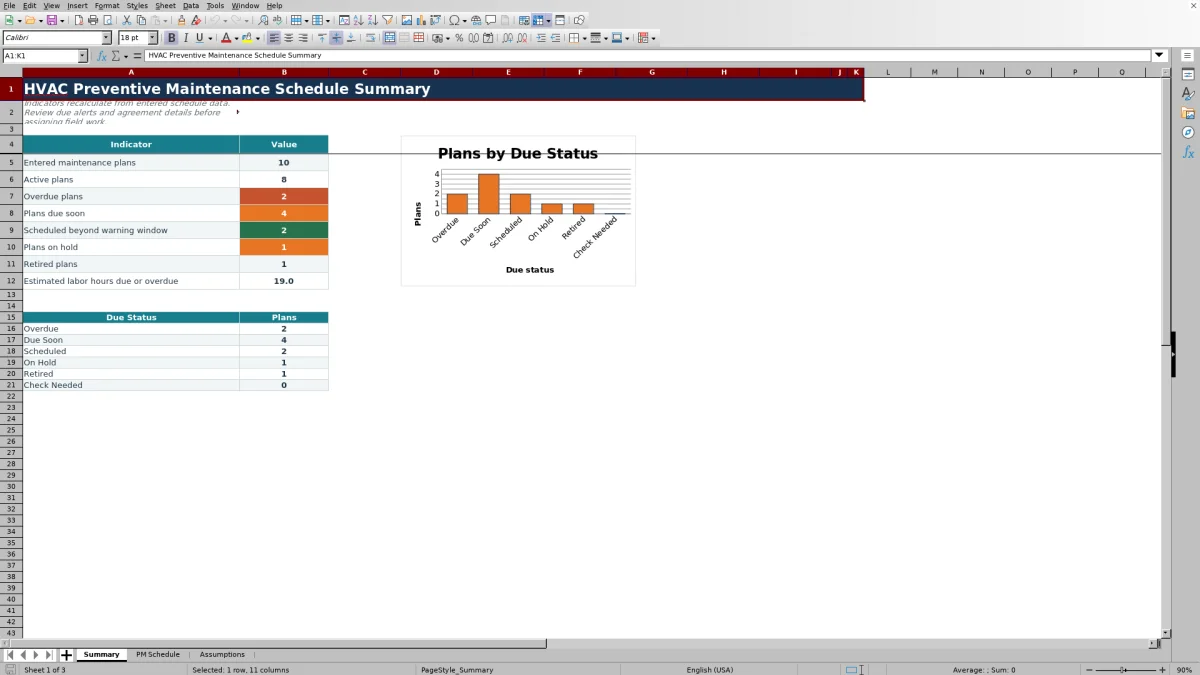
This Excel workbook keeps recurring HVAC preventive maintenance plans organized by customer, service location, equipment, frequency, and next due date.
Use it to review upcoming work and estimated labor before assigning field activity; it is a planning schedule, not a dispatch or service-history system.
How this template can help
- Calculates a next due date from the last service date and selected frequency.
- Separates overdue, due-soon, scheduled, on-hold, retired, and setup-exception plans.
- Totals estimated labor hours for plans that are due soon or overdue.
- Keeps customer, location, equipment, technician, task, and responsibility details together.
What the workbook contains
How to get started
1. Review the planning settings
Start with Assumptions. Confirm the 30-day Due Soon Window Days setting, the five frequency intervals, the labor-hour limit, and the allowed service-date range. Replace the fictional technician choices and confirm every interval against the applicable maintenance agreement.
2. Replace the fictional examples
The first three rows on PM Schedule contain clearly fictional sample records. Replace their input values with your own plans. Keep H and N intact. Those columns contain the Next Due Date and Due Status formulas for rows 5 through 124.
3. Enter each recurring plan
Use one row per recurring plan. Enter a PM Plan ID, customer, service location, equipment details, frequency, last service date, technician, task, estimated labor hours, responsibility, and plan status. Separate plans when equipment, frequency, scope, or responsibility differs.
4. Review priorities before assigning work
Use the PM Schedule filter to isolate Overdue, Due Soon, or Check Needed records. Then review Summary counts and estimated hours. Review exceptions before assignment. A technician name in this workbook is a planning entry; it does not create an appointment or notify the technician.
How the Next Due Date Is Calculated
The workbook uses day-based intervals. Next Due Date equals Last Service Date plus the number of days assigned to the selected Frequency on Assumptions.
- Monthly adds 30 days.
- Every 2 Months adds 61 days.
- Quarterly adds 91 days.
- Semiannual adds 182 days.
- Annual adds 365 days.
These are fixed day counts, not calendar-month calculations. For example, Monthly does not necessarily return the same day of the next month. If an agreement requires service by calendar month, season, operating hours, or another rule, the delivered formula does not model that requirement.
Next Due Date remains blank when PM Plan ID, Frequency, or Last Service Date is missing. An unmatched frequency also returns a blank date. Correct those inputs before treating the plan as ready for scheduling.
Use Due Status and Labor Hours to Set Priorities
For an Active plan, a due date earlier than Excel's current date becomes Overdue. A date from today through the Due Soon Window becomes Due Soon. A later date becomes Scheduled. On Hold and Retired override the date-based result.
Summary counts each Due Status and adds Estimated Labor Hours for Overdue and Due Soon plans. Estimated labor hours are planning values. The total can help a service manager compare near-term demand with available capacity, but it does not account for travel, parts, technician skills, access restrictions, or actual job duration.
The Active plans indicator counts rows marked Active, while Entered maintenance plans counts nonblank PM Plan IDs. If these totals do not align as expected, look for a status entered on a row without an ID or an identified plan with an incomplete status.
Worked Preventive Maintenance Planning Scenario
Assume this fictional schedule is reviewed on 08/15/2026 with the default 30-day warning window.
- Plan DEMO-A is Active, Monthly, last serviced 07/20/2026, and estimated at 2.5 labor hours. Adding 30 days produces 08/19/2026, so the plan is Due Soon.
- Plan DEMO-B is Active, Quarterly, last serviced 05/01/2026, and estimated at 3.0 labor hours. Adding 91 days produces 07/31/2026, so the plan is Overdue.
- Plan DEMO-C is Annual, last serviced 08/01/2025, and estimated at 4.0 labor hours. Its calculated date is 08/01/2026, but Plan Status is On Hold, so Due Status remains On Hold.
Worked result: Summary shows three entered plans, two active plans, one overdue plan, one due-soon plan, one on-hold plan, and 5.5 estimated labor hours due or overdue. Review DEMO-B first, confirm a service date for DEMO-A, and resolve the hold on DEMO-C before committing labor. Results will change when Excel recalculates on another date.
Update the Plan After a Completed Service Call
Close the loop after service. Once the completed work has been verified, update Last Service Date with the actual service date. The workbook then calculates the next due date from that new starting point.
Use a separate row when an asset has a different frequency, task description, labor allowance, or responsibility. Set Plan Status to On Hold when the recurring plan is temporarily paused, or Retired when it should no longer return to the active schedule.
The workbook stores only one Last Service Date per plan. Updating that field replaces the prior date; it does not create visit history. Retain completed work orders, findings, readings, parts used, approvals, and customer signoffs in the appropriate operational records.
Common Schedule Errors and Practical Corrections
- Blank Next Due Date or Check setup: confirm that the row has a PM Plan ID, a listed Frequency, and a valid Last Service Date.
- Check status: select Active, On Hold, or Retired in Plan Status. Pasted text outside those choices can produce this exception.
- Date entry is rejected: the delivered Assumptions sheet allows Last Service Date entries from 09/14/2016 through 09/12/2026. Update the Latest Allowed Service Date setting before using later dates.
- Labor-hour entry is rejected: the default Maximum Labor Hours per Visit is 24. Adjust that Assumptions value only if a different planning limit is appropriate.
- Estimated labor summary shows zero: there may be no Overdue or Due Soon plans, or their Estimated Labor Hours may be blank or zero. Check the underlying rows before interpreting zero as no workload.
- Status appears stale: the classification depends on TODAY(). Recalculate the workbook and confirm Excel's system date before acting on the result.
Comparison: Excel Workbook, Paper, or Field-Service System
| Criterion | This Excel workbook | Paper calendar or log | Field-service management system |
|---|---|---|---|
| Recurring dates | Calculates dates from five fixed day-based intervals. | Dates generally require manual calculation and updates. | Recurrence options depend on the selected system and configuration. |
| Priority review | Provides due-status counts, exceptions, and estimated near-term labor hours. | Requires reviewing and totaling entries manually. | Views and reporting vary by system. |
| Dispatch and notifications | Does not dispatch work or send notifications. | Does not provide automated dispatch or notifications. | May provide these functions if the chosen system supports and configures them. |
| Adaptation | Settings, lists, intervals, and formulas can be edited in Excel. | Flexible to write on, but calculations and controls remain manual. | Customization depends on available settings and implementation. |
| Delivered capacity | Includes 120 prepared schedule rows. | Capacity depends on the physical log. | Capacity and access depend on the selected system. |
Choose this workbook when one editable file and a 120-plan planning range fit the operation. A paper log may suit a very small manual list. Evaluate a field-service system when multiuser dispatch, communications, mobile workflows, or broader service history are required.
Operational Limits and Information Handling
The Due Status values are planning prompts based on the current date, selected status, and configured interval. They do not prove that service is contractually due, completed, safe, code-compliant, or technically sufficient. Confirm frequency, scope, access, responsibility, and required qualifications before assigning work.
The workbook does not send reminders, create work orders, monitor equipment, record test results, size equipment, or certify maintenance. Task Description is a planning note rather than a complete service procedure or safety checklist.
Protect schedule data. Customer locations, technician names, equipment identifiers, task details, and labor estimates may be sensitive. Limit file access, store copies appropriately, and remove fictional examples before operational use.
Frequently asked questions
Can I change the preventive maintenance frequencies?
Yes. Edit the five Frequency and Interval Days entries in Assumptions cells D4:E8. The delivered lookup and PM Schedule validation use that exact range. Adding a sixth choice requires expanding the lookup and validation ranges, and changing an existing label may require updating schedule rows that still use the old label.
Why is Next Due Date blank?
The row needs a PM Plan ID, a Frequency that exactly matches the Assumptions list, and a valid Last Service Date. For an Active plan with an ID, an unresolved blank date generally produces Check setup in Due Status.
Does the workbook send preventive maintenance reminders?
No. Due Status and the Summary sheet help staff review upcoming work inside the XLSX, but the workbook does not send emails, text messages, technician alerts, or customer notifications.
How many maintenance plans does the workbook hold?
PM Schedule includes 120 prepared rows, from row 5 through row 124. Adding rows below that range requires adapting the formulas, validations, filter range, formatting, and Summary references; simply typing below row 124 will not extend every delivered function.
Can this schedule keep a complete maintenance history?
No. Each plan has one Last Service Date, and updating it replaces the previous date. Keep completed work orders, inspection findings, readings, parts, and approvals in a separate service-history record.
What does the Responsibility field establish?
It classifies the plan as Contractor, Customer, or Shared for scheduling reference. It does not determine contractual or legal responsibility. Confirm the assignment against the applicable customer agreement before planning the visit.
Editorial responsibility

Mara KeeneService operations editor

Owen CalderEstimating and controls editor