This editable HVAC maintenance checklist XLSX records one row per maintenance task, including the service result, finding, labor hours, material cost, entered price, and follow-up details.
Use it to document a service visit, identify records that need staff review, and read summary totals across the entered checklist rows. The included examples are fictional and should be replaced before operational use.
How this template can help
- Keep task outcomes, findings, quantities, labor hours, and entered costs together for each service visit.
- Separate completed work from items that need attention, were not checked, or do not apply.
- Identify incomplete records and open follow-up conditions before closing the service paperwork.
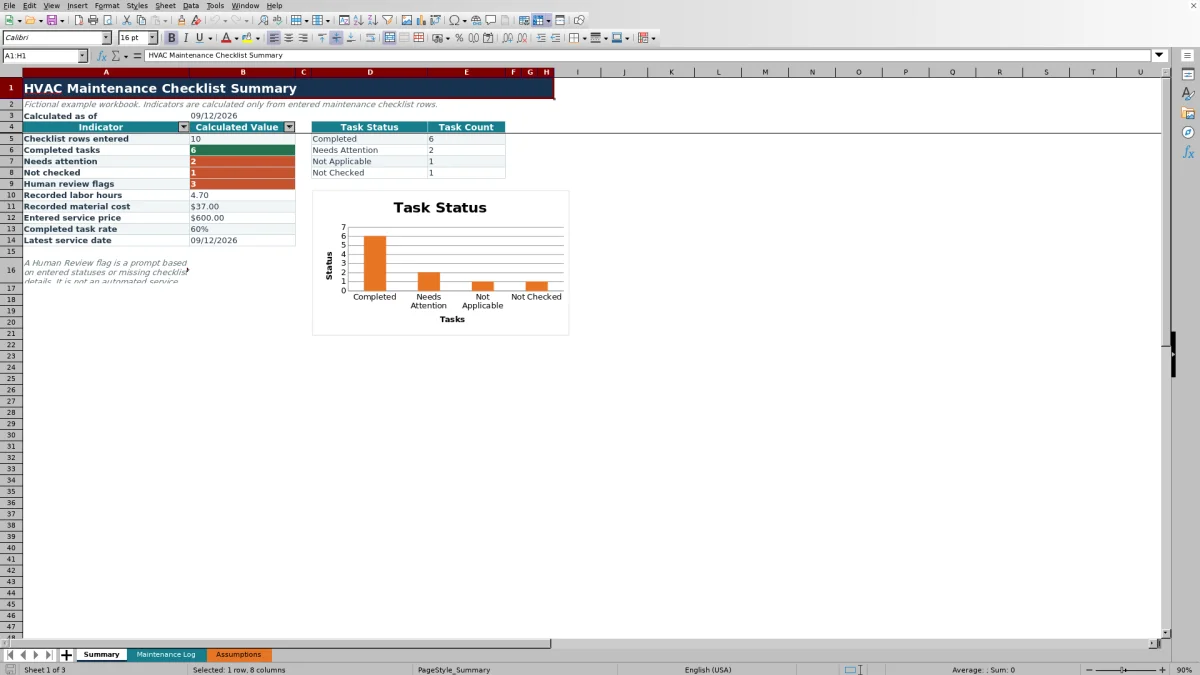
- Review task counts, recorded hours, material cost, entered price, and the latest service date in one summary.
What the workbook contains
How to get started
1. Review the workbook limits
Open Assumptions before entering live records. Confirm the allowed service dates, maximum quantity, maximum labor hours, and maximum cost or price per row. The included date range is 09/12/2024 through 09/12/2027; revise it deliberately if your records fall outside that period. Replace the fictional technician names within the existing technician list.
2. Remove the fictional examples
On Maintenance Log, clear the example inputs in columns A through P and retain the headers, formatting, and formulas. Do not clear column Q, because Review Flag (Calculated) contains a formula for rows 5 through 104.
3. Enter one line for each task
Repeat the Service Date, Job ID, Customer, Equipment, and Technician for every task associated with a visit. Describe the Maintenance Task and Finding / Action, then record any applicable quantity, unit, labor hours, material cost, entered price, responsibility, and follow-up information. Use the listed statuses consistently so the summary counts remain meaningful.
4. Review flags and summary results
Filter Maintenance Log by Job ID, Task Status, Follow-up Status, or Review Flag (Calculated). Human Review is a prompt, not an automatic service decision. After checking those rows, inspect Summary for totals, completion rate, latest service date, and the task-status chart.
Build a Task-Level Maintenance Record
Each Maintenance Log row represents one maintenance task rather than an entire visit. Enter the visit identifiers in Service Date, Job ID, Customer, Equipment, and Technician, then describe the work in Maintenance Task.
Use Finding / Action for what the technician observed or did. If a task has a measured or installed quantity, enter both Quantity and Unit. Labor Hours, Material Cost, and Entered Price are direct inputs; the workbook does not derive a price from hours, quantities, or cost.
Repeating the visit identifiers on each row allows the filter and summary formulas to treat every task as a separate checklist record. Keep customer, technician, equipment, and pricing information in a file location with appropriate access controls.
Understand the Calculated Review Flag
Review Flag (Calculated) returns Human Review when a dated row is missing Job ID, Customer, Equipment, Technician, Maintenance Task, Task Status, Finding / Action, Responsibility, or Follow-up Status. It also flags Needs Attention and Not Checked task statuses.
Follow-up statuses of Monitor, Quote Requested, or Scheduled trigger review. The same applies when Quantity and Unit are not entered as a pair, or when Follow-up Status is Resolved without a Follow-up Date. A blank Service Date leaves the flag blank, even if other cells in that row contain information.
OK does not mean approved. It only means the listed formula conditions were not found. It does not verify the finding, confirm that maintenance was performed correctly, or determine whether additional service is required.
Worked HVAC Maintenance Checklist Scenario
Consider a fictional example dated 09/18/2026 for job FM-260918. Four task rows record a completed filter replacement at 0.4 labor hour, $22.50 material cost, and $55 entered price; a completed drain inspection at 0.6 hour, $8 cost, and $80 price; a contactor finding marked Needs Attention and Quote Requested at 0.9 hour, $65 cost, and $180 price; and a belt item marked Not Applicable at 0.2 hour, $0 cost, and $0 price.
With all required fields complete, Summary reports 4 checklist rows, 2 completed tasks, 1 task needing attention, 0 not checked, and 1 Human Review flag. Recorded labor is 2.10 hours, material cost is $95.50, entered price is $315.00, and the latest service date is 09/18/2026. The completed task rate is 50% because 2 completed rows are divided by 4 dated rows.
The result points to the contactor row for review. The next decision is whether to prepare a quote, continue monitoring, or schedule approved work through the contractor's normal process. Do not change the status merely to remove the flag. If the issue is later resolved, update the task accurately and enter a Follow-up Date with the Resolved status.
Interpret the Summary Without Overstating the Result
Checklist rows entered counts recognized dates in Service Date. Completed, Needs Attention, Not Applicable, and Not Checked counts come from Task Status, while the chart displays those four status totals. The completion rate divides completed statuses by dated checklist rows, so Not Applicable rows remain in the denominator.
Recorded labor hours, recorded material cost, and entered service price are sums of columns K, L, and M. They are not profitability, invoice, or labor-cost calculations. Latest service date is the most recent date entered across the log.
When no service dates are present, the hours, cost, price, completion rate, and latest date remain blank, while applicable count indicators show zero. Once at least one service date exists, the three numeric totals sum their full input ranges. Avoid leaving hours, costs, prices, or statuses on otherwise unused rows because those values can make the summary inconsistent with the dated-row count.
Common Entry Errors and Practical Fixes
Preserve the formula range: if a formula in Review Flag (Calculated) is overwritten, restore that row's formula from a clean workbook copy. The calculated range ends at row 104.
If a service or follow-up date is rejected, compare it with the earliest and latest dates on Assumptions. Correct an accidental date or intentionally revise the limits before trying again.
If a technician, task status, unit, responsibility, or follow-up value is rejected, select an item from its configured list. When replacing list items on Assumptions, keep them within the existing source range unless the validation rule is also updated.
If Human Review appears for a quantity entry, enter its matching Unit. If quantity is not relevant, clear both fields rather than leaving only one populated.
If a Resolved row remains flagged, enter the actual Follow-up Date. A row marked Needs Attention remains flagged even when its follow-up fields are otherwise complete.
If Summary counts appear out of alignment, inspect rows with blank Service Date cells and remove stray values or complete the record.
Operational Limits and Record Handling
This workbook records entered maintenance tasks and findings; it does not supply a complete inspection procedure for every equipment type. Select tasks according to the applicable equipment documentation, approved company procedures, job scope, and qualified technical review.
The XLSX does not size equipment, monitor live systems, send reminders, issue quotes, process payments, or prove code, safety, environmental, or licensing compliance. Follow-up Status and Follow-up Date are record fields only. Someone still needs to review open items and carry out the next action.
The log is limited to rows 5 through 104. Adding rows below that range does not automatically extend the verified formulas, validation, formatting, or Summary references. Save an identified backup before changing formulas or source lists, and restrict access because the file may contain customer names, technician information, equipment descriptions, findings, and pricing.
Comparison With Paper Logs and Field-Service Systems
| Criterion | This Excel workbook | Paper checklist | Field-service management system |
|---|---|---|---|
| Task capture | Provides 100 structured task rows with service, finding, labor, cost, price, and follow-up fields. | Content depends on the form and must be consolidated manually for totals. | Available fields and capacity depend on the selected system and configuration. |
| Record review | Calculates Human Review flags and summary indicators from entered rows. | Requires a person to inspect each form and compile counts. | Rules, dashboards, and review workflows vary by system. |
| Follow-up handling | Stores responsibility, status, and date but does not send an alert. | Can record notes and dates but provides no calculated prompt. | Scheduling or notification functions must be confirmed for the specific system. |
| Customization | Allows edits to configured lists and entry limits in Assumptions. | Can be rewritten or reprinted, without workbook calculations. | Customization depends on product settings, permissions, and implementation. |
| Practical fit | File-based tracking for a defined set of task records and manual follow-up. | Physical capture where digital entry is impractical. | Worth evaluating when centralized multiuser workflows or integrations are required. |
Choose this workbook when the team needs an editable Excel log, a calculated review prompt, and a compact summary while accepting manual file control and follow-up. Keep a paper form when physical capture is the main requirement. Evaluate a field-service system when coordination, messaging, or integrations are necessary, and verify those capabilities in the specific system before selecting it.
Frequently asked questions
Does this checklist define every maintenance task a technician must perform?
No. Maintenance Task is an editable field, and the included entries are fictional examples rather than a complete service procedure. Build the task list from the equipment documentation, approved company procedures, job scope, and qualified technical review.
How many maintenance task rows are included?
Maintenance Log includes 100 entry rows, from row 5 through row 104. The review formulas, validation rules, and Summary references are configured for that range. Extending the log requires deliberate updates to those elements.
Will the workbook send follow-up reminders?
No. It records Responsibility, Follow-up Status, and Follow-up Date but does not send messages or alerts. Monitor, Quote Requested, and Scheduled statuses produce a Human Review flag so a person can identify and manage the next action.
Why are some Summary results blank or zero?
With no recognized Service Date entries, row and status counts show zero, while labor, material cost, entered price, completion rate, and latest service date remain blank where configured. Also check for values entered on rows without a Service Date, because those incomplete rows can cause totals and status counts to differ from the dated-row count.
Can the workbook calculate job profitability?
No. Summary adds recorded labor hours, material cost, and entered service price, but it does not apply labor rates, calculate total job cost, determine margin, add tax, or create an invoice. Review financial treatment in the contractor's appropriate estimating or accounting process.
Editorial responsibility

Mara KeeneService operations editor

Owen CalderEstimating and controls editor