This HVAC maintenance plan pricing spreadsheet turns visit scope and entered cost assumptions into annual price and monthly-equivalent figures for individual customer sites.
Use the Excel workbook to compare Core, Enhanced, and Premier records, then review margin, status, and pricing alerts before presenting a plan.
How this template can help
- Shows how visit frequency, labor, materials, other annual costs, markup, and discounts affect pricing.
- Separates the calculated annual cost from the standard and discounted plan prices.
- Provides a consistent review path before a plan is presented or marked accepted.
- Summarizes entered, presented, accepted, and review-needed records for office follow-up.
What the workbook contains
How to get started
1. Review the tier assumptions
Set the pricing baseline first. On Assumptions, review Suggested Annual Visits, Target Markup, Discount Review Threshold, and Default Scope Reminder for Core, Enhanced, and Premier. The starting values are 1 visit and 35% markup for Core, 2 visits and 40% markup for Enhanced, and 4 visits and 45% markup for Premier. Adapt these planning inputs to your company before pricing live work.
The scope reminders are references only; they do not populate Included Task Description. Save an identified copy before changing assumptions that have already been used for reviewed prices.
2. Enter one plan-pricing record
On Plan Pricing, use a prepared row from 6 through 105. Enter the customer, job or site, equipment, technician, estimate date, plan tier, included task description, annual visits, labor hours per visit, labor rate, materials cost per visit, discount, responsibility, and status. Other Annual Cost is optional and is treated as zero when blank.
The sheet note identifies orange cells as editable. Avoid overwriting formula fields such as Annual Cost, Target Markup, Standard Annual Price, Annual Plan Price, Monthly Equivalent, Gross Margin, and Review Alert. Limit access to files containing customer, employee, equipment, site, or pricing information.
3. Inspect the calculated price
Confirm that the calculated Annual Cost reflects the intended visit scope. Then review the tier-based Target Markup, Standard Annual Price, Discount, final Annual Plan Price, Monthly Equivalent, and Gross Margin. Enter 0 when no discount applies. A blank Discount prevents the final price and downstream results from calculating.
4. Assign status and complete the review
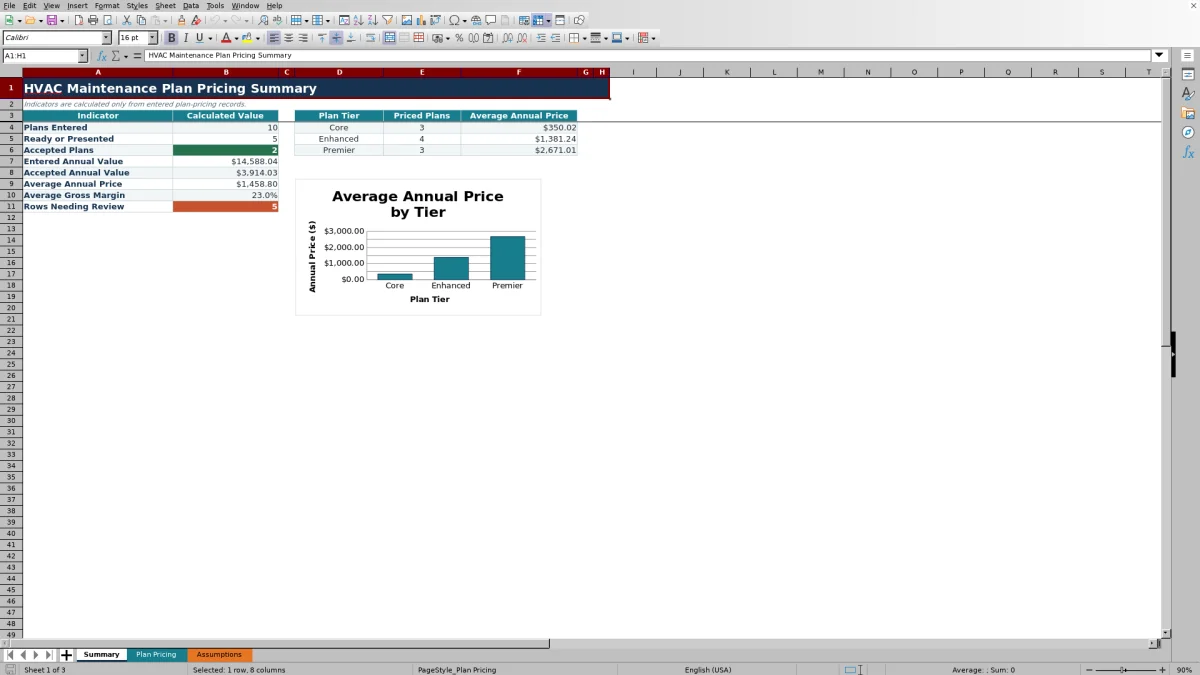
Choose Draft, Ready for Review, Presented, Accepted, or Declined in Status. Select Contractor, Customer, Shared, or To Be Confirmed in Responsibility. Treat the alert as a review prompt. It does not approve the price or contact anyone. Use Summary to check totals, accepted value, average pricing, average gross margin, and rows needing attention.
How the maintenance plan price is calculated
Annual Cost multiplies annual visits by the cost of each visit, then adds Other Annual Cost. The operating relationship is: annual visits × (labor hours per visit × labor rate + materials cost per visit) + other annual cost. Included Task Description documents scope, but its text does not change the calculation.
The selected Plan Tier looks up Target Markup from Assumptions. Standard Annual Price equals Annual Cost multiplied by 1 plus the markup. Annual Plan Price then applies the entered discount, and Monthly Equivalent divides that annual price by 12.
Markup and gross margin are different. A 40% markup multiplies cost by 1.40. Gross Margin is calculated as the difference between Annual Plan Price and Annual Cost divided by Annual Plan Price. A discount therefore lowers the displayed margin even when the tier markup remains unchanged.
Worked pricing scenario for a fictional Enhanced plan
Assume Fictional Maple Street Books requests an Enhanced plan dated 09/15/2026. The fictional scope uses 2 annual visits, 2.5 labor hours per visit, a $110.00 labor rate, $70.00 of materials per visit, and $60.00 of other annual cost. The Enhanced assumption supplies a 40% target markup, and the estimator enters a 5% discount.
Workbook result: Each visit carries $275.00 of labor plus $70.00 of materials. Two visits plus the additional annual cost produce a $750.00 Annual Cost. Applying the 40% markup produces a $1,050.00 Standard Annual Price. After the 5% discount, Annual Plan Price is $997.50, Monthly Equivalent displays as $83.13, and Gross Margin is about 24.8%.
The 2 visits match the Enhanced suggestion, and the 5% discount is below its 10% review threshold. Those two inputs alone do not cause their related review checks. The estimator should still complete all identification, responsibility, and status fields, inspect Review Alert, confirm that every planned cost is represented, and decide whether the resulting price and margin are acceptable.
Document scope and responsibility before presenting a plan
Use Included Task Description to state what the recurring visits cover, such as inspections, drain checks, filter-change labor, or control checks. Keep the wording specific enough for an internal reviewer to compare the price with the promised work. The workbook does not convert task wording into labor hours or materials cost, so those numeric inputs must be entered separately.
Responsibility records whether the contractor, customer, both parties, or an unconfirmed party is responsible. This selection does not allocate cost or revise the price automatically. If responsibility for filters, access, specialty materials, or other work changes, update the scope and cost inputs before moving the record to Ready for Review or Presented.
Read the Summary without overstating the totals
Plans Entered counts rows with a customer entry. Ready or Presented counts those two statuses, while Accepted Plans counts records marked Accepted. Entered Annual Value sums all numeric Annual Plan Price results; Accepted Annual Value includes only rows with Accepted status. An accepted amount is a workbook status total, not proof of invoicing, collection, or realized revenue.
Average Annual Price and Average Gross Margin use available numeric results. The tier area counts prices above zero for Core, Enhanced, and Premier and calculates an average annual price for each tier. The chart uses those three tier averages.
A blank is not always zero. Summary averages can be blank when no numeric detail results exist. A tier average returns #N/A when that tier has no Annual Plan Price above zero. That indicates no qualifying priced record for the tier, not necessarily a damaged formula. Rows Needing Review counts alerts beginning with Review or Check.
Common pricing errors and practical corrections
- Check required inputs means an active row is missing one or more required fields. Review the customer, site, equipment, technician, date, tier, task description, visits, labor hours, labor rate, materials cost, discount, responsibility, and status.
- Check plan tier indicates that the tier did not return a matching assumption. Use Core, Enhanced, or Premier from the dropdown and confirm that the corresponding Assumptions row remains intact.
- If Annual Cost is blank, verify that Customer, Annual Visits, Labor Hours / Visit, Labor Rate, and Materials Cost / Visit are populated. Other Annual Cost may remain blank when none applies.
- If Annual Plan Price, Monthly Equivalent, or Gross Margin is blank, check the upstream cost, markup, and Discount. Enter 0 rather than leaving Discount empty when no reduction applies.
- If a discount behaves unexpectedly, enter it as a percentage such as 5%, not as the number 5. The validated Discount range accepts values from 0 through 1.
- If a review prompt appears despite complete fields, compare Annual Visits with the tier’s suggested visits and Discount with its review threshold. Investigate the difference rather than changing an input solely to clear the prompt.
Comparison: workbook, blank spreadsheet, or service platform
| Criterion | HVAC Sheets workbook | Blank spreadsheet | Field-service management system |
|---|---|---|---|
| Pricing setup | Includes prepared tier assumptions, formulas, status choices, and review prompts. | Requires the user to design and verify the structure and calculations. | Pricing functions depend on the selected system and its configuration. |
| Calculation visibility | Uses inspectable XLSX formulas for cost, markup, discount, price, and margin. | Depends entirely on formulas created by the user. | Visibility depends on how the system exposes its pricing rules. |
| Record structure | Provides 100 prepared pricing rows and a fixed three-tier summary. | Can be structured for a unique process but needs manual setup. | Capacity and record design depend on the specific system. |
| Connected operations | Does not provide dispatch, invoicing, messaging, or payment connections. | Has no connections unless the user separately builds and verifies them. | May connect broader workflows when those capabilities are available and configured. |
| Conditional fit | Useful for an inspectable, file-based tier pricing process. | Consider when the pricing model is too specialized for the prepared fields. | Consider when verified scheduling, customer, billing, or field workflows are required. |
Choose the workbook when the prepared calculations and 100-row structure match the estimating task. Start with a blank file when you need a substantially different pricing model. Evaluate a field-service system when connected operational workflows matter more than maintaining a standalone XLSX.
Workbook limits and record controls
This is a pricing aid, not an approval. Suggested visits, markup percentages, discount thresholds, and scope reminders are editable planning assumptions. They do not size equipment, establish required service intervals, verify field conditions, certify a maintenance program, or prove code, safety, environmental, accounting, tax, legal, or licensing compliance.
The prepared Plan Pricing range ends at row 105. Summary formulas, filters, and prepared row formulas use that limit. Records added beyond it will not automatically join every calculation or summary range unless a qualified workbook user expands and verifies the affected formulas.
Review Alert is an in-workbook prompt only. The XLSX does not send messages, schedule visits, create a customer proposal, issue invoices, process payments, or synchronize with another system. Store the file according to your company’s access and retention practices, and avoid including sensitive information that is unnecessary for pricing.
Frequently asked questions
Can I add another maintenance plan tier?
The prepared workbook supports Core, Enhanced, and Premier. Its dropdown and lookup formulas use those three choices and a fixed assumptions range. Adding a tier requires coordinated changes to the Assumptions range, Plan Tier validation, pricing lookups, review logic, and Summary formulas. Verify all affected rows and totals after making that structural change.
Does Monthly Equivalent create a monthly billing schedule?
No. Monthly Equivalent is Annual Plan Price divided by 12. It is a pricing reference and does not define billing dates, installments, financing terms, invoices, or payment processing.
Does Included Task Description affect the calculated price?
No. It records the planned scope but is not part of the pricing formula. Enter the related labor hours, labor rate, materials cost, visit count, and other annual cost separately so the calculated amount reflects that scope.
Why is a calculated field blank or a tier average showing #N/A?
Detail calculations remain blank when required upstream inputs are missing. A blank Discount is a common cause of a missing final price; enter 0 if no discount applies. On Summary, #N/A for a tier average means that tier has no Annual Plan Price above zero in the prepared records.
Is Accepted Annual Value the same as collected revenue?
No. It is the sum of Annual Plan Price for rows marked Accepted. The workbook does not confirm a signed agreement, completed visit, invoice, payment, renewal, or accounting recognition.
Can this workbook schedule visits or send customer reminders?
No. Annual Visits is a pricing input, and Status is an internal record choice. The workbook does not create appointments, dispatch technicians, monitor due dates, or send email or text reminders.
Editorial responsibility

Mara KeeneService operations editor

Owen CalderEstimating and controls editor