This HVAC bid comparison spreadsheet is an editable Excel workbook for lining up supplier or subcontractor proposals on a common cost and lead-time basis.
Use it after quotes arrive to record scope differences, exclusions, responsibility, and status, then review the calculated results before choosing the next bid action.
How this template can help
- Compares adjusted bid costs instead of relying only on each bidder’s quoted price.
- Shows the lowest amount, average amount, price spread, and shortest lead time by job.
- Surfaces incomplete or inconsistent bid rows that need attention before comparison.
- Keeps bid responsibility, review status, scope notes, and cost figures together.
What the workbook contains
How to get started
1. Set up the jobs and review limits
Open Assumptions and replace the fictional examples in the job list at F4:F103. Review the limits for bid dates, quantities, labor hours, dollar amounts, and lead times. These limits support data entry and review; they do not determine whether a bid is acceptable.
2. Replace the sample bid inputs
In Bid Comparison, clear or overwrite the editable fictional inputs without deleting the formula cells. Keep one complete bid on one row. Enter a unique Bid Reference, Customer, Job, Bidder, Bid Date, equipment details, scope notes, labor hours, pricing, lead time, Responsibility, and Status.
3. Normalize each quoted amount
Enter Bid Price, Scope Adjustment, and Exclusion Allowance. Enter zero for known no-cost items. The workbook adds those three fields to calculate Normalized Total. A positive Scope Adjustment raises the comparison amount, while a negative adjustment lowers it.
4. Clear review prompts and assess the summary
Read Review Alert before relying on Difference from Lowest. Resolve the prompt before comparing. Then use Summary to review each job’s bid count, normalized amounts, price spread, shortest lead time, and rows still needing attention. Update Status only after the supporting quote and scope have been checked.
Put dissimilar bids on the same scope basis
A low quoted price may exclude work that another bidder includes. Use Description / Key Exclusions to document the difference, then enter a supported amount in Scope Adjustment or Exclusion Allowance when you need a common comparison basis.
Normalized Total equals Bid Price plus Scope Adjustment plus Exclusion Allowance. For example, a $40,000 quote with a $2,500 scope adjustment and a $750 exclusion allowance produces a $43,250 normalized total. The workbook performs the addition, but it does not estimate the missing work or verify that the allowance is sufficient.
Use adjustment signs consistently and retain the quote or clarification supporting each figure. A real bid should normally produce a positive normalized total because the lowest-price and summary calculations look for positive totals.
Read the job summary without overlooking exceptions
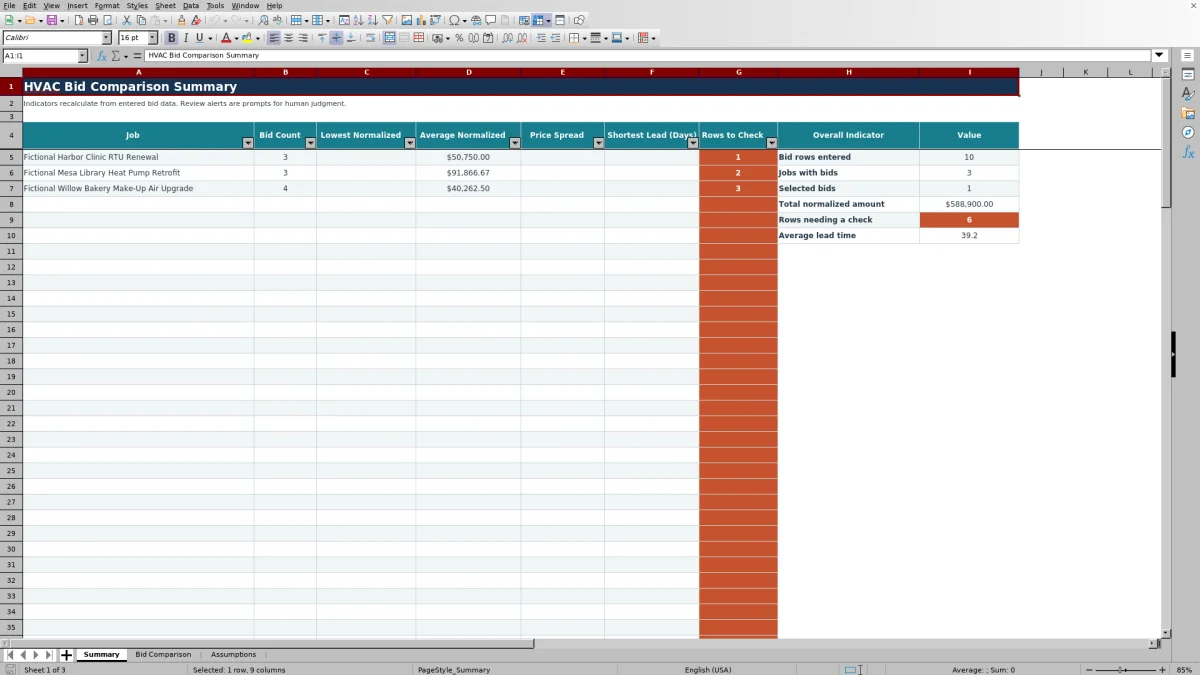
Summary takes its job names from the list on Assumptions. For each listed job, it reports Bid Count, Lowest Normalized, Average Normalized, Price Spread, Shortest Lead (Days), and Rows to Check.
Bid Count is based on entered bid references assigned to the matching job; it does not mean every row is complete. Rows to Check counts populated alerts other than Ready for comparison. Address those rows before treating the price indicators as decision-ready.
A blank summary result can mean the job has no applicable bid data or no positive normalized total. A lead time of zero is allowed and can become the shortest lead, so decide whether zero means immediate availability or whether the lead time is still unknown. Leave an unknown value blank rather than using an undocumented placeholder.
Worked HVAC bid comparison scenario
Assume three fictional bidders quote the same Pine Street Library AHU Upgrade. Bid A has a $44,000 Bid Price, a $2,000 Scope Adjustment, a $1,500 Exclusion Allowance, and a 21-day lead time. Bid B has $46,800, $0, $0, and 35 days. Bid C has $43,900, $3,600, $900, and 18 days.
Workbook result: the normalized totals are $47,500 for Bid A, $46,800 for Bid B, and $48,400 for Bid C. Summary shows a $46,800 lowest normalized amount, a $47,566.67 average, a $1,600 price spread, and an 18-day shortest lead. Difference from Lowest is $700 for Bid A, $0 for Bid B, and $1,600 for Bid C.
Bid C has the lowest raw quote but the highest normalized total. It is also 17 days faster than Bid B. The next decision is not simply to select the lowest number: clarify Bid C’s added scope and allowance, confirm how lead days are defined, and decide whether the schedule difference justifies the added normalized cost.
Common entry errors and practical corrections
- Blank is not zero. Normalized Total stays blank until Bid Price, Scope Adjustment, and Exclusion Allowance all contain values. Enter zero only when an adjustment or allowance is confirmed as no cost.
- An Enter bid reference prompt means other row data exists without a Bid Reference. Add a unique reference tied to the source quote.
- A duplicate-reference prompt means the same Bid Reference appears more than once. Confirm whether the row is duplicated or assign the correct distinct reference.
- A customer-consistency prompt means the same job is associated with different customer names. Correct the job or customer before reviewing the summary.
- If a job is unavailable in the Job list, add it to Assumptions before selecting it in Bid Comparison. Exact job naming is important because summary formulas group rows by that value.
- If Excel flags a date or number, compare it with the limits on Assumptions. Bid dates are validated from the configured earliest date through today, while quantity, labor, cost, and lead-time entries have configured ceilings.
Use responsibility and status as controlled review fields
Responsibility provides Bidder, Contractor, Customer, and Shared choices. Use it to identify who is expected to carry a scope item, but keep the supporting detail in Description / Key Exclusions and the source proposal.
Status offers Received, Under Review, Clarification Needed, Shortlisted, Selected, and Declined. The workbook does not enforce a required sequence. Summary counts rows marked Selected, but that status does not issue a purchase order, notify a bidder, or approve a contract.
If the comparison changes after clarification, update the cost and scope inputs and save an identified copy when you need to preserve an earlier review state. The XLSX does not maintain its own bid revision history.
Comparison with a blank sheet and field-service system
| Criterion | HVAC Sheets workbook | Blank Excel sheet | Field-service management system |
|---|---|---|---|
| Initial setup | Includes defined bid fields, formulas, validation, and a job summary. | Requires the user to design fields, formulas, and review rules. | Setup and bid-comparison capability vary by system. |
| Cost normalization | Adds bid price, scope adjustment, and exclusion allowance for each row. | Possible after creating and testing a consistent method. | Verify whether the system supports comparable adjustment fields. |
| Review cues | Provides row alerts and summary counts for rows needing attention. | Depends on formulas or checks created by the user. | Available checks depend on the system and configuration. |
| Operational automation | Does not send messages, issue purchase orders, or update other systems. | Does not provide those actions unless separately developed. | May support broader workflows; confirm the specific functions required. |
| Practical fit | Fits a structured, file-based comparison of up to 100 bid rows. | Fits a highly customized comparison when someone can build and maintain it. | May fit companies needing centralized workflows beyond bid comparison. |
Choose this workbook when you need a ready-made Excel comparison and can manage the file directly. Start with a blank sheet when the decision model is substantially different. Consider a field-service system when broader centralized workflow is required, but verify that it handles bid normalization at the level you need.
Know what the workbook does not decide
This workbook is a human review aid, not an estimating, engineering, purchasing, accounting, or compliance approval. It does not confirm equipment capacity, scope completeness, bidder qualifications, code requirements, product availability, contract terms, or the accuracy of an allowance.
The bid table is designed around one row per bid. It does not provide a separate line-item rollup for a multi-line proposal. If a quote has many components, establish and document the complete bid amount before entering that proposal as one comparison row.
Lead Time records days but does not define business days versus calendar days. Set one convention for the comparison and verify current availability with the bidder. Protect the XLSX because it can contain customer names, job information, pricing, and vendor details.
Frequently asked questions
Can I enter a multi-line supplier quote as several bid rows?
Not if those rows together represent one bid. The workbook compares every row independently and looks for the lowest positive normalized total within the job. Consolidate the complete proposal into one bid row and use Description / Key Exclusions to summarize the important scope details.
Can Scope Adjustment be negative?
Yes. The field accepts positive or negative values, and the formula adds the entered amount to the bid price. Use a negative value only when your documented comparison method calls for removing cost from the common scope basis. Review any result that is zero or negative because summary calculations are designed around positive normalized totals.
Are lead times calendar days or business days?
The workbook labels the field Lead Time (Days) but does not define the day-count convention. Choose one convention for all bidders on the same job, document it outside the formula if needed, and confirm the current lead time before making a commitment.
Does marking a bid Selected award the work?
No. Selected is a tracking status, and Summary counts how many rows use it. The workbook does not send an award notice, create a purchase order, process payment, or approve contractual terms.
What information should be protected when sharing the file?
Treat customer names, job details, bidder identities, quote amounts, exclusions, and responsibility notes as controlled business information. Share the workbook only with authorized people, remove unnecessary records from shared copies, and follow your company’s storage and retention practices.
Editorial responsibility

Mara KeeneService operations editor

Owen CalderEstimating and controls editor