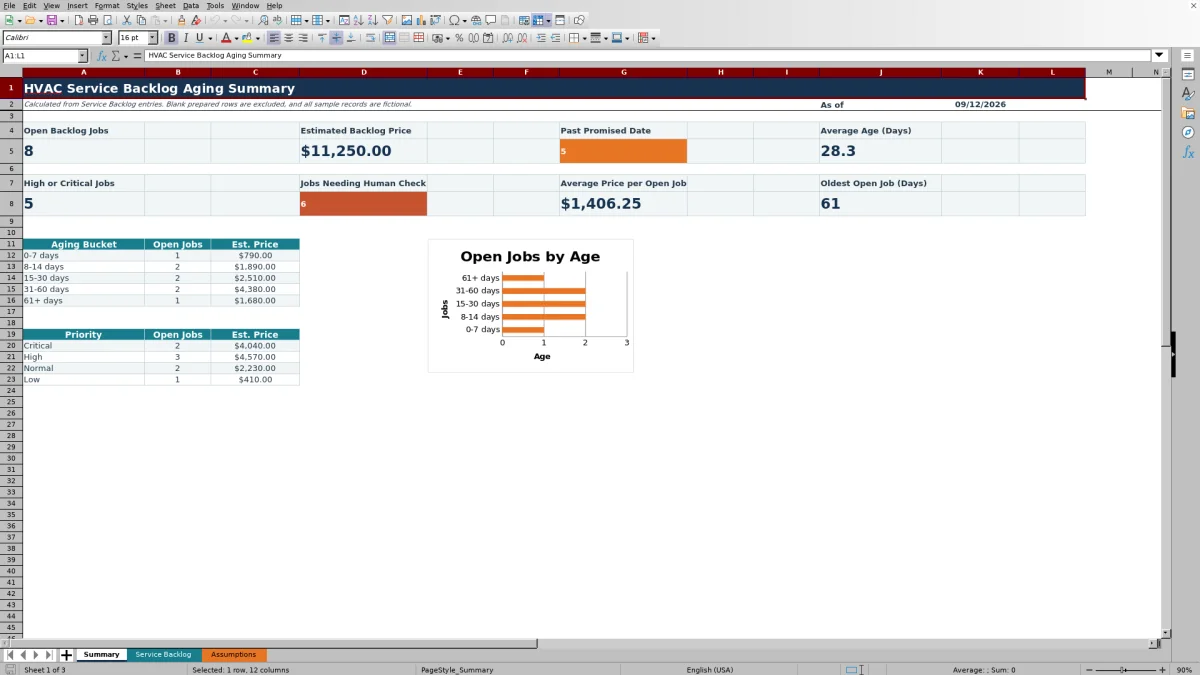
This HVAC Sheets Excel workbook organizes unresolved service work for review by age, promised date, priority, estimated price, customer, and blocker.
Set an as-of date, update the service records, and use the calculated results to decide which jobs require follow-up, scheduling, or corrected information.
How this template can help
- Identify open High and Critical jobs that need prompt operational review.
- See which unresolved jobs are past their promised dates and by how many days.
- Compare open-job counts and estimated prices across aging buckets and priorities.
- Find missing, conflicting, or unmapped entries before relying on the summary.
What the workbook contains
How to get started
1. Preserve the prepared calculation columns
Save a working copy, then clear or replace the fictional data in the orange input cells. Keep the formulas in Age Days, Days Past Promise, Aging Bucket, Backlog Value, In Backlog, and Check Needed.
2. Review the Assumptions sheet
Set the review date first in As-of Date. Review the status-to-backlog mapping, priority choices, blocker choices, age lower bounds, labels, and Overdue Review Threshold (Days). Keep age lower bounds in ascending order and aligned with their labels.
3. Enter current service work
Use one row per service job on Service Backlog. Enter a Job ID, customer, equipment, priority, Opened Date, Promised Date, service description, estimates, assigned technician, blocker responsibility, status, and Closed Date when applicable. Use MM/DD/YYYY dates and the prepared list choices.
4. Review checks before acting
Recalculate the workbook, then clear Check Needed items on Service Backlog before using Summary. Filter the rows to investigate urgent priorities, late promises, assigned technicians, or blocker responsibility, and then record the operational next action outside the calculated columns.
Decide Which Service Jobs Belong in the Backlog
Status drives inclusion in this workbook. The prepared Assumptions mapping treats Open, Scheduled, Waiting on Customer, Waiting on Parts, and On Hold as backlog statuses. Completed and Canceled are excluded.
In Backlog looks up each row's Status and returns Y, N, or Check. A status that does not match the Assumptions list can produce Check instead of being included. Correct that status before relying on Age Days, Backlog Value, or Summary totals.
You can revise the mapping for your own workflow, but confirm that every permitted status has the intended Y or N value. Changing a mapping immediately changes which prepared rows contribute to the backlog results.
Understand Age Days and Days Past Promise
Age Days subtracts Opened Date from the Assumptions As-of Date for rows marked Y in In Backlog. Days Past Promise applies the same approach to Promised Date. Both calculations stop at zero, so a future date does not produce a negative result.
A zero in Days Past Promise means the promise is due on the as-of date or remains in the future. Blank is not zero: a blank can mean that the Job ID or required date is missing, or that the status is not included in the backlog.
Aging Bucket assigns a label using the editable lower bounds: 0-7 days, 8-14 days, 15-30 days, 31-60 days, or 61+ days in the prepared setup. Summary averages only numeric Age Days values. Average Age and Oldest Open Job remain blank when no qualifying age values are available.
Worked Service Backlog Aging Scenario
Fictional scenario: Set As-of Date to 09/30/2026. Enter job DEMO-2201 for Fictional Harbor Market with an Opened Date of 09/01/2026, a Promised Date of 09/20/2026, High priority, Waiting on Parts status, Parts Supplier responsibility, and an Est. Price of $1,480.
The workbook returns 29 Age Days and 10 Days Past Promise. Waiting on Parts maps to Y, so the job receives the 15-30 days aging bucket and a Backlog Value of $1,480.
In an otherwise empty copy, Summary would show one open backlog job, one past-promised job, one High or Critical job, $1,480 of estimated backlog price, and an average and oldest age of 29 days. The result indicates that the promised date has passed while a supplier issue remains. The next decision is to confirm the part ETA, revise the service plan if appropriate, and determine who will update the customer.
Use Priority, Value, and Blockers for Follow-Up
Start with High or Critical jobs, then filter Service Backlog by Days Past Promise and Blocker Responsibility. This separates urgent work from jobs waiting on a customer, parts supplier, technician, office scheduling, or site access.
The Summary priority area shows open-job counts and estimated price by the prepared priority choices. The aging area provides the same two measures by aging bucket. Use those views to select the rows that need a scheduling, parts, technician, or customer follow-up decision.
Backlog Value copies Est. Price only when the row is marked Y in In Backlog. It is estimated, not earned. Est. Labor Hours and Est. Parts Cost remain row-level planning inputs and are not used to calculate Backlog Value, margin, invoices, or actual job cost.
Correct Common Backlog Entry Problems
If calculated fields remain blank even though other details were entered, check Job ID first. A blank Job ID causes the prepared calculations to stay blank.
If In Backlog displays Check or Check Needed displays Check status, choose a mapped Status from the prepared list or add the exact status and Y/N mapping on Assumptions.
If Check Needed identifies a missing customer, priority, Opened Date, or Promised Date, complete the indicated input. It can also identify a Promised Date earlier than the Opened Date.
If Aging Bucket displays Check age band, confirm that the age lower bounds on Assumptions are numeric, ascending, and paired with the intended labels.
If Excel rejects an entry, use dates from 01/01/2000 through 12/31/2100 and nonnegative numbers within the prepared validation limits. Est. Labor Hours allows up to 1,000; Est. Parts Cost and Est. Price allow up to $10,000,000.
If a formula in columns O through T was overwritten, restore it from an intact prepared row while preserving the row-relative references. Review the result after recalculation rather than assuming the copied formula is correct.
Workbook Comparison for Service Backlog Review
| Criterion | HVAC Sheets workbook | Blank spreadsheet | Field-service management system |
|---|---|---|---|
| Initial setup | Prepared fields, formulas, assumptions, checks, and summary ranges | User must design the fields, formulas, and review rules | Setup depends on the selected system and configuration |
| Aging review | Uses one editable as-of date and five editable age bands | User defines and tests the aging method | Available aging behavior depends on system capabilities |
| Customization | Excel lists and assumptions can be edited with formula review | Highly flexible but requires more manual construction | Customization depends on available settings and permissions |
| Operational scope | Designed for periodic office review of up to 100 prepared rows | Suitable for a custom or one-time log | May be more appropriate when live dispatch or multiuser workflows are required |
Choose this workbook when a small team needs a controlled Excel review using manually maintained records. Start with a blank spreadsheet when the prepared fields do not fit the process and someone can build and test the logic. Evaluate a field-service management system when live scheduling, messaging, mobile access, or broader workflow controls are required.
Know the Workbook Limits and Review Cadence
The prepared calculation and Summary ranges cover Service Backlog rows 4 through 103. The sheet is not a structured Excel table, so entering records below row 103 does not automatically extend formulas, validations, formatting, filters, or Summary references.
This XLSX provides a dated operational snapshot. It does not monitor live work, send alerts, dispatch technicians, process payments, calculate profitability, verify field conditions, size equipment, or establish code, safety, accounting, tax, environmental, legal, or licensing compliance.
Review the As-of Date and recalculate the workbook each time the backlog is updated. Save identified copies when assumptions or accepted records change because the current calculations update from the current entries rather than preserving a formal history.
The file can contain customer names, equipment details, technician assignments, and pricing. Store it according to company access rules, and avoid adding unnecessary property-access, payment, employee, serial-number, or vendor information.
Frequently asked questions
Which statuses are included in the prepared backlog?
Open, Scheduled, Waiting on Customer, Waiting on Parts, and On Hold are mapped to Y on Assumptions. Completed and Canceled are mapped to N. Review and adapt those mappings before using the workbook for your operation.
Can I change the service backlog aging buckets?
Yes. Edit the Age Lower Bound and Age Label entries on Assumptions. Keep the lower bounds numeric and in ascending order, and keep each label aligned with its bound. Incorrect ordering can produce unreliable buckets or a Check age band result.
Does Estimated Backlog Price show expected profit or revenue?
No. Summary adds the user-entered Est. Price for rows included in the backlog. It does not subtract labor, parts, overhead, payments, or actual costs, and it does not establish recognized revenue, profit, tax treatment, or an invoice amount.
Does the workbook schedule technicians or send overdue alerts?
No. Assigned Technician is a record field, and the workbook calculates aging and review results from entered data. Staff must filter the records, make the scheduling decision, and complete any customer, technician, or supplier communication separately.
Can I track more than 100 service jobs?
The prepared area contains 100 rows, from row 4 through row 103. Adding rows below that area requires extending the formulas, validations, formatting, filter range, and Summary references. Save a backup and verify every affected total before relying on an expanded version.
Editorial responsibility

Mara KeeneService operations editor

Owen CalderEstimating and controls editor