This HVAC quote follow-up tracker is an editable Excel workbook for keeping estimate activity in one operational list.
Use it to record who owns the follow-up, when the quote was sent, its current decision stage, the next follow-up date, and the final outcome.
How this template can help
- Keeps estimate value, follow-up ownership, dates, stages, and outcomes together for up to 100 quotes.
- Identifies due, overdue, incomplete, and closed follow-up records for staff review.
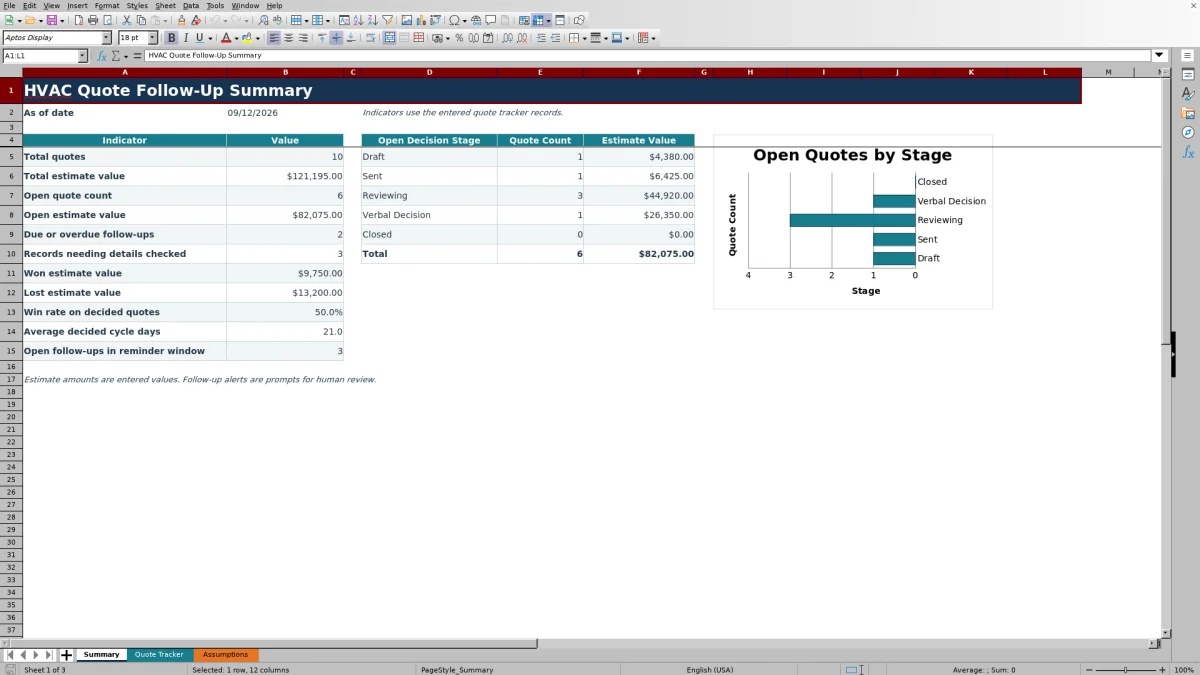
- Summarizes open quote counts and estimate values by decision stage.
- Uses editable lists to keep team member, outcome, and lost-reason entries consistent.
What the workbook contains
How to get started
Review the lists and settings
Save an untouched copy, then open Assumptions. Replace the fictional team members and review the decision stages, outcomes, lost reasons, reminder window, maximum estimate value, and allowed date range. The supplied reminder window is 14 days.
Clear the examples and enter current quotes
On Quote Tracker, clear the fictional entries from columns A through M without deleting the prepared rows. Enter one quote per row, including its customer, scope, estimate value, sent date, owner, decision stage, follow-up date, and outcome. Leave Outcome Date and Lost Reason blank while a quote remains open.
Review the calculated checks
Use Quote Age (Days) to see elapsed calendar days and Follow-Up Check to find missing dates, due or overdue activity, questionable dates, and closed records needing details. These cells contain formulas and are not manual status fields.
Use the summary for the next assignment
Open Summary to review open quote value, follow-ups requiring attention, outcome values, and open quotes by decision stage. Return to Quote Tracker, filter the records, and assign the next customer contact to the listed Follow-Up Owner.
Build a usable quote follow-up record
Use one row per quote, even when the same customer requests several options. Assign a unique Quote ID and describe the specific job or scope so staff can distinguish each estimate during a call.
Estimate Value is the amount entered for that quote. Technician identifies the field team member associated with the opportunity, while Follow-Up Owner identifies the person responsible for the next contact. They can be different people.
The workbook has no dedicated phone or email columns. Keep contact and property-access information in your approved customer record instead of placing unnecessary sensitive details in Job / Scope Description.
Interpret quote age and follow-up checks
Quote Age (Days) subtracts Sent Date from the current date while a quote is active. When Outcome Date is present, it uses that date instead. The result is elapsed calendar days, not labor hours or business days.
Follow-Up Check is a manual prompt for staff review. It can identify a missing sent date, a future sent date that needs checking, a due or overdue follow-up, a missing outcome date, or a lost quote without a lost reason. It does not send an email, text, calendar event, or automatic alert.
Quote Age stays blank when Customer or Sent Date is missing. A future Sent Date can produce an age of zero because the age formula does not return a negative number; in that case, use the Check sent date message to correct the record.
Read the summary without overstating the pipeline
Total quotes counts rows with a Customer entry. Total estimate value adds the amounts entered in Estimate Value, while the open indicators use Outcome set to Open. This distinction matters: an amount entered on a row with no customer can affect total value without increasing the quote count.
The stage section groups open quote counts and values across the five supplied decision stages. Other indicators report due or overdue follow-ups, records needing details checked, won and lost estimate values, win rate on decided quotes, average decided cycle days, and open follow-ups in the reminder window.
Treat all dollar results as entered estimate values. They are not actual job costs, collected revenue, profit, tax amounts, or a financial forecast. If a cycle result is blank or zero when no qualifying decisions exist, do not interpret it as a zero-day sales cycle; inspect the underlying outcome records first.
Worked HVAC quote follow-up scenario
As of 09/15/2026, assume a clean copy contains one fictional quote for Maple Street Bakery. Enter Quote ID FIC-Q-021, a $14,800 estimate, Sent Date 09/01/2026, Decision Stage Reviewing, Follow-Up Date 09/12/2026, Outcome Open, and Follow-Up Owner Morgan Example.
The workbook calculates a quote age of 14 days because 09/15/2026 minus 09/01/2026 is 14 calendar days. Because the planned follow-up date passed three days earlier, Follow-Up Check reports the record as overdue. With only this row entered, Summary shows one open quote, $14,800 of open estimate value, and one Reviewing-stage quote.
The result means the assigned owner should review the quote history and make the next appropriate customer contact. If the customer later approves the work, change Outcome to Won and enter the actual outcome date. The record then leaves the open totals and contributes to the won estimate value; the workbook does not schedule the job or create a customer agreement.
Common entry errors and practical fixes
- Do not overwrite the formulas in Quote Age (Days) or Follow-Up Check. If either column was changed, restore it from a clean workbook copy.
- If a valid quote is missing from Total quotes, check Customer. That summary count does not use Quote ID.
- If Follow-Up Check says Sent date needed or Check sent date, enter the actual sent date or correct a future date.
- If a decided quote requests an Outcome Date, enter the date the Won, Lost, or No Decision result occurred. Do not prefill Outcome Date on an open quote because that date stops the quote-age calculation.
- If a lost quote requests a reason, select a Lost Reason. Use Other only when the supplied categories do not describe the result.
- If stage totals look incomplete, use the supplied dropdown choices rather than pasted spelling variations. Pasting can leave entries that do not match the summary criteria.
- If Excel rejects an amount or date, review Maximum estimate entry, Earliest allowed date, and Latest allowed date on Assumptions before deciding whether the input or setting should change.
Comparison with other tracking approaches
| Practical criterion | This Excel workbook | Blank spreadsheet | Field-service management system |
|---|---|---|---|
| Starting structure | Prepared quote fields, formulas, lists, and 100 entry rows | Columns, formulas, and controls must be designed | Available quote fields depend on the selected system and configuration |
| Follow-up review | On-sheet age and status prompts; no messages are sent | Manual unless the user builds and maintains logic | Notifications or task features may be available, depending on the system |
| Operational summary | Prepared indicators and an open-stage count chart | Requires user-built formulas or reports | Reporting scope varies by system, setup, and entered data |
| File control | Sharing, access, backups, and version handling remain the user's responsibility | The same file-management responsibility applies | Access and collaboration controls depend on the provider and configuration |
| Reasonable fit | A small team needing a focused, editable quote list | A team prepared to design a fully custom tracker | A business that needs broader dispatch, customer, or workflow functions and has evaluated those capabilities |
Choose this workbook when a controlled XLSX list and review routine meet the task. Use a blank file when the supplied structure does not fit and you can maintain your own formulas. Evaluate a field-service system when shared workflows, permissions, or messaging are requirements rather than assuming this workbook provides them.
Capacity, customization, and information limits
The prepared tracker covers rows 4 through 103. Adding rows below that range does not automatically extend the quote-age formulas, follow-up checks, validation, filters, or Summary calculations. Extending capacity requires careful updates to all affected ranges.
The supplied decision-stage summary is tied to five stage positions, and the dropdown source areas have fixed list lengths. Replacing an existing choice is straightforward. Adding more stages, outcomes, team members, or lost reasons may require changes to helper formulas, validation ranges, summary formulas, and the chart.
This file tracks quote follow-up activity; it does not prepare the estimate, size equipment, confirm scope, prove code compliance, obtain approval, collect payment, maintain version history, or synchronize with another system. Store the XLSX in an access-controlled location and retain only the customer, employee, pricing, and job details needed for the follow-up task.
Frequently asked questions
Does the Excel tracker send follow-up reminders?
No. Follow-Up Check and the Summary indicators are visual prompts for human review. The workbook does not send emails, texts, calendar invitations, or other notifications.
How is Quote Age calculated?
For an active quote, Quote Age subtracts Sent Date from the current date. If Outcome Date has been entered, the formula uses Outcome Date instead. It returns calendar days and stays blank when Customer or Sent Date is missing.
Can I customize stages, outcomes, team members, and lost reasons?
Yes. Replace the supplied choices on Assumptions before entering live records. The prepared ranges provide five stage positions, four outcomes, four team-member positions, and six lost-reason positions. Expanding those lists beyond the supplied positions requires corresponding formula and validation changes.
Can the workbook hold more than 100 quotes?
Not without modification. The prepared formulas, validations, filter, and summary references cover 100 rows. Simply typing below row 103 will not place the new record in every calculation or check.
Does this workbook create or approve an HVAC estimate?
No. It records the entered estimate value and tracks the follow-up decision. It does not calculate job pricing, select or size equipment, produce a customer proposal, approve technical scope, or replace estimating and qualified technical review.
Editorial responsibility

Mara KeeneService operations editor

Owen CalderEstimating and controls editor