This HVAC estimate spreadsheet organizes equipment, material, labor, and other items into a line-by-line estimate. The XLSX calculates labor cost, direct cost, markup, sales tax, and contractor price for each completed line.
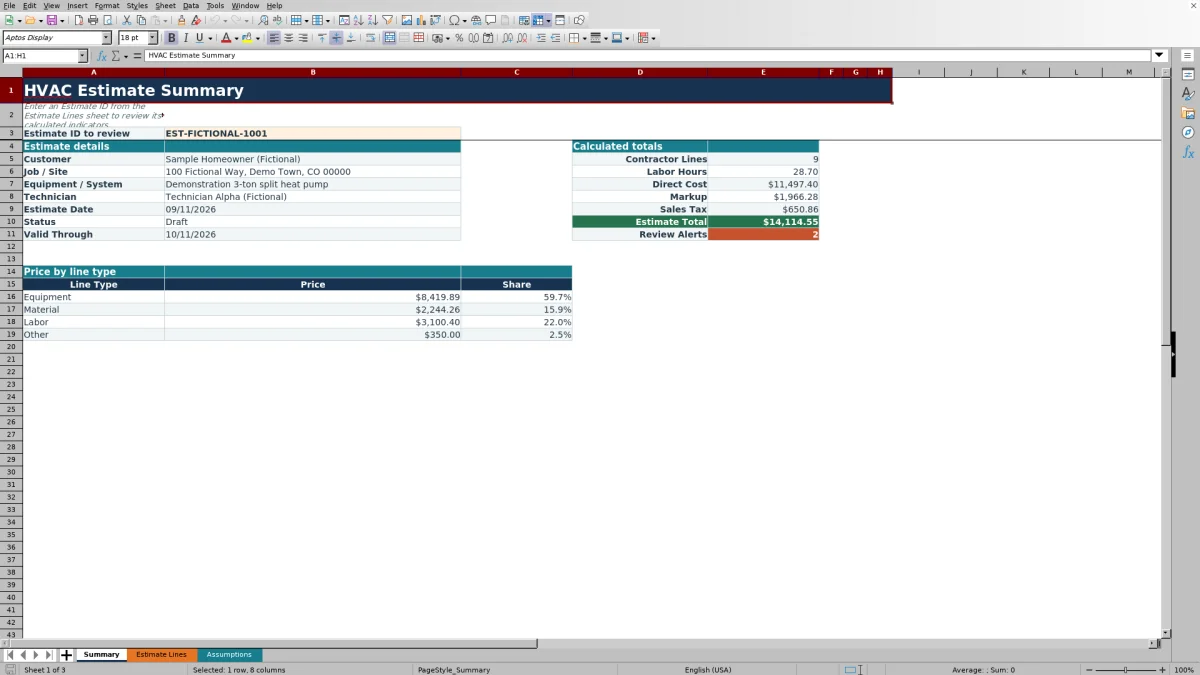
Use the Summary sheet to review one Estimate ID at a time. It shows estimate details, pricing totals, labor hours, line-type shares, and the number of rows with review alerts.
How this template can help
- Keeps item quantities, unit costs, labor allowances, and pricing decisions together under one Estimate ID.
- Separates contractor work from customer-provided or excluded items when calculating the estimate total.
- Applies default assumptions while allowing a different markup percentage on an individual line.
- Provides a focused review of direct cost, markup, tax, total price, labor hours, and price mix.
What the workbook contains
How to get started
1. Replace the sample assumptions
Begin on Assumptions and replace fictional setup values with rates reviewed for your business. Check Default labor rate, Sales tax rate, Default markup, Markup review threshold, and Estimate validity days. Update the technician names and labor rates in E4:F8. If technician names change, also update the Technician validation list applied to Estimate Lines F7:F106 so the choices remain aligned.
2. Enter one item on each estimate line
Use rows 7 through 106 on Estimate Lines. Assign a unique ID and repeat the Estimate ID, date, customer, job or site, equipment or system, and status on every row belonging to that estimate. Then enter the line type, description, quantity, unit, labor hours per unit, and unit cost.
3. Set pricing and responsibility
Enter a line-specific Markup % or leave it blank to use the default. Set Taxable to Yes only after confirming the appropriate treatment. Select Contractor when the line belongs in the calculated customer price; Customer and Excluded responsibilities produce a zero Line Price.
4. Review the estimate before use
Filter Estimate Lines when checking a larger file, then read the Review Alert column. On Summary, enter the exact Estimate ID in B3 and confirm the returned details and totals. Treat every alert and status as a prompt for review before presentation, not as an approval.
Organize the Estimate Around a Consistent ID
Create a distinct Estimate ID for each pricing package. Every equipment, material, labor, or other row associated with the job must use that same ID because the Summary sheet groups calculated amounts by exact ID.
The customer, job or site, equipment or system, estimate date, and status should also remain consistent across those rows. Summary detail fields come from the first matching line rather than reconciling different values. If one row says Draft and another says Presented, the summary does not resolve that conflict.
Use the Description field to define what each line covers, but keep proposal terms, exclusions, and customer approvals in the appropriate business records. Limit access to copies containing customer names, property addresses, technician information, or current pricing.
Understand How Each Line Is Priced
The calculated columns connect field inputs to the price carried into Summary:
- Labor Hours equals Quantity multiplied by Labor Hrs / Unit.
- Labor Rate uses the matching technician rate when labor hours are greater than zero. If the technician lookup does not match, the formula falls back to Default labor rate.
- Labor Cost equals Labor Hours multiplied by Labor Rate.
- Direct Cost equals Quantity multiplied by Unit Cost, plus Labor Cost.
- Markup $ equals Direct Cost multiplied by the entered Markup %. A blank percentage uses Default markup; an entered zero applies no markup.
- Tax $ is calculated on Direct Cost plus Markup when Taxable is Yes.
- Line Price equals Direct Cost plus Markup and Tax, but only when Responsibility is Contractor.
This workbook applies markup as a percentage of cost. That is not the same as setting a gross-margin percentage. Confirm that the method matches the contractor's pricing policy before relying on the result.
Worked HVAC Estimate Scenario
Consider estimate EST-FICTIONAL-2042, dated 10/14/2026, for a fictional Pine Street heat pump replacement. Assume a 6.5% sales tax rate, an 18% default markup, and a $112 hourly rate for Technician Bravo. All three lines are assigned to Contractor.
- Equipment: one unit at $6,000, no labor hours, 20% markup, and Taxable set to Yes. Direct cost is $6,000, markup is $1,200, tax is $468, and line price is $7,668.
- Material: 10 feet at $12 per foot, no labor hours, blank line markup, and Taxable set to Yes. The default markup produces $21.60, tax is $9.20 when displayed to cents, and line price is $150.80.
- Labor: quantity 1, 12 labor hours per unit, $0 unit cost, blank markup, and Taxable set to No. Labor and direct cost are $1,344, markup is $241.92, and line price is $1,585.92.
Summary reports three contractor lines, 12 labor hours, $7,464 in direct cost, $1,463.52 in markup, $477.20 in displayed tax, and an $9,404.72 estimate total. Equipment represents about 81.5% of the price, so the next decision is to verify the equipment quote and included scope before changing the status from Draft to Reviewed.
Use Responsibility, Taxable, and Status Deliberately
Responsibility controls whether a line contributes to customer pricing. Contractor lines receive calculated markup, tax when applicable, and Line Price. Customer and Excluded lines retain their descriptions and direct-cost calculation, but their markup, tax, and Line Price are zero. Summary contractor totals therefore omit those lines.
Use Customer for an item the customer is expected to provide and Excluded for work outside the estimate. Do not use either choice merely to hide a cost that remains in the contractor's scope.
Taxable is a line-level Yes or No decision. The workbook uses the single Sales tax rate from Assumptions and applies it to direct cost plus markup. It does not determine which labor, material, or equipment is legally taxable. Status is also a recordkeeping label only; it does not send an estimate, capture acceptance, or lock pricing.
Read the Summary Without Missing Warning Signs
Enter the exact Estimate ID in Summary B3. Customer, job or site, equipment or system, technician, estimate date, and status come from the first matching row. Calculated amounts aggregate matching contractor lines.
A blank B3 intentionally leaves summary outputs blank. If an entered ID has no match, several detail fields display Not found while SUMIFS-based totals can show zero. Do not interpret that zero as a valid no-cost estimate. Correct the ID before using the Valid Through date because it is calculated by adding the assumption for validity days to the retrieved estimate date.
The Price by line type area divides each type's Line Price by the Estimate Total. A blank share can result when the total is zero, including when all matching lines are Customer, Excluded, incomplete, or zero-priced. Review Alerts counts rows with nonblank alert text; it is a count of affected rows, not necessarily every issue present on those rows.
Common Estimate Errors and Practical Corrections
- Not found on Summary: confirm that B3 exactly matches an Estimate ID in rows 7 through 106. Check for a mistyped ID or spaces.
- Zero contractor total: inspect Responsibility first. Customer and Excluded lines intentionally return zero Line Price. Also confirm that Description and Quantity are present because prepared calculations remain blank without both inputs.
- Unexpected labor cost: verify Labor Hrs / Unit, Quantity, and technician spelling. An unmatched or blank technician can cause the default labor rate to be used.
- Unexpected tax: check Taxable on the line and Sales tax rate on Assumptions. Remember that the formula taxes direct cost plus markup.
- Incorrect summary details or status: make repeated customer, date, site, equipment, and status fields consistent. Summary reads those details from the first matching row.
- A line is omitted after expanding the sheet: the prepared formulas and Summary ranges end at row 106. Added rows require deliberate updates to formulas, validation, filters, and summary ranges.
- A calculated result disappears after editing: avoid typing into Q:X. Restore the affected formulas from a clean identified copy of the workbook.
Comparison: Workbook, Blank Sheet, or Service System
| Criterion | This Excel workbook | Blank spreadsheet | Field-service or estimating system |
|---|---|---|---|
| Starting structure | Three prepared sheets and 100 line rows | User designs fields and formulas | Structure depends on the selected system and configuration |
| Pricing calculations | Labor, direct cost, markup, tax, responsibility, and line price formulas are included | User creates and tests calculations | Available calculations vary by system |
| Estimate review | One-ID summary, line-type shares, and row alert count | Review process must be built | Review and approval options vary |
| Workflow | Editable local XLSX; sharing and version control are handled outside the workbook | Also depends on the user's file process | May provide broader workflow functions, depending on the product |
| Practical fit | Repeatable line pricing for a small team comfortable with Excel | Highly customized one-off analysis | Organizations needing a wider connected workflow after evaluating requirements |
Choose this workbook when the prepared calculations match the estimating method and staff can control file copies. Start with a blank sheet when the required model is materially different. Evaluate a dedicated system when scheduling, customer communication, approvals, purchasing, or accounting workflow must be handled beyond the estimate file.
Workbook Limits and the Next Handoff
This file is a pricing aid, not an engineering or compliance approval. It does not size HVAC equipment, perform load calculations, confirm product compatibility, inspect a site, verify code requirements, or establish legal tax treatment. Qualified personnel must review those matters separately.
The prepared entry area ends at row 106, and the Summary formulas reference that same endpoint. The workbook contains no live monitoring, automatic messages, payment processing, customer acceptance capture, or automatic transfer to another business system. Review Alert text remains inside the XLSX and requires a person to inspect it.
Before presenting an estimate, confirm scope, quantities, labor allowances, current equipment and material costs, tax treatment, markup, exclusions, and status. Save an identified copy before changing an approved or previously presented estimate because the workbook does not maintain its own version history.
Frequently asked questions
Can I apply a different markup to each estimate line?
Yes. Enter a decimal percentage in Markup % for the specific line. Leaving the field blank uses Default markup from Assumptions, while entering zero applies no markup. Markup contributes to Line Price only when Responsibility is Contractor.
How many estimate lines are prepared in the workbook?
Estimate Lines includes 100 prepared entry rows, from row 7 through row 106. The formulas, validation, filter, and Summary ranges are configured for that area. If more rows are needed, extend every affected formula and range deliberately rather than assuming new rows are included.
Why does a customer-provided or excluded item show a zero price?
The Line Price formula includes only rows marked Contractor. Rows marked Customer or Excluded keep their descriptive inputs and can still display direct cost, but markup, tax, and Line Price return zero. This prevents those items from being added to the contractor estimate total.
Does the template calculate HVAC equipment capacity?
No. Equipment / System and Description are record fields, not sizing tools. The workbook does not perform load calculations, select capacity, verify a design, or confirm code compliance. Use the appropriate qualified review and technical process for those decisions.
Can the workbook send an estimate or record customer acceptance?
No. Draft, Reviewed, Presented, Accepted, and Declined are selectable status labels only. The XLSX does not send messages, collect signatures, process payments, or prove customer approval. Maintain those records through the contractor's established process.
Editorial responsibility

Mara KeeneService operations editor

Owen CalderEstimating and controls editor