This Excel HVAC emergency service rate calculator turns job details and editable service-window assumptions into a planning price for each call.
Use the XLSX for after-hours price planning, then review its alert, direct-cost estimate, and gross-margin result before quoting or changing a status.
How this template can help
- Applies consistent callout, minimum-hour, labor-rate, parts, and emergency-premium assumptions.
- Separates entered job details from calculated price, direct cost, and margin results.
- Flags incomplete inputs, unusual labor hours, parts-entry problems, and rows marked for review.
- Summarizes non-canceled estimates by service window for office-level review.
What the workbook contains
How to get started
1. Review the Assumptions sheet
Confirm the four service windows—Normal Hours, Weeknight, Weekend, and Holiday—and replace the fictional values with your approved rate policy. Review minimum callouts, minimum labor hours, base labor rates, labor multipliers, emergency premiums, parts pricing, direct labor cost, and input limits before using any result.
2. Enter the service-call details
On Service Rates, use one estimate per row in rows 5 through 104. Complete the orange input cells from Service Date through Parts Unit Cost. Replace the fictional examples, use a unique Job ID, and avoid storing unnecessary customer, employee, access, or equipment-serial information.
3. Inspect the calculated columns
Review Minimum Callout through Estimated Gross Margin in columns N through V. Check column W, Review Alert, before using the price. Do not overwrite these formulas unless you intend to revise and test the workbook logic.
4. Check the Summary sheet
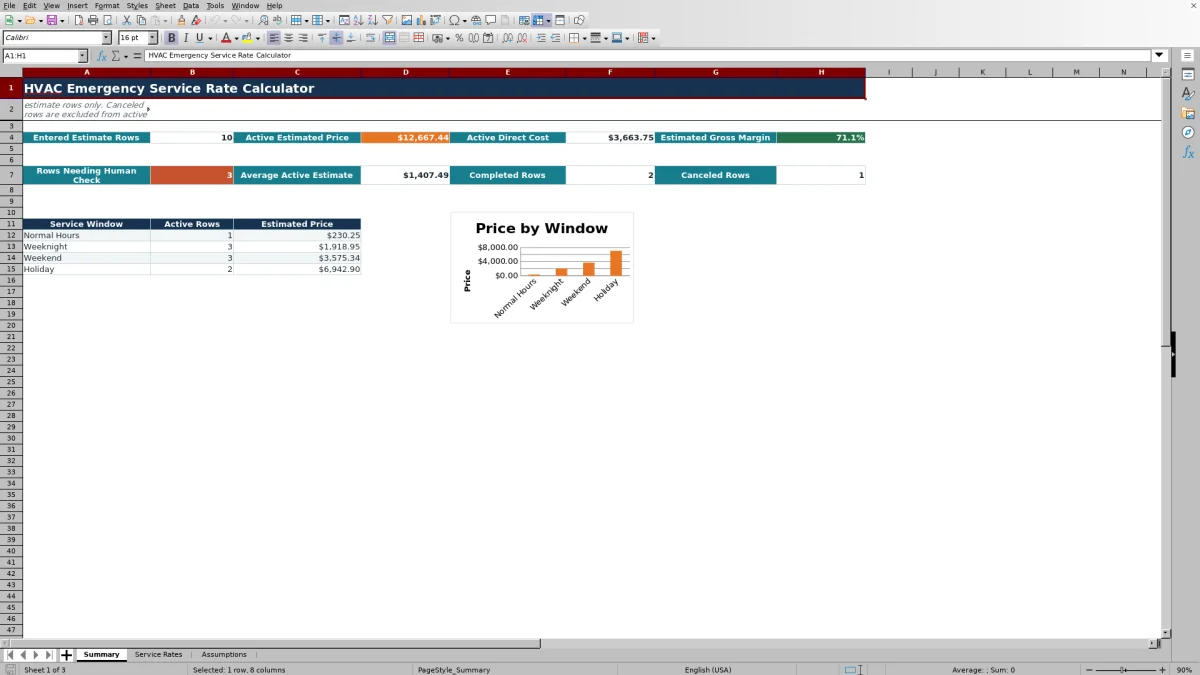
Confirm each row's status before reading totals. Summary excludes Canceled rows from active estimated price, direct cost, average estimate, and service-window totals, but it separately reports completed and canceled counts.
How the emergency service price is calculated
After you enter a Job ID and select a Service Window, the workbook looks up that window's minimum callout and rate assumptions. Billable Labor Hours is the greater of entered Labor Hours and the applicable minimum. Billed Labor Rate equals the base labor rate multiplied by the service-window labor multiplier, and Labor Charge equals billable hours multiplied by that billed rate.
Parts Price multiplies Parts Quantity by Parts Unit Cost and applies the workbook-wide percentage stored in Assumptions B13. If both quantity and unit cost are blank, the parts result is zero. If only one is supplied, the result remains blank and the row calls for review.
Emergency Premium is applied to Minimum Callout plus Labor Charge; it is not applied to Parts Price. Estimated Price then adds the callout, labor charge, parts price, and emergency premium. Review that composition against your actual pricing policy before using the estimate.
Worked fictional weeknight service scenario
Consider a fictional weeknight call on 09/03/2026 with 1.50 entered labor hours and one part costing $28.50. Use the workbook's displayed Weeknight assumptions: a $165.00 minimum callout, 2.00 minimum labor hours, $115.00 base labor rate, 1.50 labor multiplier, and 10% emergency premium. For this illustration, set Assumptions B13—the percentage added to parts cost—to 25%, and B14—the hourly labor-cost input used by Estimated Direct Cost—to $42.00.
- Billable labor is 2.00 hours because the minimum exceeds the 1.50 entered hours.
- The billed labor rate is $115.00 × 1.50, or $172.50 per hour. Labor Charge is 2.00 × $172.50, or $345.00.
- Parts Price is 1 × $28.50 × 1.25, or $35.63 when displayed to two decimals.
- Emergency Premium is 10% of the $165.00 callout plus the $345.00 labor charge, or $51.00.
- Estimated Price is $165.00 + $345.00 + $35.625 + $51.00, displayed as $596.63.
- Estimated Direct Cost is 1.50 × $42.00 × 1.50 plus $28.50, or $123.00. Estimated Gross Margin is approximately 79.4%.
The direct-cost formula uses the 1.50 entered labor hours, not the 2.00-hour billing minimum. The result shows how the selected assumptions affect the estimate. The next decision is to verify the expected labor time, part cost, pricing policy, responsibility, and scope before communicating a price.
Reading active totals and service-window results
Summary counts an entered estimate when Service Rates has a Job ID. Active Estimated Price and Active Direct Cost sum calculated amounts for rows whose Status is not Canceled. Estimated Gross Margin compares those two active totals, while Average Active Estimate divides active estimated price by the number of non-canceled rows with Job IDs.
An incomplete non-canceled row can still be included in that average's row count even when its Estimated Price is blank. That can make the displayed average lower than expected. Treat Rows Needing Human Check as a human check queue and resolve incomplete active rows before relying on the average.
If there are no entered Job IDs, several summary results remain blank. If entered rows exist but every row is canceled, active price and direct cost can show zero while margin and average remain blank because there is no active price or active-row denominator. The service-window area reports active row counts and estimated prices for the four assumption rows, and its chart plots those prices.
Emergency rate calculator errors and solutions
Column W identifies specific input errors and conditions that need attention. Use the Review Alert message to find the cause and apply the matching solution:
- Complete required inputs: supply Service Date, Customer, Equipment, Technician, Service Window, Description, Responsibility, Status, and Labor Hours for the entered Job ID.
- Check labor hours: compare Labor Hours with the review threshold referenced in Assumptions B15. Correct the entered duration or adjust the editable threshold if it does not match your process.
- Check parts entries: enter both Parts Quantity and Parts Unit Cost, add a Parts Unit when quantity is greater than zero, or clear the parts fields when no part is included.
- Blank callout or labor results: select a Service Window that exactly matches one of the four Assumptions rows. A changed or unmatched label prevents the rate lookup from returning a result.
- Needs Review status: inspect the scope, responsibility, and pricing inputs before changing the status.
The input validations also reference configured limits for dates, labor hours, parts quantities, and parts unit costs. Pasted values can still require inspection, so check the calculated results after replacing or importing data.
Workbook Comparison with other estimating methods
| Criterion | This Excel workbook | Blank spreadsheet | Field-service management system |
|---|---|---|---|
| Starting structure | Three prepared sheets with assumptions, estimate rows, calculations, and summary results. | You design the fields, formulas, checks, and summary. | Structure and setup depend on the selected system and configuration. |
| Rate logic | Uses four service-window rows for callout, minimum hours, labor rates, multipliers, and premiums. | Can support custom logic after you build and test it. | Available pricing rules vary by system. |
| Working capacity | Contains 100 prefilled estimate rows, from rows 5 through 104. | Capacity depends on how the file is designed. | Record limits and pricing depend on the provider. |
| Operational scope | Calculates planning estimates and workbook summaries; it does not dispatch, message customers, invoice, or process payments. | Provides only the functions you create. | Dispatch, communication, and billing capabilities vary by system and configuration. |
| File control | Editable XLSX; access, sharing, backups, and version handling depend on your storage process. | The same considerations apply to a separately built file. | Access and data-management options depend on the provider. |
Choose this workbook when you need a contained Excel estimating tool and its four-window pricing model fits your process. Start with a blank spreadsheet when the required logic is materially different. Evaluate a field-service system when connected dispatch, customer communication, invoicing, permissions, or a larger shared record set is essential, and verify those capabilities directly.
Using status and responsibility as planning labels
Service Rates provides editable choice lists for Technician, Responsibility, Status, and Parts Unit. Verified example choices include Draft, Needs Review, Scheduled, Completed, and Canceled for status, plus Customer, Contractor, and Warranty Review for responsibility.
These are entered planning labels. They do not determine responsibility, warranty coverage, customer approval, technician availability, or whether work was performed. Confirm those matters through your normal operating process.
Because no workbook version-history or approval workflow is present, save an identified copy before changing an accepted estimate or established rate assumptions. Use dates or revision names that do not expose sensitive customer information.
Important estimating limits
This workbook produces a planning estimate, not an invoice, accounting record, engineering calculation, safety assessment, or code review. Taxes are not included. The formulas also do not separately calculate travel, mileage, discounts, payment fees, or costs for multiple technicians.
Each estimate row has one Parts Quantity, Parts Unit, and Parts Unit Cost set. If a call requires several different parts, keep the item-level detail in an appropriate controlled record and enter a reviewed combined raw parts amount only if that treatment fits your process. Adding separate workbook rows for each part would also add estimate rows and could repeat callout or labor calculations.
Estimated Gross Margin is calculated only from Estimated Price and Estimated Direct Cost. It does not establish net profit because the direct-cost formula does not include every possible overhead or job cost. Protect customer, technician, pricing, property-access, and equipment information when storing or sharing the XLSX.
Frequently asked questions
Does the calculator include sales tax?
No. The Service Rates instructions state that calculated prices do not include taxes. Determine whether tax applies through qualified accounting or tax guidance, then handle it outside this workbook.
Why is an estimated price blank?
A row needs a Job ID and the inputs required by its formulas. Missing or unmatched Service Window values can prevent rate lookups, while an incomplete parts quantity and unit-cost pair leaves parts and downstream results blank. Read Review Alert and correct the source input rather than typing over a calculated cell.
Can I change or add service windows?
You can edit the four existing rows in Assumptions A5:F8 and keep the Service Window choices synchronized. The formulas and summary are built around those four rows. Adding a fifth window requires careful changes to lookup ranges, validations, summary ranges, and the chart; test a copy before operational use.
What does the workbook consider an active estimate?
Summary treats a row with a Job ID as entered. Active price, direct cost, average, and service-window totals exclude rows whose Status is Canceled. Draft, Scheduled, Completed, Needs Review, and other non-canceled statuses can remain in active totals.
Can this workbook serve as a customer quote or invoice?
Not by itself. It calculates an internal planning price from entered assumptions and job details, but it has no verified approval, signature, invoicing, payment, messaging, or tax-processing function. Review the result and transfer approved information through your normal quoting or billing process.
Editorial responsibility

Mara KeeneService operations editor

Owen CalderEstimating and controls editor