This HVAC furnace installation estimate Excel workbook organizes the equipment, venting, sheet metal, controls, labor, and miscellaneous items that make up the installation scope.
Enter quantities, unit costs, labor hours, responsibilities, and statuses. The XLSX calculates line prices, summarizes the estimate, and identifies items that still need review.
How this template can help
- Separates direct material, labor, and markup so the estimator can review the price basis.
- Keeps uncertain and excluded scope visible before the estimate is presented.
- Applies one labor rate and category-specific markup rates consistently across entered lines.
- Shows category shares to help identify which parts of the installation drive the priced subtotal.
What the workbook contains
How to get started
1. Save a copy for the estimate
Keep an unchanged original and create a working copy for each job. Replace the fictional customer, job, equipment, estimate date, and technician entries on the Estimate Lines sheet.
2. Review the pricing assumptions
On Assumptions, enter the Default Labor Rate in B5 and the contingency percentage in B6. Review the entry limits in B7:B9 and the category markup rates in B13:B18. Enter percentages as percentages, such as 18%, rather than the whole number 18.
3. Build the installation scope
Use one scope item per row on Estimate Lines. Select a category, describe the item, and enter its quantity, unit, unit cost, and labor hours as applicable. Then choose the responsibility and status. Calculated columns H through L supply the default labor rate, direct costs, markup, and line price.
4. Resolve open items and review the total
Filter the Status column to find Needs Review and Excluded lines. Confirm field conditions, quantities, current costs, and scope responsibility. Then use Summary to review material cost, labor cost, markup, contingency, estimate total, labor hours, and category shares.
Build the furnace installation scope by line item
Start with the physical and labor scope rather than entering one lump-sum furnace price. The available categories are Equipment, Venting, Sheet Metal, Controls, Labor, and Miscellaneous. This structure can separate the furnace from a vent connector allowance, transition fabrication, thermostat or controls work, and installation labor.
For material-bearing lines, enter a description, quantity, unit, and unit cost. Available units are Each, Job, Feet, Inches, Set, and Pounds. Use Labor Hours for the time assigned to that line. Responsibility can be Contractor, Customer, or Allowance, but that selection is informational and does not change the calculation.
Understand how the estimate calculations work
Material Cost is quantity multiplied by unit cost when the required material inputs are present. Labor Cost is labor hours multiplied by the default rate from Assumptions. The workbook combines those direct costs and applies the markup assigned to the selected category to produce the Line Price.
For example, a direct material and labor basis of $1,000 with a 20% category markup produces a $1,200 line price. Summary adds eligible line prices into the Priced Subtotal. Contingency is that subtotal multiplied by the percentage in Assumptions B6, and Estimate Total is the subtotal plus contingency.
The Summary Markup Amount is the difference between priced lines and their direct material and labor costs. It is a pricing calculation, not an accounting determination of gross profit, overhead recovery, or taxable income.
Worked furnace estimate scenario
Consider this fictional example using the workbook's $118 per hour default labor rate, 3% contingency, and listed category markups.
- Equipment: one fictional furnace at $2,825 plus 6 labor hours. Direct labor is $708, and the 18% Equipment markup produces a $4,168.94 line price.
- Venting: 18 feet at $14.50 per foot plus 2.5 labor hours. Direct material is $261 and labor is $295. The 25% Venting markup produces a $695.00 line price. Its status is Needs Review.
- Controls: one fictional control at $240 plus 1.5 labor hours. Direct labor is $177, and the 22% Controls markup produces a $508.74 line price.
The workbook returns $3,326.00 of material cost, $1,180.00 of labor cost, $866.68 of markup, and a $5,372.68 priced subtotal. A 3% contingency displays as $161.18, producing a $5,533.86 estimate total. Summary also shows 10 labor hours, three priced lines, one Needs Review line, and no excluded lines.
The venting line remains in the price because Needs Review items are calculated. The next decision is to verify the route and connector quantity, revise the inputs if needed, and change the status only after the scope question is resolved.
Use status and responsibility without changing their meaning
Included and Needs Review lines can both contribute to the estimate. Use Needs Review when a quantity, route, field condition, responsibility, or cost still requires confirmation. Do not treat the flag as an automatic exclusion.
An Excluded line does not receive calculated material, labor, markup, or line-price values. Summary counts excluded lines separately. A blank status also prevents calculations, but it is not counted as Excluded, so fill in every used row deliberately.
Responsibility is a separate tracking field. Selecting Customer or Allowance does not remove the price or alter the formula. Pair the responsibility with the intended status and make any customer-facing scope explanation outside the workbook clear.
Review the Summary before presenting a price
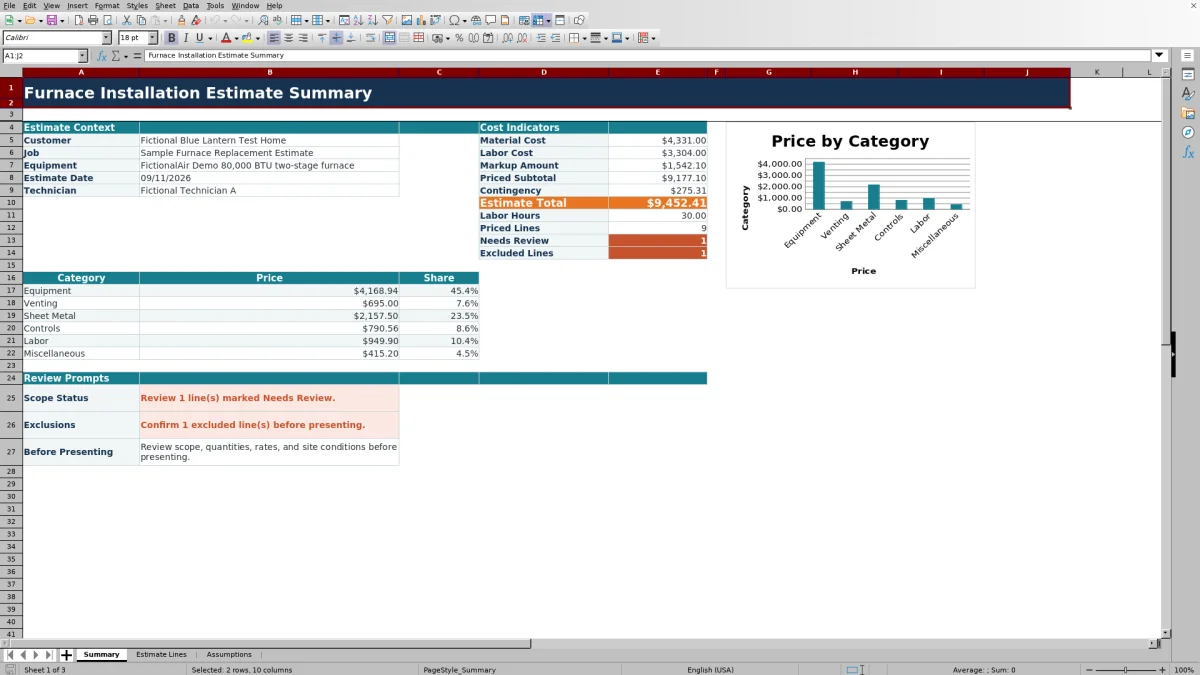
Summary brings over the customer, job, equipment, estimate date, and technician context from Estimate Lines. Review those details first so a copied workbook is not left with fictional or prior-job information.
Then compare Material Cost, Labor Cost, Markup Amount, Priced Subtotal, Contingency, and Estimate Total. The category area shows each category's line-price total and share of the priced subtotal, while the chart provides a visual view of the same category prices.
The sheet also counts priced, Needs Review, and Excluded lines and includes review prompts for scope status, exclusions, and the pre-presentation check. If no line descriptions have been entered, several Summary results remain blank rather than displaying $0.00. That blank means the estimate has not yet been populated.
Fix common entry and calculation problems
- Blank line price: Check the description and status first. A material calculation also needs quantity, unit, and unit cost. A labor calculation needs labor hours so the default rate can be applied.
- No markup shown: Select one of the six listed categories. Pasted text that does not match the category list can leave the markup blank and may result in an unmarked direct-cost line.
- Total is lower than expected: Look for Excluded lines. Those rows are intentionally omitted from the calculated costs and price.
- Excel rejects an input: Compare the quantity, labor hours, or unit cost with the maximum values on Assumptions. Change a limit only after deciding that the higher value is reasonable for the estimate.
- A formula disappeared: Avoid typing over calculated columns H through L. Restore the workbook from a clean copy or carefully restore the affected formula before relying on the total.
Excel data validation helps with direct entry, but pasted values can bypass some checks. Review imported or pasted rows before using the result.
Comparison with other estimating approaches
| Criterion | This Excel workbook | Blank spreadsheet | Field-service management system |
|---|---|---|---|
| Furnace pricing structure | Prebuilt line inputs, category markups, contingency, statuses, and summary calculations | The user must design and test the structure | Varies by the selected system and its configuration |
| Calculation visibility | Formulas and assumptions can be inspected in the XLSX | Depends entirely on formulas the user creates | Depends on the system's available screens and reporting |
| Operational reach | Standalone estimate preparation; no verified dispatch, messaging, payment, or live-system functions | No broader workflow unless the user builds it | May support broader workflows; verify required capabilities before selection |
| Practical fit | A repeatable furnace estimate with up to 100 prepared line rows | A fully custom layout when setup and formula testing are acceptable | A business seeking estimating inside a wider operational platform |
Choose this workbook when you want an inspectable Excel estimate and can maintain job files manually. Start from a blank sheet when the required calculation structure is substantially different. Evaluate a field-service system when estimating must connect to a broader workflow, but confirm its actual features and configuration first.
Recognize the workbook limits and complete the handoff
This file is a pricing aid. It does not size a furnace, verify capacity, inspect venting, approve transitions, determine combustion-air requirements, certify safety, or establish code compliance. Equipment descriptions and BTU values are text entered by the user, not engineering results.
The estimate total does not include a dedicated sales-tax, permit, discount, or payment calculation. Add applicable cost items only when they fit your approved estimating method, and obtain accounting, tax, legal, code, or technical guidance from the appropriate qualified source.
Before presenting the estimate, verify current supplier pricing, labor assumptions, field conditions, controls, accessories, responsibilities, and exclusions. Save an identified copy before changing an approved estimate because no version-history function is evidenced. Store files with appropriate access controls because they may contain customer, property, employee, equipment, vendor, and pricing information.
Frequently asked questions
Can I change the labor rate and category markup percentages?
Yes. Change the Default Labor Rate in Assumptions B5 and the category rates in B13:B18. The workbook uses one default labor rate across eligible lines, so jobs requiring different per-line rates need a carefully adapted workbook rather than overwritten calculated cells.
How should I handle customer-supplied equipment or parts?
Select Customer in the Responsibility field and choose the status that matches the estimate scope. Responsibility alone does not change the price. If the item should not be charged in this estimate, review whether Excluded is appropriate and explain the arrangement in the related customer documentation.
Can I add more categories or more than 100 estimate lines?
The prepared entry area runs from rows 10 through 109, and the formulas, validation, summary references, and category chart are built around the current ranges and six categories. Expanding either structure requires coordinated changes; simply typing below the prepared area may leave entries out of the totals.
Does the estimate total include sales tax or permit fees?
No dedicated sales-tax or permit calculation appears in this workbook. If those amounts belong in your estimate, enter and describe them using an appropriate existing line category only after confirming your company's pricing method and obtaining any needed accounting or regulatory guidance.
Does this Excel workbook select the furnace or confirm compliance?
No. The workbook prices entered scope and labor assumptions. It does not perform load calculations, select capacity, verify equipment compatibility, inspect an installation, or determine code, safety, licensing, or permit compliance.
Editorial responsibility

Mara KeeneService operations editor

Owen CalderEstimating and controls editor