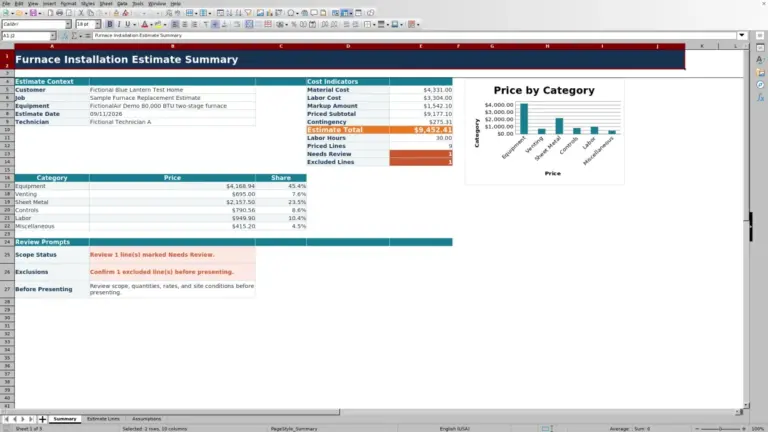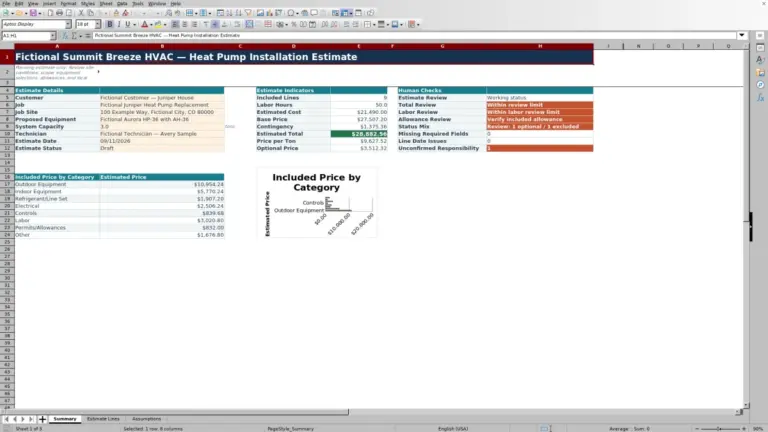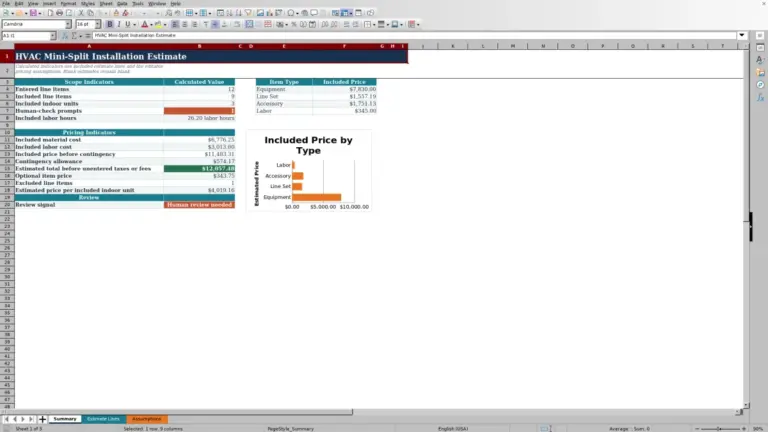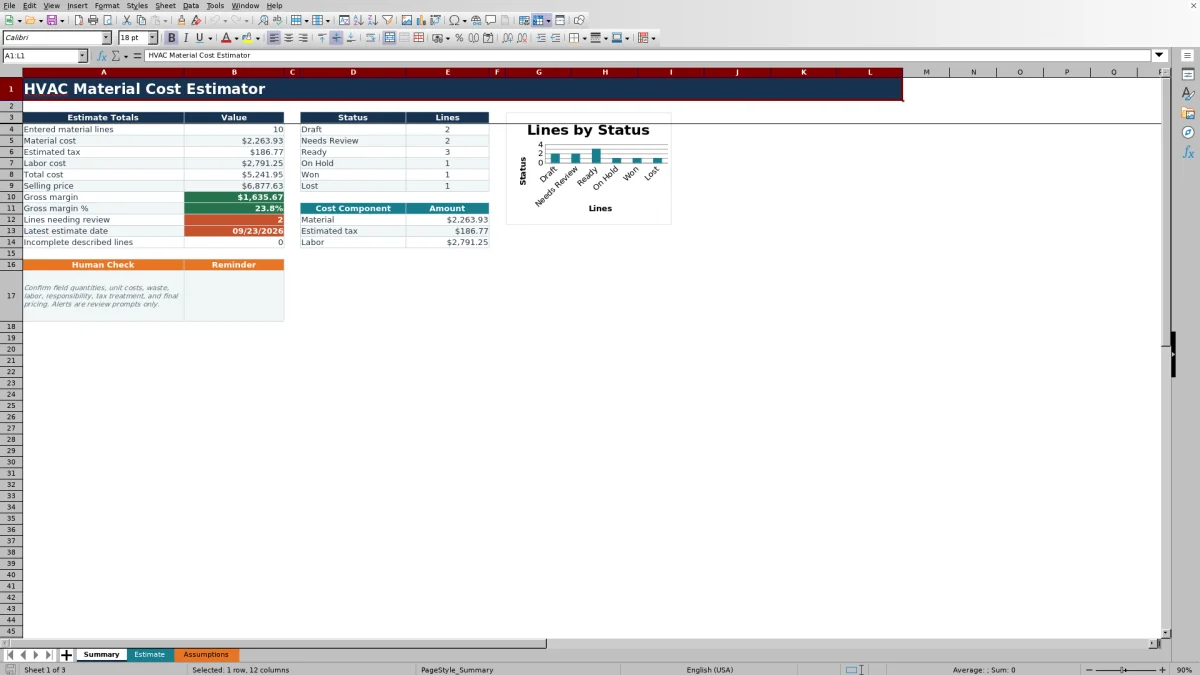
The HVAC material cost estimator is an editable Excel workbook for building line-by-line material estimates with optional labor and pricing inputs.
Use it to extend quantities for waste, calculate planned cost and selling price, then review totals and line status before using an estimate.
How this template can help
- Applies workbook defaults when line waste, labor rate, or markup overrides are blank.
- Combines material, estimated tax, optional labor, total cost, and selling price in one estimating workflow.
- Provides estimate totals, gross margin, latest estimate date, incomplete-line checks, and status counts.
- Supports filtering and review across 100 prepared estimate rows.
What the workbook contains
How to get started
1. Review the planning assumptions
Set the defaults first. On Assumptions, replace the fictional starting values with approved planning inputs for waste, sales tax, cost markup, and labor rate. Also review the estimate-date limits, input maximums, and quantity and unit-cost review thresholds. The sales tax value is a planning input; confirm the treatment for the specific job.
2. Replace the sample estimate data
On Estimate, clear only the editable fictional entries that you do not need. Enter the customer, job, estimate date, equipment, technician, material description, quantity, unit, and unit cost. Limit access when the file contains customer, employee, equipment, or pricing information.
3. Complete the cost and classification fields
Preserve the formula columns. Extended Qty, Material Cost, Estimated Tax, Labor Cost, Total Cost, and Selling Price contain formulas across rows 5 through 104. Use the orange input cells for waste, taxable status, labor hours, labor rate, markup, responsibility, and status rather than typing over calculated results.
4. Review totals and save the estimate
Blank overrides are intentional. A blank Waste %, Labor Rate, or Markup % uses the corresponding Assumptions default. After completing the lines, check Summary for cost, price, gross margin, incomplete-line results, and status counts. Review before release. Confirm field quantities, purchasing units, tax treatment, labor, responsibility, and final price, then save a clearly dated copy.
How the workbook extends each estimate line
Cost flow: Extended Qty multiplies the entered quantity by one plus the applicable waste percentage. Material Cost then multiplies that extended quantity by Unit Cost. If Taxable is Yes, Estimated Tax applies the planning sales tax rate from Assumptions; if Taxable is No, the result is zero.
Labor Cost multiplies Labor Hours by either the line-level Labor Rate or the default rate. Total Cost adds material, estimated tax, and available labor cost. Selling Price applies the line markup to Total Cost. On Summary, Gross Margin is selling price minus total cost, while Gross Margin % divides that margin by selling price.
Markup and gross margin are not interchangeable. This workbook applies markup to cost, so the resulting gross margin percentage will normally be lower than the entered markup percentage.
Worked HVAC material estimate scenario
Assume a clearly fictional job for Fictional Cedar Lane Office contains one insulation line dated 09/13/2026. Enter 40 feet, a 10% waste override, and a unit cost of $3.20 per foot. Select Yes for Taxable, enter 1.5 labor hours, and leave Labor Rate and Markup % blank to use the workbook's starting defaults of $95.00 per hour and 30%. Retain the 8.25% planning tax rate only for this example.
Result: The workbook extends 40 feet to 44.00 feet. Material Cost is $140.80, displayed Estimated Tax is $11.62, and Labor Cost is $142.50. Using the underlying unrounded values, Total Cost displays as $294.92 and Selling Price as $383.39. If this is the only entered line, Summary shows Gross Margin of $88.47 and Gross Margin % of 23.1%.
Interpretation: The 30% cost markup produces a 23.1% gross margin, not a 30% margin. The workbook also leaves the extended quantity at 44.00 feet; it does not round to a coil, box, or package size. The next decision is to confirm the actual purchasing unit, vendor price, labor allowance, and tax treatment before using the selling price.
Using defaults without hiding line-level decisions
The Assumptions worksheet supplies defaults only when the corresponding line override is blank. A blank Waste % uses Default waste allowance, a blank Labor Rate uses Default labor rate when labor hours are entered, and a blank Markup % uses Default cost markup.
Use a line override when the material or job differs from the normal planning assumption. For example, a fragile fitting shipment may need a different waste allowance, while a specialized task may use another labor rate. Leave the override blank when the shared default is deliberate, not because the input was overlooked.
Changing an assumption affects prepared formulas that rely on that default. Before revising a default for a new estimate, save an identified copy if an earlier estimate must retain its original planning basis.
Status, review thresholds, and handoff decisions
Status is an editable list field on Estimate, not an automatically assigned result. The available starting labels are Draft, Needs Review, Ready, On Hold, Won, and Lost. Summary counts the exact labels across the prepared rows and separately reports the number marked Needs Review.
The Assumptions sheet also contains quantity and unit-cost review thresholds, and the Estimate sheet includes conditional formatting for review cues. These cues do not determine whether a quantity, cost, or estimate is correct. Investigate the source document, field measurement, vendor quote, or scope before changing a value.
Responsibility records Contractor, Customer, or Other but does not change the cost formulas. Define how your office uses each status and responsibility label so the estimator and reviewer make the same handoff decision. A blank status is not included in any named status count.
Common estimate errors and practical fixes
- If Selling Price is blank, trace the line back through Total Cost, Estimated Tax, Material Cost, Extended Qty, quantity, and description. Select Yes or No in Taxable; leaving it blank prevents the total-cost chain from completing.
- If Extended Qty is higher than expected, inspect Waste %. A blank override uses the Assumptions default rather than zero.
- If labor appears omitted, check Labor Hours. Blank hours produce a blank Labor Cost, and Total Cost treats that blank labor result as zero when material and tax are otherwise complete.
- If Summary still includes another job after filtering Estimate, remember that its formulas aggregate all prepared rows, not only visible filtered rows. Clear stale editable entries or keep one active estimate per saved file.
- If Excel rejects a date, quantity, percentage, rate, or cost, compare the entry with the validation bounds on Assumptions. Change a bound only when the business rule itself should change.
- If a calculated column was overwritten, restore the corresponding formula from a clean workbook or an intact row and verify the affected totals.
Workbook and blank spreadsheet comparison
Use the prepared workbook when its verified fields and calculations fit the HVAC task. Start with a blank spreadsheet when you need a different model and can build and test every field and formula yourself.
| Method | Setup | Calculations and review | Practical fit |
|---|---|---|---|
| This Excel workbook | Use the prepared structure in the validated file | Review the documented calculations and results | Local editable workflow supported by the workbook |
| Blank spreadsheet | Create the structure yourself | Build and test every formula and check | A custom model built from scratch |
Limits, privacy, and file control
Planning tool, not approval. The workbook does not size HVAC equipment, validate system design, confirm field measurements, determine legal tax treatment, prove code compliance, approve pricing, or replace qualified technical and accounting review. It also does not compare the estimate with actual job cost.
Validation rules and conditional formatting can catch some entries outside configured limits, but they cannot verify that a description, quantity, unit, vendor price, or scope is correct. No live vendor pricing, automatic alert, message, dispatch, accounting, or payment connection is included.
The workbook has customer, technician, equipment, job, and pricing fields but no dedicated approval or revision-history log. Store files in an access-controlled location, avoid unnecessary personal or property-access details, remove sample or sensitive data before external sharing, and save dated revisions when assumptions or approved scope change.
Frequently asked questions
Can I use one workbook for several HVAC jobs?
The Estimate sheet can identify different customers and jobs by line, but Summary aggregates all populated estimate rows. Filtering to one job does not make the Summary totals job-specific. For a clean estimate total, keep one active job per saved copy or carefully clear unrelated editable rows.
Do blank waste, labor rate, and markup cells mean zero?
No. Blank Waste %, Labor Rate, and Markup % overrides use the corresponding defaults on Assumptions. Blank Labor Hours are different: Labor Cost remains blank, and Total Cost can treat that missing labor result as zero. Confirm that labor was intentionally excluded.
Does the workbook automatically mark a line Needs Review?
No. Status is an editable list selection. Summary counts lines that a user has explicitly marked Needs Review. Quantity and unit-cost thresholds provide review cues, but they do not automatically replace the line status or approve the entry.
Can this Excel estimator determine the correct sales tax?
No. It calculates an estimated amount from the planning sales tax rate when Taxable is set to Yes and returns zero when it is set to No. Confirm the applicable rate, taxable basis, exemptions, and job treatment with an appropriate local tax or accounting resource.
Can I change the unit, status, responsibility, and taxable lists?
Yes. The visible source lists are on Assumptions and feed the Estimate dropdowns. Edit the existing list cells carefully. Adding entries outside the current source ranges requires adapting the related validation ranges and verifying every affected dropdown.
What if an estimate needs more than 100 material lines?
The prepared formulas, validation, filters, and Summary ranges cover rows 5 through 104. Rows added beyond that prepared area may not be included automatically. Split the estimate into controlled files or extend the formulas, validation, formatting, and Summary references, then test the totals before use.
Editorial responsibility

Mara KeeneService operations editor

Owen CalderEstimating and controls editor