This editable Excel workbook organizes residential HVAC service options by proposal, job, customer, equipment, technician, responsibility, and status.
Use the XLSX to compare included scope, calculated cost, proposed price, and margin before deciding whether an option is ready to present.
How this template can help
- Keep multiple repair or replacement options connected through Job ID and Proposal ID.
- Separate Included work from Alternate and Excluded line items without removing those details.
- Compare calculated cost, proposed price, margin, and margin percent for each option.
- Use proposal statuses and calculated review messages to identify the next office action.
What the workbook contains
How to get started
1. Review the planning settings
Open Assumptions and confirm the margin review threshold, default proposal validity, and loaded labor cost for each technician. These are internal planning inputs, not customer prices.
2. Create the proposal option
In Proposals, enter the fields from Proposal ID through Status. Use a unique Proposal ID for every option, even when several options share one Job ID.
3. Build the proposed scope
In Line Items, enter the matching Proposal ID, description, quantity, unit, labor hours, technician, material or equipment cost, unit price, responsibility, and line status. Mark only work that belongs in the total as Included.
4. Review calculations before presentation
Return to Proposals to check Valid Through, Included Cost, Proposed Price, Margin, Margin Percent, and Review Alert. Then review Summary after Excel recalculates and update the proposal status when the next action changes.
Keep service options connected to the correct job
Use Job ID to group options for the same service call and a separate Proposal ID to identify each choice. For example, one job can have a repair option and a replacement option, each with its own scope, price, status, and validity date.
Every Line Items entry must use the exact Proposal ID from Proposals. A mismatch prevents that line from reaching the intended proposal totals. Responsibility records whether the contractor, homeowner, manufacturer, utility, or another party is associated with the proposal or line, but it does not change the calculations.
Understand the cost, price, and margin calculations
Labor Cost equals Labor Hours multiplied by the selected technician's loaded hourly cost from Assumptions. Total Cost adds Labor Cost to Material / Equipment Cost. Line Price equals Quantity multiplied by Unit Price.
Included lines flow into the proposal's Included Cost and Proposed Price. Alternate and Excluded lines remain visible but do not enter those totals. Margin is Proposed Price minus Included Cost, while Margin Percent divides that margin by Proposed Price. This is a margin calculation, not markup on cost.
Quantity does not multiply Labor Hours or Material / Equipment Cost. Enter those two amounts as totals for the line. A zero Proposed Price leaves Margin Percent blank because the workbook does not divide by zero.
Worked residential service proposal scenario
Consider a fictional repair option dated 10/01/2026. Set Fictional Technician A's loaded labor cost to $50 per hour and keep the 30-day validity setting. The first Included line has 2 labor hours, $125 of material cost, quantity 1, and a $550 unit price. The workbook calculates $100 of labor, $225 of total cost, and a $550 line price.
A second Included line has 4 labor hours, $900 of equipment cost, quantity 1, and a $1,600 unit price. It produces $200 of labor, $1,100 of total cost, and a $1,600 line price.
The proposal totals become $1,325 of Included Cost and $2,150 of Proposed Price. The result is an $825 margin, or approximately 38.4%, and a Valid Through date of 10/31/2026. If the planning threshold is 25%, the calculated margin is above that threshold. The next decision is to verify scope, responsibility, pricing, and expiration before changing the status from Draft to Presented.
Use status and summary results for the next action
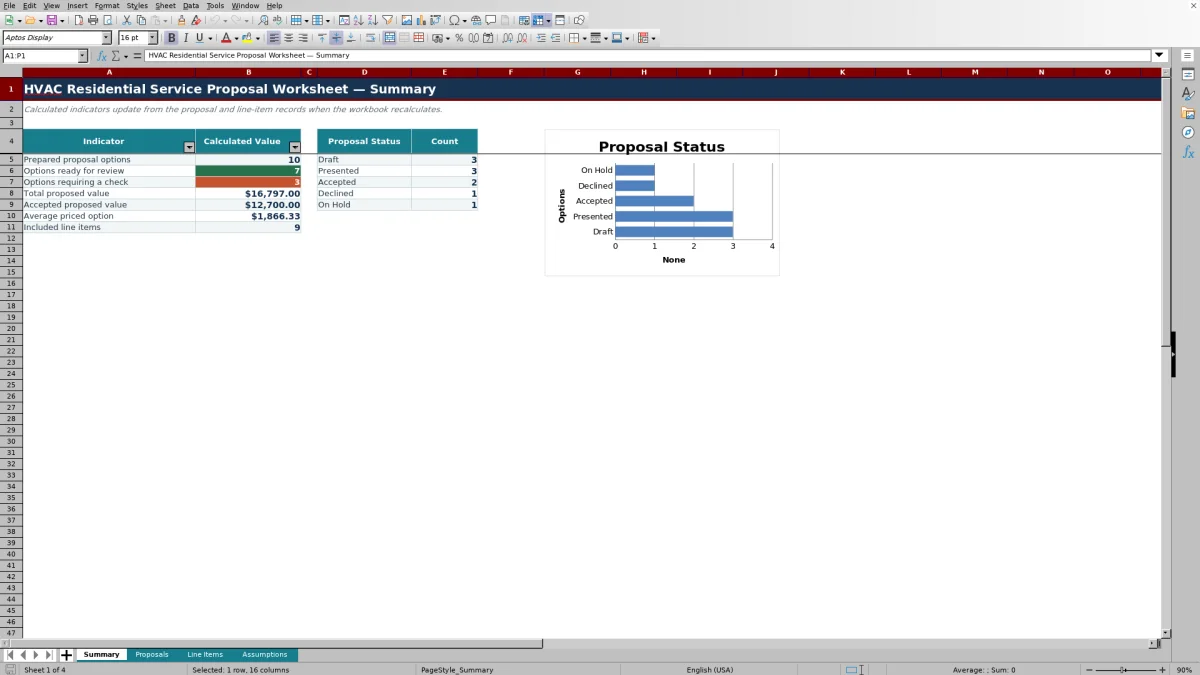
Proposal status is entered as Draft, Presented, Accepted, Declined, or On Hold. Summary counts each status and displays the distribution in a chart. It also counts options marked Ready for review and alerts beginning with Check.
Prepared proposal options counts nonblank Proposal IDs rather than unique IDs. Resolve duplicate-ID alerts before relying on summary values because duplicate proposal rows can repeat totals associated with the same ID. Accepted proposed value remains blank when there are no Accepted proposals with a positive price, and Average priced option remains blank when no positive proposed prices are available.
Fix common proposal and line-item errors
Start with the calculated Review Alert columns. Check required inputs means one or more expected fields are blank. When a line has no labor or material cost, enter 0 where appropriate rather than leaving the required input empty.
- Check duplicate proposal ID: assign a unique ID to each proposal option and update its matching lines.
- Check included lines: confirm that at least one line uses the exact Proposal ID and has Line Status set to Included.
- Check proposal ID: correct a missing line-item ID or one that does not exist in Proposals.
- Check quantities or amounts: use a quantity greater than zero and nonnegative labor, cost, and price inputs.
- Check technician rate: make the technician entry match a name with a loaded hourly cost in Assumptions.
If a proposal total is blank, first look for missing Included lines or incomplete line calculations. Recalculate the workbook after correcting inputs.
Comparison with a blank spreadsheet and service platform
| Criterion | This Excel workbook | Blank spreadsheet | Field-service management system |
|---|---|---|---|
| Starting structure | Prepared proposal, line-item, assumption, and summary sheets | User creates the fields, formulas, and controls | Depends on the selected system and configuration |
| Calculations | Calculates loaded labor cost, total cost, line price, proposal margin, and validity | Requires user-built formulas | Calculation methods and available fields vary |
| Review controls | Provides calculated proposal and line-item review messages | Requires manual checks or custom logic | Available checks depend on system setup |
| Operational reach | Local workbook with no verified messaging, dispatch, payment, or live-system connection | Local file unless separately connected | May support broader workflows when those features are included and configured |
| Practical fit | Focused review of a limited proposal register | Fully custom layout when the user can build and maintain it | Evaluate when coordinated office and field workflows are required |
Choose this workbook when you need a focused, editable proposal register and can manage the file manually. Start with a blank spreadsheet when the provided fields or formulas do not fit your process. Evaluate a field-service system separately when dispatch, customer communication, approvals, or payment workflows must be handled in a connected environment.
Know the workbook limits before presenting an option
The prepared ranges end at row 106, providing 100 proposal rows and 100 line-item rows shared across all proposals. Entries below those ranges may not inherit formulas, validation, filters, or review logic unless the workbook is deliberately extended.
Save a clean copy before replacing fictional examples, changing assumptions, or revising an approved option. The workbook does not maintain version history or preserve an approved baseline automatically.
This file records planning scope and pricing; it does not size equipment, diagnose a system, verify field conditions, establish code compliance, approve engineering, collect signatures, send proposals, or process payments. Review customer-facing terms and applicable technical requirements outside the workbook. Restrict access to customer, employee, equipment, property, vendor, and pricing information, and avoid storing details that are not needed for the proposal decision.
Frequently asked questions
Can I compare a repair option with a replacement option?
Yes. Create separate proposal rows with unique Proposal IDs and use the same Job ID to connect them. Add each option's scope under its matching Proposal ID in Line Items, then compare the resulting cost, price, margin, validity, and status.
Why are the proposal totals blank?
Included Cost and Proposed Price remain blank when the Proposal ID has no matching line marked Included. They can also remain blank when required line inputs prevent cost or price calculations. Confirm the exact ID, Line Status, technician rate, labor hours, material or equipment cost, quantity, and unit price.
Can I replace the fictional technician names and labor rates?
Yes, but update both the technician names and loaded hourly costs in Assumptions. The technician drop-down choices in Proposals and Line Items must also be revised through Excel Data Validation so entered names continue to match the labor-rate lookup.
How is the Valid Through date determined?
The workbook adds the Default proposal validity in Assumptions to the entered Proposal Date. Changing the default affects calculated validity dates when Excel recalculates. The date does not send an expiration notice or prevent someone from presenting an expired option.
Do Alternate and Excluded lines affect the proposed price?
No. They remain visible in Line Items, but only lines marked Included enter Included Cost and Proposed Price. Change a line to Included only after confirming that it belongs in the offered scope and price.
Does the workbook create or send a customer-ready proposal?
No. It organizes proposal details and calculations for review, but the verified workbook does not include message delivery, electronic signatures, payment processing, or a dedicated customer terms page. Transfer approved information to your established presentation and authorization process.
Editorial responsibility

Mara KeeneService operations editor

Owen CalderEstimating and controls editor