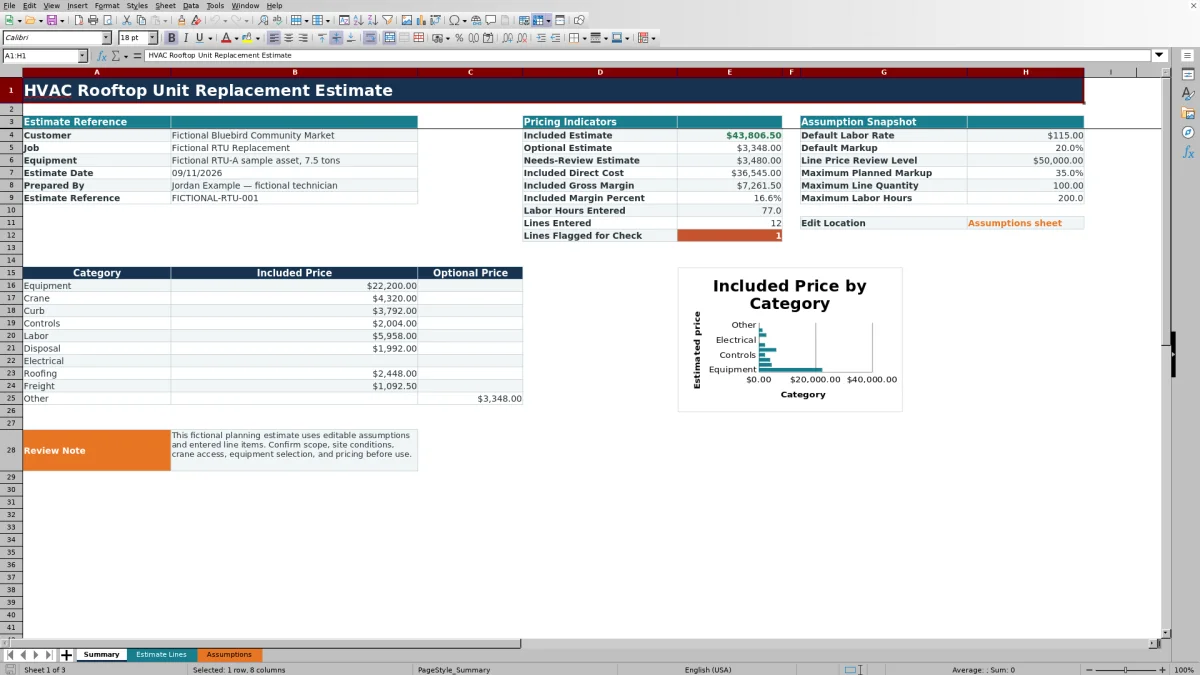
This HVAC rooftop unit replacement estimate Excel workbook organizes line pricing for equipment, crane, curb, controls, labor, disposal, and related replacement scope.
Use its included, optional, and needs-review views to prepare a planning estimate, check the margin calculation, and decide which prices or responsibilities still need confirmation.
How this template can help
- Separate the base replacement scope from optional, excluded, and unresolved work.
- Use standard labor and markup assumptions while retaining line-level overrides.
- Compare the included selling price with direct material and labor cost.
- Identify incomplete lines before using the estimate for a customer decision.
What the workbook contains
How to get started
1. Replace the fictional job information
Save a working copy, then update Customer, Site, Job, Estimate Date, Equipment, Prepared By, and Estimate Reference on Estimate Lines. Remove the fictional sample details before using the file for an actual job.
2. Review the estimating assumptions
Open Assumptions and check the orange values. The default assumptions include the standard labor rate, default markup, line-price review level, and data-entry limits. A blank line labor rate or markup uses the applicable default.
3. Enter the replacement scope by line
In Estimate Lines, choose a Category and Unit, enter the Description, Quantity, Unit Cost, and Labor Hours, and complete Responsibility and Status. Use a line-specific Labor Rate or Markup only when that item should not use the default.
4. Resolve checks and review the summary
Read the Human Check result for every entered line. Then use Summary to compare Included Estimate, Optional Estimate, Needs-Review Estimate, direct cost, gross margin, margin percent, labor hours, and category totals before deciding whether the estimate is ready for further review.
Build the rooftop replacement scope before finalizing price
Start by using separate scope from price as the operating rule. Give the rooftop unit, crane, curb adapter, controls, installation labor, disposal, electrical work, roofing work, and freight their own lines when they require different quantities, costs, responsibilities, or statuses.
For example, crane service may be Included while a curb adapter remains Needs Review pending dimensions. Controls work may be Optional if the customer has not selected an upgrade. This separation shows which amount belongs in the current included estimate and which item needs a vendor quote, site check, or customer decision.
How the line pricing and margin calculations work
Material Cost equals Quantity multiplied by Unit Cost. Labor Cost equals Labor Hours multiplied by the entered Labor Rate; when the line rate is blank, the workbook uses the Standard labor rate from Assumptions.
Estimated Price equals material cost plus labor cost, increased by the line markup or the default markup. A blank status, an Excluded status, or a line with no calculated direct cost leaves the estimated price blank rather than treating it as a priced included item.
Summary adds Included prices separately from Optional and Needs-Review prices. Included Gross Margin is the Included Estimate minus Included Direct Cost, and Included Margin Percent divides that gross margin by the included selling price. A 20% markup on cost therefore produces a margin percentage lower than 20%.
Worked fictional rooftop unit replacement scenario
Consider this fictional example for a 7.5-ton packaged rooftop unit. Assume all six lines are Included, the material quantities are 1, the blank line markups use the 20% default, and the blank labor rates use the $115 per labor hour default.
- Equipment allowance: $18,500
- Crane allowance: $3,600
- Curb adapter allowance: $2,400
- Controls: $1,800 plus 8 labor hours, producing $2,720 of direct cost
- Installation labor: 40 labor hours, producing $4,600 of direct cost
- Disposal allowance: $900
The combined direct cost is $32,720. After the 20% markup, the Included Estimate is $39,264. Summary reports $6,544 of Included Gross Margin, a 16.7% Included Margin Percent, and 48 Labor Hours Entered.
The result is a pricing checkpoint, not approval to release the estimate. Confirm the equipment quote, lift conditions, curb requirements, controls scope, labor plan, and disposal price. Then decide whether each allowance can remain Included or should move to Needs Review.
Use statuses, responsibilities, and human checks together
Status controls where a calculated price appears. Included lines feed the base estimate, Optional lines appear separately, Needs Review lines receive their own total, and Excluded lines do not produce an Estimated Price.
Responsibility records whether a line is assigned to Contractor, Customer, Allowance, or Verify. The Human Check column calls attention to conditions such as a missing status, missing responsibility, Needs Review status, Verify responsibility, or incomplete cost inputs. Summary counts entries whose Human Check text begins with “Check.”
Resolve those messages by correcting the input or documenting the unresolved scope through the appropriate status. Do not clear a review condition merely to reduce the flagged-line count.
Common estimating errors and practical corrections
An Estimated Price is blank: confirm that Description and Status are entered, the status is not Excluded, and the line has a complete quantity-and-unit-cost pair or labor hours.
Material Cost is blank: enter both Quantity and Unit Cost. Entering only one side of the calculation leaves the material amount incomplete.
Labor Cost looks higher than expected: check Labor Hours and Labor Rate. A blank line rate uses the Standard labor rate from Assumptions rather than zero.
A Summary total appears lower than the visible scope: review each Status. Optional and Needs Review prices are not part of Included Estimate, while Excluded lines have no estimated price.
Labor Hours Entered does not match included labor: this indicator totals numeric labor hours entered across the line range, not only Included lines. Review optional, excluded, and needs-review rows as well.
Excel rejects an entry: compare it with the configured maximums and permitted choices on Assumptions. Change an assumption only when the revised limit reflects the contractor’s intended estimating control.
Workbook Comparison for rooftop unit estimating
| Criterion | HVAC Sheets workbook | Blank spreadsheet | Estimating platform |
|---|---|---|---|
| Starting structure | Provides 120 line rows, RTU-related categories, formulas, statuses, and assumptions. | Requires the user to create the layout, formulas, and review rules. | Structure depends on the platform and its configuration. |
| Price calculations | Calculates material, labor, marked-up line price, included direct cost, and margin indicators. | Calculations must be designed and tested by the user. | Available calculations vary by product and setup. |
| Scope review | Separates Included, Optional, Excluded, and Needs Review lines and provides Human Check results. | Requires user-created labels and checks. | Review workflows depend on verified platform features. |
| Connected workflow | No verified integrations, messaging, proposal delivery, payment processing, or version history are included in this XLSX. | Those functions are not inherent in a blank file. | Connected functions may be available, but must be evaluated for the specific platform. |
Use this workbook when you need a contained, editable Excel estimate with a defined RTU replacement structure. A blank spreadsheet may suit a highly unusual estimate that requires a new layout. Consider a dedicated platform when connected sales, accounting, dispatch, or approval workflows are necessary and its actual capabilities have been verified.
Review limits, revisions, and the next decision
This file is a planning estimate. It does not size or select equipment, inspect the roof, verify structural capacity, confirm crane access, measure a curb, test controls, determine electrical requirements, calculate taxes, prove code compliance, or provide engineering or legal approval.
Confirm site conditions, equipment specifications, vendor and subcontractor quotes, permits, freight, disposal requirements, roofing work, electrical work, taxes, contract terms, and other job-specific obligations outside the workbook as appropriate. Protect customer, site-access, employee, equipment, vendor, and pricing information when storing or sharing the XLSX.
The workbook has no verified version-history feature. Before changing a reviewed estimate, save an identified copy with the estimate reference and date. The next decision is whether to issue the scope for internal review, obtain missing prices, move unresolved lines to Needs Review, or prepare a separate customer-facing document.
Frequently asked questions
Can I use a different labor rate or markup for one line?
Yes. Enter a Labor Rate or Markup on that Estimate Lines row. If either field is blank, the formula uses the corresponding default from Assumptions. Review the line result after entering an override because the allowed values are also subject to the configured data-entry limits.
Why is an estimate amount blank instead of zero?
The workbook intentionally returns blanks when a line is not ready to price. Common causes include a missing description or status, an Excluded status, no material or labor amount, or an incomplete quantity-and-unit-cost pair. Summary status totals can also remain blank when no lines have that status. Check the row’s Human Check result before treating a blank as a zero-dollar item.
How do Optional and Excluded lines affect the total?
Optional prices appear in Optional Estimate rather than Included Estimate. Excluded lines do not return an Estimated Price and are not added to those pricing totals. Needs Review lines are also separated so unresolved work does not silently become part of the included price.
Can I change the category choices?
The Category choices are stored on Assumptions and are editable. However, Summary totals use matching category text in its category list. If you replace a category, update the corresponding Summary label in a test copy and confirm that the total still captures the intended lines. Do not overwrite the adjacent summary formulas.
Does this workbook make the estimate a final quote or approved design?
No. It prepares a line-item planning estimate from the costs, hours, rates, markup, responsibility, and status information entered by the user. Qualified personnel still need to confirm equipment selection, field conditions, crane and roof requirements, controls, electrical scope, applicable requirements, pricing, and contract terms before the estimate is used.
Editorial responsibility

Mara KeeneService operations editor

Owen CalderEstimating and controls editor