
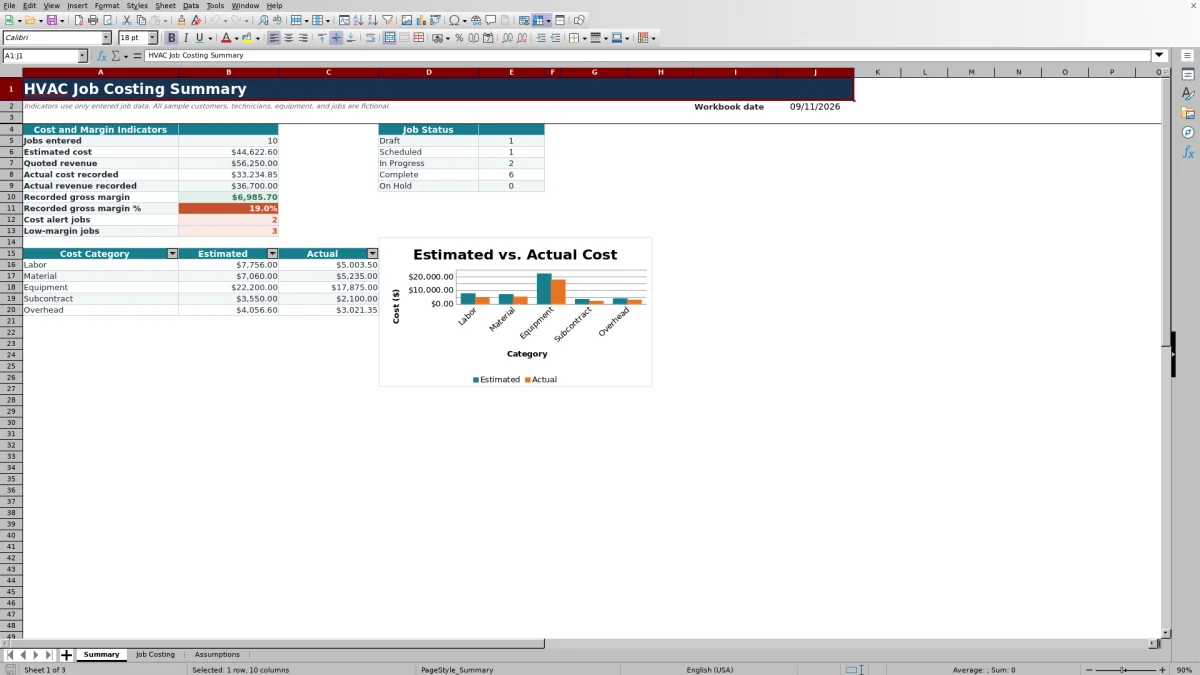
This HVAC job costing spreadsheet is an editable Excel workbook for comparing estimated and actual job economics across as many as 100 job rows.
Enter each job’s labor hours, direct costs, quoted price, actual costs, and actual revenue. Use the calculated variances and Summary indicators to decide which jobs need review.
How this template can help
- Compare the estimate with recorded actual costs and revenue for each job.
- Separate labor, material, equipment, subcontract, and overhead amounts.
- Identify cost overruns and low recorded margins using editable thresholds.
- Review job status counts and cost-category totals from one summary.
What the workbook contains
How to get started
1. Save a clean working copy
Preserve the formula columns. Save the original XLSX, then clear only the fictional entries from the orange input cells. Do not clear calculated columns such as Est. Labor Rate, Est. Total Cost, Cost Variance, or Gross Margin.
2. Configure the Assumptions sheet
Set assumptions before entering jobs. Review the overhead rate, gross margin warning threshold, cost variance alert amount, entry limits, technician names, and burdened labor costs. The status, responsibility, and unit lists also supply choices used on Job Costing.
3. Enter the estimate and job details
Use one row per job record. Add a text Job ID, customer and job context, lead technician, start date, quantity, unit, responsibility, status, estimated labor hours, estimated direct costs, and Quoted Price. The workbook looks up the technician’s labor rate and calculates estimated labor, overhead, and total cost.
4. Record actuals and review the result
Review exceptions, not just totals. Enter Actual Labor Hours, actual material, equipment, and subcontract costs, and Actual Revenue. Check the resulting cost, labor-hours, and revenue variances before using the Summary sheet for a broader review.
How the job cost calculations work
For a populated Job ID, the workbook matches Lead Technician with one of the five technician entries on Assumptions. It multiplies estimated or actual labor hours by that technician’s burdened labor cost. Material, equipment, and subcontract amounts are entered directly.
Overhead is assumption-driven. Est. Overhead and Actual Overhead apply the single percentage in Assumptions to the corresponding labor, material, equipment, and subcontract total. Est. Total Cost and Actual Total Cost then add that calculated overhead. Actual overhead is not entered independently.
Gross Margin equals Actual Revenue minus Actual Total Cost. Gross Margin % divides that margin by Actual Revenue. These results describe the amounts recorded in this workbook and provide a review point for the next job-cost decision.
Reading cost, labor, revenue, and margin variances
A positive Cost Variance means actual cost is higher than estimated. For example, a $300 result means the recorded job cost exceeded the estimate by $300. A negative result means actual cost was below the estimate.
Labor Hours Variance is actual hours minus estimated hours. Revenue Variance is Actual Revenue minus Quoted Price. Review these results together: additional labor may reflect productivity, access, or added scope, while a revenue difference may reflect billing adjustments or incomplete revenue entry.
The Summary sheet counts a job under Cost alert jobs only when its positive Cost Variance is greater than the amount in Assumptions. Low-margin jobs counts numeric Gross Margin % results below the selected threshold. A result exactly equal to either threshold is not counted as an exception.
Worked HVAC job costing scenario
Fictional example: A replacement job is estimated at 20 labor hours with a $45 burdened labor rate, $1,200 of material, $4,000 of equipment, and $300 of subcontract work. Estimated labor is $900. Direct cost is $6,400, and the workbook’s 10% overhead assumption adds $640, producing an estimated total cost of $7,040. The quoted price is $9,800.
The completed job records 23 labor hours, $1,350 of material, $4,000 of equipment, $300 of subcontract cost, and $9,800 of actual revenue. Actual labor is $1,035; calculated overhead is $668.50; and Actual Total Cost is $7,353.50.
The workbook returns a $313.50 positive Cost Variance, a 3-hour Labor Hours Variance, no Revenue Variance, a $2,446.50 Gross Margin, and a Gross Margin % of about 25.0%. With a fictional $250 cost-alert threshold and 20% margin threshold, the job enters the cost-alert count but not the low-margin count. The next decision is to review the extra labor and material before adjusting future estimates.
Common entry errors and practical fixes
Do not type over calculated cells. Enter labor hours in Est. Labor Hours or Actual Labor Hours; the workbook supplies the labor rate and cost. If a pasted value replaces a formula, restore the affected formula from a clean workbook copy.
- If the labor rate stays blank, select a Lead Technician that exactly matches a technician on Assumptions and confirm that labor hours were entered.
- If a job is missing from Jobs entered, use a nonblank text Job ID. Keep each ID unique; numeric-only IDs may not be included by the text-based Summary count.
- If a status count is wrong, choose an exact value from the Status list rather than pasting a different spelling.
- If Excel rejects a value, check the maximum labor-hour, quantity, cost, or price assumption. Dates are validated from January 1 of the year ten years before the current year through December 31 five years after it.
- If Gross Margin % is blank while Actual Revenue is zero, the workbook is avoiding division by zero. That blank does not mean the margin percentage is 0%.
A legitimate zero in a direct-cost field means no amount was recorded for that category. By contrast, a blank calculated total can indicate that required job or actual data is still missing.
Using status, filters, and the Summary sheet
Job Costing includes Draft, Scheduled, In Progress, Complete, and On Hold statuses. Use the sheet’s filter to isolate one status, technician, start-date range, or responsibility choice when preparing a focused review.
Summary counts all five statuses and aggregates numeric estimate and actual amounts. Its cost-category section and chart make it easier to see whether labor, material, equipment, subcontract, or calculated overhead accounts for the largest difference at the workbook level.
The recorded gross margin percentage on Summary is total recorded gross margin divided by total actual revenue. It is not an average of each job’s percentage. Before acting on that result, confirm that the relevant jobs have both Actual Total Cost and Actual Revenue recorded.
Workbook Comparison with common alternatives
This workbook suits a defined, file-based review. The right alternative depends on job volume, customization needs, and whether the team requires connected field workflows.
| Criterion | HVAC Sheets workbook | Blank spreadsheet | Field-service management system |
|---|---|---|---|
| Starting structure | Preset HVAC job fields, calculations, assumptions, indicators, and summary | User builds and tests every field and formula | Varies by product and configuration; verify the available job-cost fields |
| Cost model | Five direct-cost categories with one percentage-based overhead method | Fully user-defined | Varies; confirm labor, overhead, revenue, and margin treatment |
| Operational scope | Standalone XLSX for up to 100 prepared job rows | Depends on what the user creates | May support broader workflows; evaluate mobile, dispatch, billing, and integration requirements separately |
| Best-fit condition | A small team needs an inspectable Excel job-cost review without a connected system | The business needs a highly custom model and can maintain its formulas | The business needs connected or multiuser workflows and has verified the selected system’s capabilities |
Choose this workbook when its fields and formulas match the operating process. Choose a blank file for a materially different calculation model. Evaluate a dedicated system when job costing must connect with field, scheduling, billing, or accounting activity.
Limits, record control, and the next handoff
Recorded gross margin is not net profit. The workbook subtracts its calculated Actual Total Cost from entered Actual Revenue. It does not determine taxes, financing costs, depreciation, cash flow, or other accounting treatments.
The XLSX does not size HVAC equipment, verify field conditions, determine code requirements, submit records, send notifications, process payments, or import time and purchasing data. Its overhead rate, technician rates, and warning thresholds are operating assumptions that require local review.
Rows 5 through 104 are the prepared calculation and validation range. New rows below that range are not automatically included in formulas or Summary totals. The workbook also has no dedicated change-order or baseline-history area, so save dated or otherwise identified copies before revising an approved estimate.
Limit access because job records can contain customer, employee, equipment, pricing, and property information. Share only the fields needed for the next estimator, project coordinator, service manager, or accounting handoff.
Frequently asked questions
Can each job use a different overhead rate?
Not without changing the workbook. Assumptions uses one overhead percentage for every estimated and actual job calculation. If jobs need different allocation methods, revise the model carefully and test both job-level and Summary results before relying on it.
Can I add more technician labor rates?
The existing Lead Technician validation and labor-rate lookup use the five slots in Assumptions rows 4 through 8. You can replace those fictional entries. Adding technicians outside that range requires deliberate updates to the validation and lookup ranges.
Why are some Summary amounts blank?
Summary leaves several totals blank when their source columns contain no numeric values. Confirm that jobs have text Job IDs and that the applicable estimate, actual cost, or revenue fields contain numbers. A blank is different from a recorded zero.
Can the workbook track more than 100 jobs?
The prepared Job Costing area covers rows 5 through 104. Rows added below it are not automatically included in the formulas, validation, or Summary ranges. Expand and test every related range, or start a separately identified workbook for another job group.
Does the gross margin result replace accounting review?
No. Gross Margin and Gross Margin % use only the actual cost and revenue amounts recorded in this XLSX. They support operational review but do not establish net income, tax treatment, payroll treatment, or financial-statement results.
Should I enter real customer and employee information?
Enter only the operational details needed for job-cost review. Protect the file according to your business practices, restrict access, and avoid storing credentials, payment data, access codes, or unnecessary personal information in job descriptions or other fields.
Editorial responsibility

Mara KeeneService operations editor

Owen CalderEstimating and controls editor