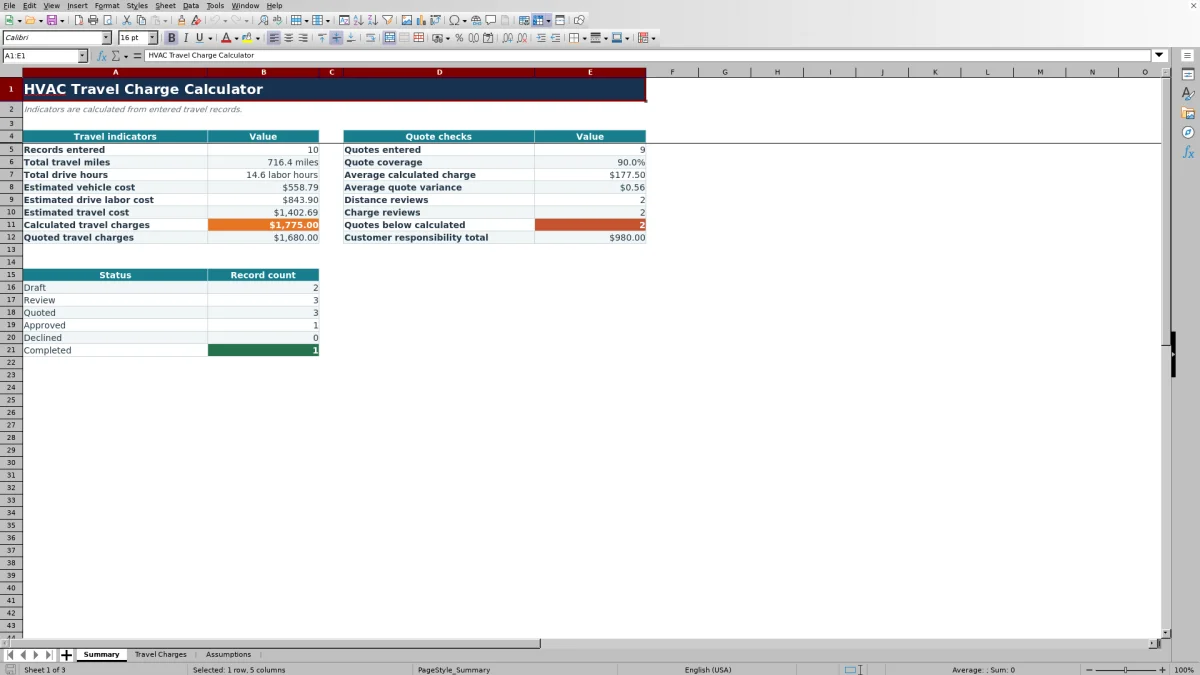
This HVAC Sheets HVAC travel charge calculator is an editable Excel workbook for preparing and reviewing trip charges for service calls and jobs.
Enter the trip details and a proposed quote, then use the calculated cost, rounded charge, variance, and summary indicators to decide what needs human review.
How this template can help
- Builds a consistent trip charge from round-trip mileage and drive time.
- Separates estimated vehicle cost from drive-time labor before markup.
- Shows whether a quoted charge is above or below the calculated amount.
- Summarizes travel activity, quote coverage, review counts, and statuses.
What the workbook contains
How to get started
1. Save a working copy
The workbook contains fictional example records. Replace the peach input fields in columns A:J and R on Travel Charges, but leave calculated columns K:Q and S intact.
2. Review the estimating assumptions
Open Assumptions and review cells B3:B9. Set the vehicle cost per mile, drive-time labor rate, markup, minimum charge, review thresholds, and positive rounding increment according to your estimating policy.
3. Enter each trip
On Travel Charges, enter the date, customer or job reference, technician, one-way miles, number of round trips, drive hours per trip, responsibility, status, and quoted charge. The time field is multiplied by Round Trips but is not doubled like One-Way Miles.
4. Review the result before quoting
Compare Calculated Charge with Quote Variance, investigate orange review prompts, and assign the appropriate status. Use Summary to check totals and incomplete quoting activity; the workbook does not approve or deliver a quote.
How the travel charge calculation works
The workbook treats One-Way Miles as one leg of the drive. Total Travel Miles equals One-Way Miles × 2 × Round Trips. Total Drive Hours equals Round Trips × Drive Hours per Trip, so the time entry should represent the drive time for each complete trip as you intend to price it. The workbook does not double that time field.
- Vehicle Cost equals Total Travel Miles multiplied by the vehicle cost per mile.
- Drive Labor Cost equals Total Drive Hours multiplied by the drive-time labor rate.
- Travel Cost is the sum of vehicle and drive labor costs.
- Calculated Charge is the greater of the minimum charge or Travel Cost increased by the markup. That amount is then rounded upward to the selected increment.
Because rounding always moves upward, a $307.20 result with a $5 increment becomes $310. Review the increment if the rounded amount does not fit your quoting policy.
Worked HVAC travel charge scenario
For a fictional service visit dated 10/15/2026, enter 30 one-way miles, 2 round trips, and 1.4 drive hours per trip. Use fictional assumptions of $0.78 per mile, $58 per labor hour, 20% markup, a $65 minimum, and a $5 rounding increment.
The workbook calculates 120 travel miles and 2.8 drive hours. Vehicle cost is $93.60, drive labor cost is $162.40, and total travel cost is $256.00. Adding 20% produces $307.20, which rounds upward to a $310 calculated charge.
If the proposed quote is $300, Quote Variance is -$10. The one-way distance does not exceed a fictional 50-mile review threshold, but the calculated charge exceeds a $250 charge-review threshold. Confirm the mileage, time, and assumptions before deciding whether to revise the quote or document why a different amount is appropriate.
Interpret variance, responsibility, and review prompts
Quote Variance equals Quoted Charge minus Calculated Charge. A positive result means the quote is above the calculated amount, zero means the amounts match, and a negative Quote Variance means the quote is below the calculation. A negative result is a review cue, not an automatic rejection.
Distance Reviews counts one-way mileage above the threshold in Assumptions, while Charge Reviews counts calculated charges above its threshold. An amount equal to a threshold is not counted because the formulas test for values greater than the threshold.
The Summary worksheet's Customer responsibility total adds Calculated Charge only when Responsibility is exactly Customer. Contractor and Shared records are excluded from that total. The workbook does not divide Shared responsibility by a percentage, so determine any allocation separately before communicating the charge.
Use Summary as a travel-quote review queue
Summary rolls up total travel miles, drive hours, estimated vehicle cost, drive labor cost, total travel cost, calculated charges, and quoted charges. It also reports average calculated charge, average quote variance, review counts, and counts for Draft, Review, Quoted, Approved, Declined, and Completed statuses.
Records Entered counts rows with a numeric Date. Quotes Entered counts numeric values in Quoted Charge, while Quote Coverage divides numeric quotes by numeric calculated charges. A quote entered on an otherwise incomplete row can therefore distort coverage or make it exceed 100%.
Quote Coverage and average fields can remain blank when there are no qualifying numeric results. Cost totals may display zero when no qualifying values exist. Check Travel Charges before interpreting either result as completed activity.
Common entry and calculation errors
- Blank is not zero: A blank Calculated Charge usually means the row lacks a date, mileage, trips, drive hours, or a required assumption. Check those inputs before treating the trip as having no cost.
- If mileage appears doubled, confirm that One-Way Miles contains one leg rather than an already combined round-trip distance.
- If drive hours appear low, remember that Drive Hours per Trip is multiplied by Round Trips but not by two.
- If the final charge is blank after other costs calculate, enter a positive Charge Rounding Increment. A zero increment cannot produce the intended ceiling calculation.
- If Quote Variance is blank, enter a numeric Quoted Charge and confirm that Calculated Charge is present.
- If a new technician, responsibility, or status does not appear in a list, review the fixed choice ranges on Assumptions and expand the related validation source if needed.
- If Summary counts do not match expectations, verify dates and remember that the prepared formulas and summary ranges stop at row 105.
Comparison: Excel workbook, blank sheet, or service system
The appropriate option depends on whether the immediate need is a stand-alone calculation or a connected operating workflow.
| Criterion | HVAC Sheets workbook | Blank spreadsheet | Field-service system |
|---|---|---|---|
| Trip-charge setup | Prepared mileage, time, cost, markup, minimum, rounding, and variance formulas | Logic must be designed and tested by the user | Varies by system and configuration |
| Record review | 100 prepared rows plus summary indicators and status counts | Depends on the structure the user builds | Varies by system and reporting setup |
| Routing and live mileage | Not included; values are entered manually | Not present unless separately built or connected | May be available; verify the selected system |
| Quote delivery and accounting | Does not send quotes or post accounting entries | Requires a separate process | Varies by vendor, module, and configuration |
| Adaptation | Editable XLSX assumptions and formulas | Full design flexibility with more setup work | Depends on available configuration options |
Use this workbook when you need an inspectable Excel calculation and a limited travel-charge log. Start with a blank spreadsheet when the required logic is substantially different and you can build and test it. Consider a field-service system when connected scheduling, customer records, routing, or quote delivery is essential, after verifying its actual capabilities.
Workbook limits and record handling
This workbook estimates travel charges from manually entered mileage, time, and editable rates. It does not look up routes, verify actual drive time, track vehicles, dispatch technicians, send alerts, issue quotes, create invoices, process payments, or post accounting records.
The prepared record area runs from rows 6 through 105. Adding data below row 105 does not automatically extend formulas, validation, conditional formatting, or Summary ranges. Any expansion should update and test each affected range before use.
Vehicle cost, labor rate, markup, and responsibility are estimating choices, not accounting, tax, legal, employment, or customer-contract conclusions. Review unusual trips and customer billing decisions under your normal company process.
Customer names, technician names, job references, pricing, and travel patterns can be sensitive. Limit file access, use only the detail needed for the estimate, and manage dated copies and retention outside the workbook.
Frequently asked questions
How does the workbook calculate round-trip mileage?
It multiplies One-Way Miles by two and then by Round Trips. For example, 18 one-way miles and two round trips produce 72 Total Travel Miles.
Will changing an assumption update older travel records?
Yes. The formulas in each prepared row reference the current values on Assumptions, so changing the mileage rate, labor rate, markup, minimum, or rounding increment can change earlier calculated charges. Save an identified copy before changing assumptions if preserving the basis of an earlier quote matters.
Does Shared responsibility split the calculated charge?
No. Shared is a classification choice, but the workbook does not assign a percentage or calculate each party's share. Summary includes only rows marked Customer in Customer responsibility total.
Does an orange cell mean a travel quote is approved?
No. The workbook states that orange cells prompt human review. They do not approve a quote, confirm customer responsibility, or document authorization.
Can I enter more than 100 travel records?
The prepared area contains 100 rows, from row 6 through row 105. You can adapt the XLSX, but you must extend the formulas, validation, formatting, and Summary ranges and then test the results. Simply entering a record below row 105 will not include it in the current summary.
Does the calculator import GPS mileage or send the quote?
No. Mileage, drive time, and quoted charges are entered manually. The workbook does not connect to GPS, mapping, dispatch, messaging, estimating, payment, or accounting systems.
Editorial responsibility

Mara KeeneService operations editor

Owen CalderEstimating and controls editor